

The Android version of Google Photos has added the option to turn your photos into stickers. This feature was introduced in the iOS app last year and allows you to create and share personalized stickers featuring actual people, pets, and objects. Let’s learn how to create stickers from your photos using the Google Photos app.
Social media apps like WhatsApp already offer the option to create stickers. While the stickers in messaging and social media apps typically feature cartoon designs, the new Google Photos option allows you to cut out the actual subjects from your photos, allowing you to create personalized stickers featuring real people, beloved pets, or interesting objects.
If you do not know how to turn a candid photo of your friend, your dog, or even a funny moment into a sticker using Google Photos app, this guide will help you.
How to Create Custom Stickers from Your Photos
1. First, open a photo in the Google Photos app. Google recommends using images with a clearly defined subject in the foreground.
2. Next, long-press the photo. The subject will be highlighted with a shimmering effect, indicating the area that will be cut out. A ‘Copy sticker’ button will appear.
3. Tap this button to create the sticker, which will be displayed in the bottom-left corner of the app.
4. Finally, press the Share button to use the sticker in another app, such as WhatsApp, or save it back to Google Photos.
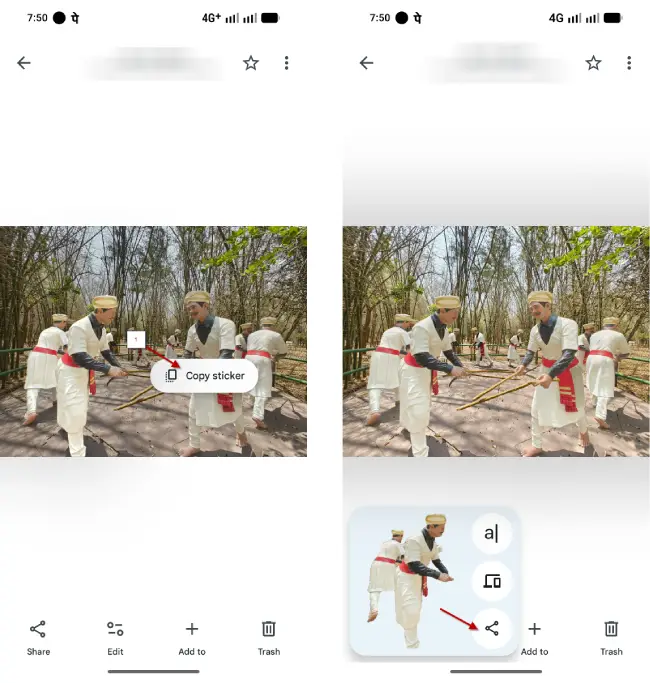
5. You can also, share the sticker to another device using the Nearby share feature.
Tips for Best Results
To create the most effective stickers, keep these tips in mind:
- Choose photos with clear subjects that stand out from the background
- Use well-lit images where your subject is easily distinguishable
- Avoid cluttered backgrounds that might confuse the detection algorithm
- Try different angles and crops if the first attempt doesn’t highlight what you want
Conclusion
Google Photos‘ sticker feature represents a meaningful step toward more personalized digital communication. By transforming your favorite photos into shareable stickers, you’re adding a personal touch to every conversation. Whether you want to share moments with friends, celebrate your pets, or simply make your chats more fun, this feature gives you the creative control to do it. Start exploring your photo library today and discover which images make the best stickers!

