

Google Photos is a photo viewing app that comes with Android devices. It allows you to see, organize, and store your pictures either on your device or in the cloud. However, because it acts as a gallery app, it also shows images from other apps, like screenshots, which can make your gallery look messy.
Google Photos has introduced new features to help you clean up your photo library. It allows you to hide or stop screenshots, GIFs, memes, and other unwanted images from other apps appearing in your gallery. It means now you can declutter your photo library with easy.
Now, it allows you to hide content from other apps in your gallery, show only the photos that are backed up, remove clutter from other apps, and even adjust photo settings for specific apps. Here is how to do it.
Table of Contents
How to Hide Content From Other Apps on Google Photos Library
1. Open the Google Photos app on your Android phone.
2. Tap your profile picture in the top right corner.
3. Select “Photo Settings” and then tap “Preferences.”
4. In Preferences, choose the “Photo View” option.
5. You will see different options for managing your photo views:
- Stack similar photos
- Show content from other apps
- Only show backed-up content,
- Hide clutter from other apps
- Customize by apps.
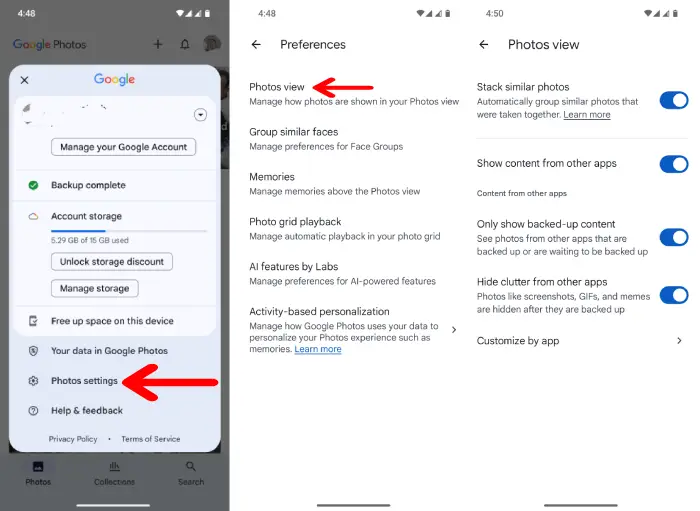
6. To automatically group similar photos, turn on the “Stack Similar Photos” option.
7. If you don’t want to see content from other apps, turn off the toggle for “Show Content from Other Apps.”
8. You can also choose to “Only Show Backed-Up Content” if you prefer.
9. To hide photos like screenshots, GIFs, and memes, enable the “Hide Clutter from Other Apps” option.
10. If you want to adjust settings for specific apps, tap “Customize by App” and make your changes.
Conclusion:
The new feature of Google Photos help you clean up your photo library. It allows you to manage how your photos appear in different apps, giving you complete control over what you want to see and what you want to keep hidden.

