

Google Photos Memories are automatically generated albums or collections that highlight special moments from your past photos and videos. It helps you easily revisit special events and moments in your life.
These photo memories can come from photos taken on specific days, from previous years, or based on people, places, and things. To make it more enjoyable, Google Photos now lets you turn Memories into video files, which makes it easy to share with anyone.
Google Photos app now allows you to share Memories as videos or through links with your friends and family. The main benefit of this option is that anyone can view them without using the Google Photos app.
This feature is currently available in the Google Photos app for Android, but not on computers. Here’s how to use this feature.
ALSO READ: How to Create Custom Stickers from Your Photos Using Google Photos App
How to Share Google Photos Memories as Video?
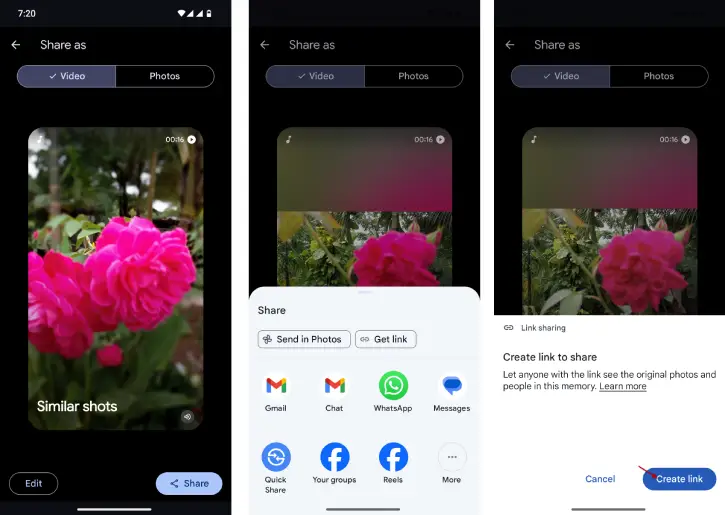
1. Update Google Photos app to latest version and open it in your Android phone.
2. At the top of the app, find and tap on the Memory you want to share.
3. If you want, you can edit the photos in the Memory before sharing them as a video.
4. After editing, tap the Share button. On the sharing options screen, choose “Video.”
5. Next, select the app you want to share (You can share the video directly through various apps).
6. Now, if you want to create a link for the video, tap on “Get Link.”
7. In the Link Sharing prompt, select “Create Link.” This will copy the link to your clipboard, allowing you to share it easily.
Conclusion
The latest update makes it easy to share Google Photos Memories with more people by converting slideshows into videos. Additionally, you no longer need the Photos app to view the shared video, as was required before for the slideshows.

