
If your Windows PC has become a maze of folders, files, apps and nested shortcuts, Flow Launcher can save you time. This free quick-search utility replaces clunky Windows 11 Start-menu navigation with a fast, keyboard-driven interface that finds apps, files, system settings, bookmarks and web results in seconds.
Table of Contents
What is Flow Launcher?
Flow Launcher is a lightweight Start Menu alternative for Windows. It is a fast, keyboard-driven search utility for Windows 10+ devices. Press a hotkey and a simple search box appears — type what you want and launch apps, open files, run system commands, search the web, or use dozens of community plugins.
Why Use This Tool on your Windows 11 PC?
- Faster access to apps and files
- Fewer clicks, less mouse hunting
- Spotlight-like search for Windows
- Extensible with plugins (browser bookmarks, calculators, timers, dictionaries, password managers, etc.)
Download and Install Flow Launcher (Windows 10+)
1. Open the Flow Launcher GitHub page and scroll to the Getting Started section.
2. Click “Windows 10+ Installer” to download Flow-Launcher-Setup.exe.
3. Double-click the downloaded file to run the installer. If Windows SmartScreen warns you, click “More info” then “Run anyway.”
4. Optional setup: You can skip or complete the installer wizard. Go through it if you want to change the default hotkey (Alt+Space) and learn other shortcuts.
5. On the final page, check Start Flow Launcher on system startup if you want it available automatically, then click Done.
Basic Usage of Flow Launcher
- Open Flow Launcher with Alt+Space (default) shortcut.
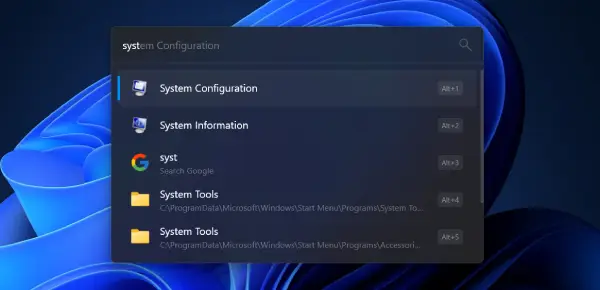
- Start typing the program, file, setting or website name — Flow Launcher performs fuzzy matching, so partial or slightly mistyped terms usually work.
- Press Enter to launch the top result.
- Use Alt+1, Alt+2, Alt+3 (shown beside results) to trigger alternate quick actions (for example, search in Google, DuckDuckGo or Bing).
Useful Search Tricks Using Flow Launcher
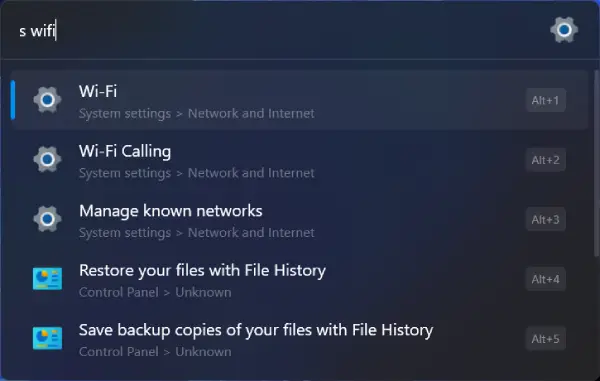
Search system settings: Prepend s before a term (e.g., s wifi, s bluetooth, s keyboard) to show matching Control Panel or Settings items.
Open web pages: Type a URL and press Enter to open it in your default browser.
Search specific sites: Type the site name then your query (e.g., youtube funny cats) to search YouTube. You can also prefix a search with a search engine name like duckduckgo or bing to change where the query goes.
Open bookmarks: Type b followed by a keyword from a bookmarked page’s title.
How to Use Built-in Calculator in Flow Launcher
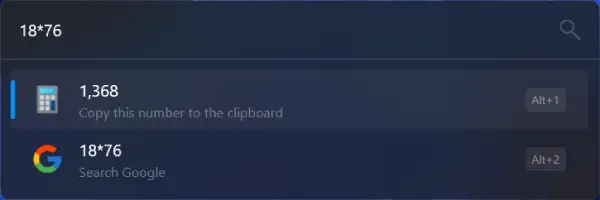
Use +, -, , / for basic math. Use ^ for powers (Shift+6). Example: 16^7. Use parentheses for order of operations: (6-3)3 → 9.
Press Enter to copy the numeric result to the clipboard.
Quick Access System Commands and Settings
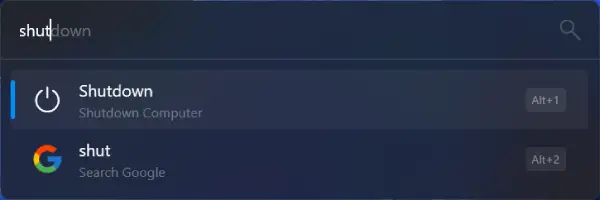
- Type common actions directly, like restart or shutdown, to trigger system commands.
- Type settings to open Flow Launcher’s configuration where you can:
- Change appearance
- Enable automatic updates
- Modify hotkeys
- Set default file manager and browser
Plugins and Plugin Store for Flow Launcher
- Click Plugins in Flow Launcher’s sidebar to enable/disable built-in features using the sliders.
- Click Plugin Store to add community-created tools: Bitwarden, Free Dictionary, timer, weather, bookmark searchers and many more.
- Use the search box in the Plugin Store to quickly find desired extensions.
ALSO READ: How to Enable Redesigned Start Menu on Windows 11 24H2
Quick Troubleshooting
If Alt+Space doesn’t open Flow Launcher, check the hotkey in Flow Launcher settings.
If a plugin misbehaves, disable it from Plugins and reinstall from the Plugin Store.
For permission or SmartScreen issues, confirm you downloaded the official installer from the Flow Launcher GitHub page.
Conclusion
Flow Launcher streamlines app and file access on Windows with a single hotkey, fuzzy search, quick system commands and a rich plugin ecosystem. It’s simple to install, beginner-friendly, and saves time once you adopt the keyboard-first workflow.


