
Google can access users’ emails to improve its AI models. They use this data to provide features like quick replies, summaries, and personalized suggestions for emails. This means your email content helps make the system smarter and more helpful.
The surprising part is that this feature is turned on by default in many regios, meaning users didn’t have to give special permission for it to start. This raises concerns about privacy, as many people may not even realize Google is accessing their email content to enhance its services.
In regions such as the European Economic Area, Japan, Switzerland, and the UK, Google does not access users’ Gmail for AI training by default. If you are in another region, follow this guide for easy instructions to disable this feature and ensure your Gmail data remains private.
Table of Contents
How to Prevent Google from Accessing Your Emails for AI Training
Disabling Smart Features in Gmail, Chat, and Meet
1. Open Gmail on your PC and click the Settings icon in the top right corner.
2. Select See All Settings and navigate to the General tab.
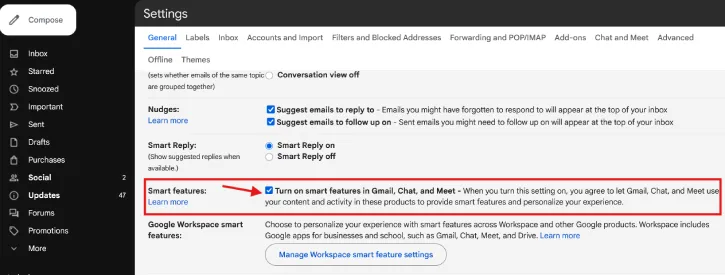
3. Scroll down to Smart features and uncheck the option for Turn on smart features in Gmail, Chat, and Meet.
Disabling Smart Features for Google Workspace and Other Products
1. Access Gmail on your PC and click the Settings icon in the top right corner.
2. Select See All Settings and go to the General tab.
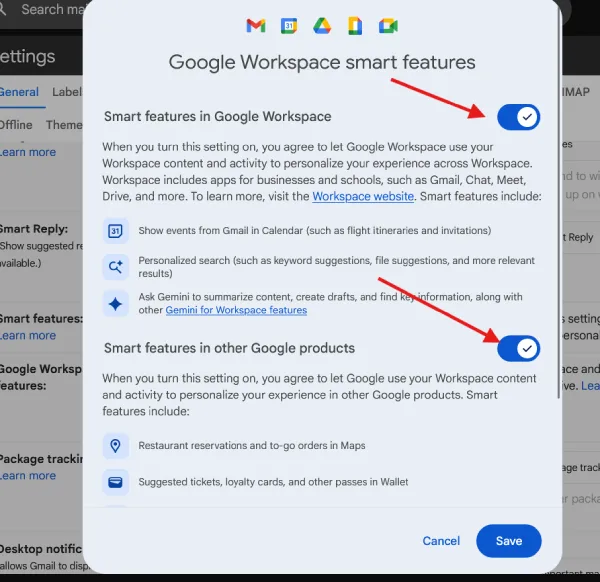
3. Scroll to Google Workspace smart features and click Manage Workspace smart feature settings.

4. Turn off the toggle for Smart Feature in Google Workspace and Smart Features in Other Google Products.
These are the steps to prevent Google from accessing your emails for AI training. By following the instructions provided, you can ensure that your Gmail data remains private and that smart features are disabled in your account settings.


