
Tired of intrusive ads cluttering your web pages? You don’t need to install a browser extension to clean up your browsing experience. Most modern browsers include built-in Reader modes that strip out ads and distractions automatically, making it easier to focus on the content you actually want to read.
In this guide, I’ll show you how to activate Reader mode in Chrome, Edge, and Firefox—and how to automate the process so you get a cleaner browsing experience across multiple pages.
Table of Contents
Why Reader Mode Is Your Secret Weapon Against Ads
Reader mode does more than just improve readability. When you enable it, the browser removes surplus page elements including ads, sidebars, and other attention-hogging content. The result? A distraction-free, single-column layout focused entirely on the article or content you came to read.
The best part: no extensions required, no configuration needed.
ALSO READ: How to Disable Trending Searches From Microsoft Edge Browser
How to Enable Reader Mode in Chrome
Chrome’s Reader mode (called ‘Reading mode’) is straightforward to activate:
- Visit any webpage where you want to remove ads and clutter
- Right-click anywhere on the page and select ‘Open in reading mode’ from the context menu
- The page splits into two panes—your original page on the left, the simplified version on the right
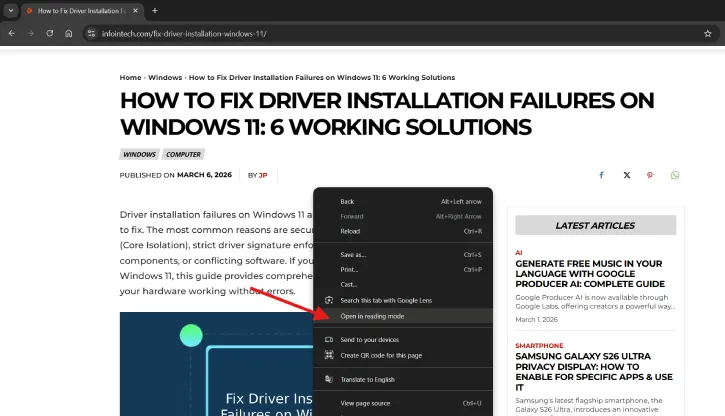
Once activated, you’ll notice an open-book icon appears to the right of your browser toolbar. Click this icon to toggle reading mode on and off for any compatible site.
Pro tip: Click the pin icon above the right-hand pane to keep the split-view in place as you scroll through the article.
How to Enable Immersive Reader in Microsoft Edge
Microsoft Edge calls its Reader mode “Immersive Reader,” and it’s equally easy to use:
- Visit a website where you want to enable the feature
- Click the circular icon with three dots in the top-right corner
- Select ‘Immersive Reader’ (or press F9 as a keyboard shortcut)
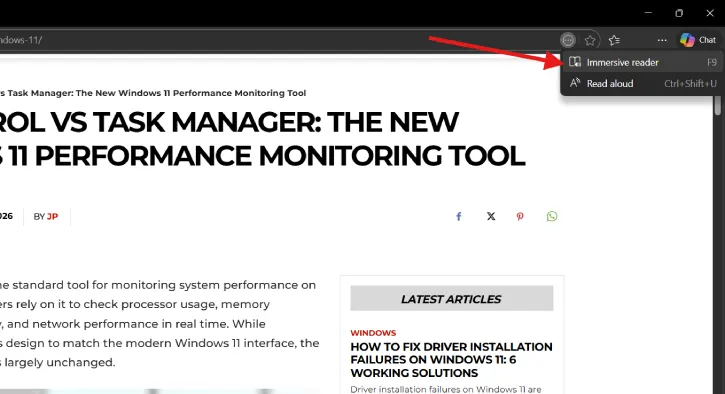
Customize your reading experience by clicking ‘Text preferences’ to adjust:
- Font style and size
- Text color and background theme
- Line spacing
- Column layout
This flexibility makes Edge’s Immersive Reader one of the most customizable built-in ad-removal tools available.
How to Enable Reader View in Firefox
Firefox’s Reader View is the simplest to activate:
- Visit any webpage
- Click the book icon displayed in the address bar
- The page transforms into a clean, ad-free reading layout
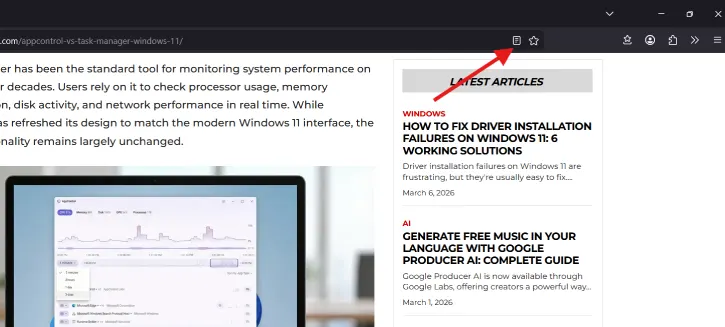
You can also customize fonts and themes directly from Reader View’s settings.
Additional ad-blocking in Firefox: While Reader View removes visible ads, you can further limit ad tracking by going to Settings > Privacy & Security > History and selecting “Never remember history.” This prevents some ad-related data collection, though it won’t remove ads entirely.
The Reader Mode Problem: Ads Return When You Navigate
There’s one catch: Clicking a link from one page to another exits Reader mode, so your new page loads with all its ads and clutter intact.
This is where automation becomes essential.
Automate Ad Removal With Brave’s Speedreader
If you want automatic ad removal without installing extensions, Brave browser offers Speedreader—a built-in feature that activates Reader mode automatically before a page even finishes loading.
How to Enable Speedreader in Brave
- Download Brave from www.brave.com
- Click the three horizontal lines (hamburger menu) at the far right of the address bar
- Select Settings
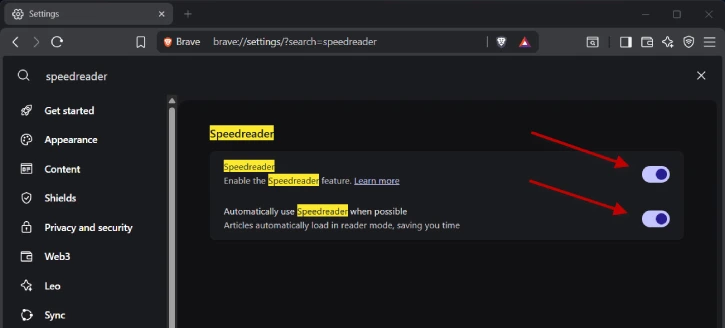
- Click the magnifying glass in the top-right corner and search for “speedreader”
- Toggle both Speedreader options on
See the Difference
Visit any content-heavy website after enabling Speedreader:
- With Speedreader on: You’ll see a single column of uninterrupted text, no ads, no sidebars
- With Speedreader off: The same page displays headers, search boxes, sidebars, and ads
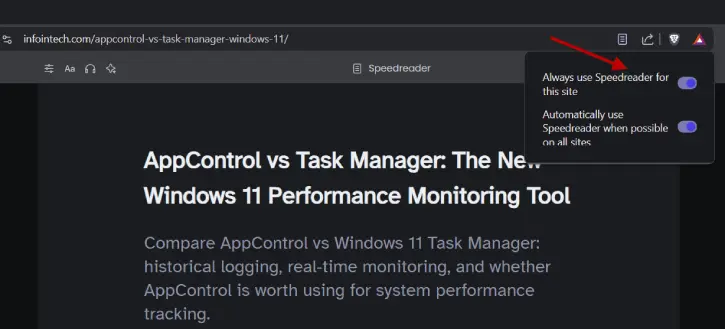
Speedreader removes clutter before a page loads, making it faster than equivalent options in Chrome, Edge, and Firefox.
ALSO READ: How to Set a Custom DNS Server in Vivaldi Browser
Which Method Should You Use?
| BROWSER | METHOD | BEST FOR | AUTOMATION |
| Chrome | Reading Mode (right-click) | Quick, manual ad removal | No—requires manual activation per page |
| Edge | Immersive Reader (F9) | Customizable reading experience | No—requires manual activation per page |
| Firefox | Reader View (book icon) | Simple, built-in feature | No—requires manual activation per page |
| Brave | Speedreader | Automatic ad removal across all pages | Yes—automated |
Final Thoughts
You don’t need a browser extension to enjoy an ad-free browsing experience. Whether you choose Chrome’s Reading mode, Edge’s Immersive Reader, Firefox’s Reader View, or Brave’s Speedreader, you have multiple built-in options to strip ads and clutter from web pages.
For occasional use, any of the first three options work perfectly. For consistent, automatic ad removal across every site you visit, Brave’s Speedreader is the best choice—no extensions, no ongoing configuration, just cleaner browsing from the moment each page loads.
Start with your current browser’s Reader mode today. You might be surprised how much better the web looks without the noise.

