

The newest version of the Microsoft Edge browser (version 135 and later) includes a feature known as ‘Trending Searches.’ This feature offers a list of the most searched terms and phrases, providing users with a quick snapshot of current online trends. It utilizes data from the Bing search engine to identify and showcase these trending queries.

You may encounter these trending searches in the address bar as you type or when you open a new tab and click in the address bar in Microsoft Edge. The drop-down list will show trending searches and suggestions. If you find this feature bothersome, you can easily disable it in the browser settings.
You can disable Microsoft Edge’s Trending Searches in two ways: through the browser settings, and via the Registry editor. However, since Edge allows you to turn off Trending Searches directly in the settings, there’s no need to resort to the more complex method of the latter.
To disable the Trending Search feature in Edge, go to Settings > Privacy, search, and services > Search and connected experiences > Address bar and Search > Search suggestion and filters and choose the option to turn off the trending suggestions. Below is a step-by-step guide.
How to Disable Trending Search in Microsoft Edge Browser
1. First, open the Microsoft Edge browser, click on the three-dot menu, and select Settings.
2. Next, navigate to the ‘Privacy, search, and services’ section, then choose Search and connected experiences.
3. From the list, select ‘Address bar and search’, and click on the ‘Search suggestions and filters’ option.
4. On the Search suggestions and filters page, toggle off the ‘Show me trending searches from Microsoft Bing’ option.
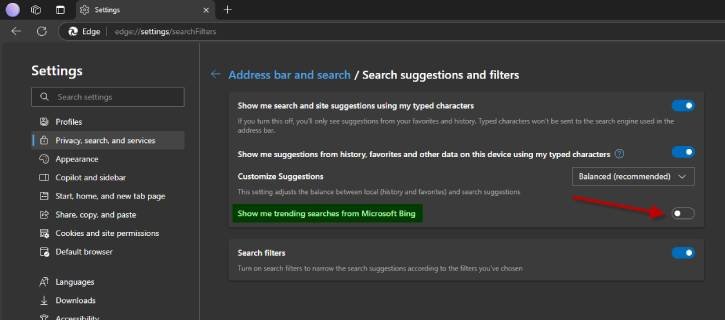
5. Alternatively, you can go directly to the edge://settings/searchFilters page and disable the ‘Show me trending searches from Microsoft Bing’ option there.
You have successfully disabled trending search suggestions in the Microsoft Edge browser. This adjustment enhances your browsing experience by eliminating unwanted suggestions and allowing for a more personalized search environment. Enjoy a cleaner and more focused browsing experience in Edge!

