
Samsung’s web browser for Windows has officially exited beta, bringing a suite of productivity and AI features designed to enhance the browsing experience for Galaxy device users and general Windows audiences. The browser is now available for download on Windows 11 and Windows 10, offering seamless integration with Samsung’s ecosystem and new artificial intelligence capabilities powered by Perplexity AI.
Table of Contents
Key Features and Capabilities of Samsung Browser for Windows
Samsung Browser for Windows includes a comprehensive set of features designed to streamline web browsing and boost productivity:
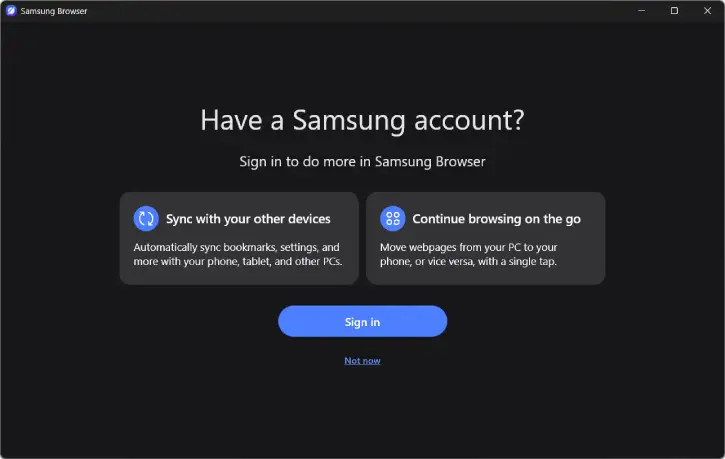
- Cross-device continuity: Pick up where you left off on any webpage by switching between your Galaxy smartphone and Windows PC when logged into your Samsung account
- Ad Blocker: Block ads on webpages (not for YouTube videos) for a smooth browsing experiance
- Tab manager: Organize and manage multiple tabs efficiently
- Secret mode: Browse privately without storing history or cookies
- Side panel: Quick access to frequently used tools and information
- Samsung Cloud integration: Securely sync bookmarks, browsing history, and other data across all your devices
- Samsung Pass: Keep passwords safe and automatically synced across your devices with encrypted protection
AI-Powered Browsing Assistant
The standout feature is Samsung Browser’s new Galaxy AI assistant, developed in partnership with Perplexity AI. The AI-powered tool is accessible via the Galaxy AI button and provides:
- Content summarization: Summarize and compare information across multiple open tabs
- Video analysis: Scan videos to locate specific moments or scenes without watching the entire content
- Web page translation: Translate web pages into different languages
- Content creation: Generate tour guides, summaries, and other written content based on webpage context
- Search history retrieval: Find previously visited pages using natural language queries
- Contextual understanding: The assistant analyzes both the current page and activity across tabs to provide relevant assistance
Current Availability of AI Features and Rollout Plans
The AI features are currently available in South Korea and the United States, with Samsung planning to expand to additional markets in the coming months. All users in supported regions can access the browser immediately upon download.
ALSO READ: How I Removed All AI Features From Edge, Chrome, and Firefox in Minutes
How to Download Samsung Browser and Get Started
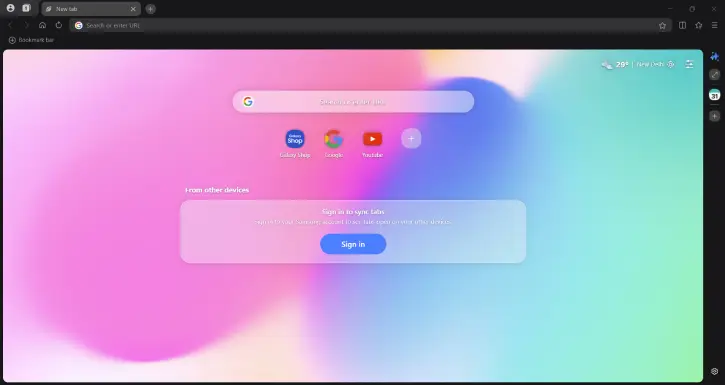
Samsung Browser for Windows is available for immediate download from Samsung’s official website. The browser supports both Windows 11 and Windows 10, making it accessible to most Windows users. Simply sign in with your Samsung account to enable cross-device synchronization and AI features.
Why This Matters for Users
The launch of Samsung Browser for Windows represents a significant step in Samsung’s strategy to create an integrated ecosystem across devices. For users already invested in Samsung’s mobile and wearable products, the browser offers genuine productivity benefits through seamless synchronization and context-aware AI assistance. The partnership with Perplexity AI brings advanced natural language processing directly into the browsing experience, allowing users to interact with web content in more intuitive ways than traditional search or manual browsing.
The AI features, while not yet offering autonomous actions on users’ behalf, provide meaningful assistance for research, content discovery, and information synthesis—tasks that typically consume significant browsing time.


