
 Posted by
 Samsung’s latest flagship smartphone, the Galaxy S26 Ultra, introduces an innovative hardware feature that takes mobile privacy to the next level: Privacy Display. This smart display technology allows you to restrict screen visibility from side angles, preventing people nearby from seeing your sensitive content—whether it’s one-time verification codes, private messages, or personal notifications.
Table of Contents
What is Privacy Display?
Privacy Display is an exclusive hardware feature available on the Galaxy S26 Ultra, distinguishing it from the standard Galaxy S26 and Galaxy S26 Plus models. Unlike traditional third-party privacy screen protectors that simply reduce visibility across the entire display, Samsung‘s Privacy Display is an intelligent solution that puts you in control of exactly what gets hidden and when.
The feature works by restricting display visibility when viewed from side angles, making it impossible for people sitting or standing next to you to see your screen content. This is particularly useful in public settings like trains, buses, or crowded spaces where privacy is a genuine concern.
Why Privacy Display Matters
In today’s world, protecting your personal information from casual observation is more important than ever. Privacy Display addresses real-world scenarios where you need discretion:
- Entering sensitive information like PINs, passwords, or two-factor authentication codes
- Reading private messages and chats without worrying about shoulder surfers
- Managing notifications that contain personal or confidential information
- Traveling on public transport where others may be within viewing distance
- Using your phone around acquaintances when you want to keep certain content private
How to Enable Privacy Display on Galaxy S26 Ultra for Selected Apps
Setting up Privacy Display on your Galaxy S26 Ultra is straightforward. Follow these steps to activate this powerful privacy feature:
1. Open the Settings app on your phone.
2. Search for “Privacy display” or navigate to Display > Privacy Display.
3. Enable the toggle for “Turn on privacy display.”
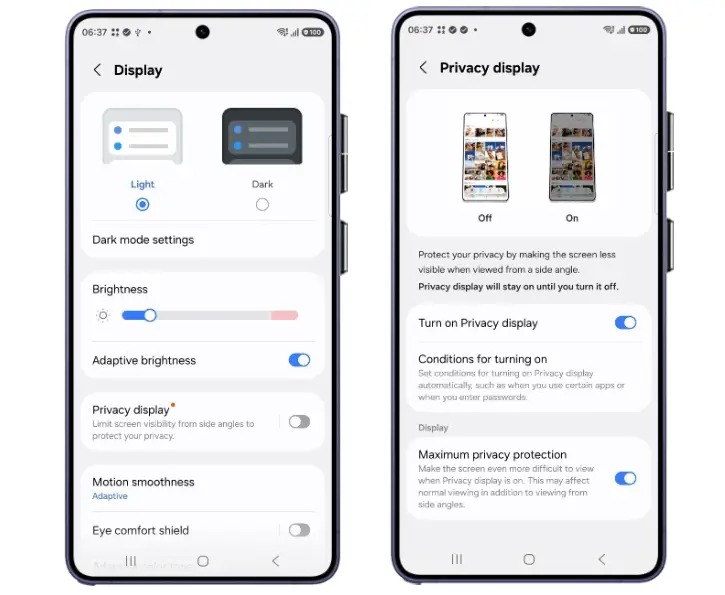
4. Next, tap “Conditions for turning on” to customize when the feature activates.
5. Select your preferred conditions from three options:
- Apps – Enable privacy display for specific applications
- PIN/Password – Activate when entering security credentials
- Notification pop-up – Hide sensitive notification content
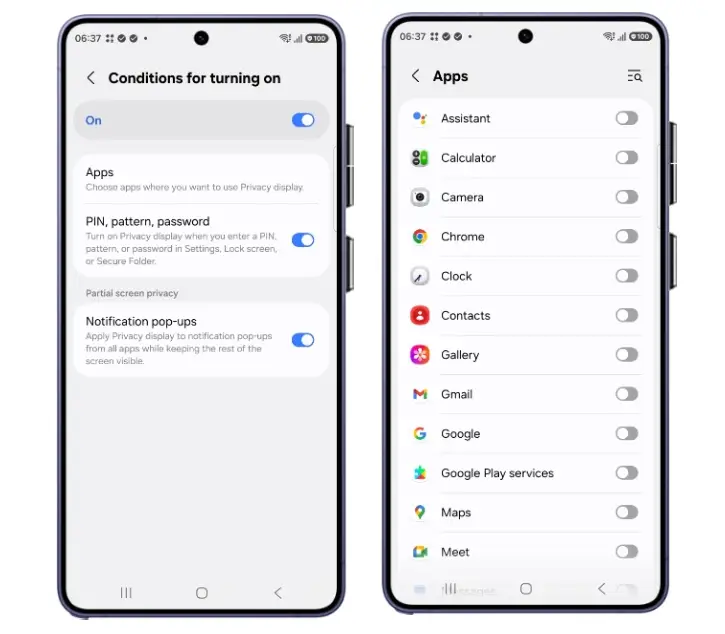
6. To enable the privacy display for specific app, go to Apps section, toggle on the option next the app.
ALSO READ: Block Ads in Notifications on Samsung One UI 8.5: Quick Guide
Customizing Privacy Display for Your Needs
One of the most powerful aspects of Privacy Display is its granular customization options. Unlike simple privacy screen protectors that block everything indiscriminately, Samsung’s solution lets you decide exactly when you need privacy protection.
For example, you can enable Privacy Display only for your banking app while leaving it disabled for social media. You can also activate it specifically when notifications appear, ensuring that pop-ups with sensitive information remain hidden from onlookers while your regular screen usage remains unaffected.
This level of control makes Privacy Display far more advanced and practical than it might initially sound, adapting to your specific privacy needs rather than forcing a one-size-fits-all approach.
Quick Toggle Access
For convenience, Samsung has included a quick toggle in the Quick Settings panel, allowing you to turn Privacy Display on and off instantly without diving into the full Settings menu. This makes it easy to activate privacy mode when you need it and disable it when you don’t.
Practical Use Cases
Privacy Display shines in numerous everyday situations:
- Commuting – Keep your screen private on buses, trains, or rideshares
- Public spaces – Maintain privacy in cafes, airports, or waiting rooms
- Shared environments – Protect sensitive information when friends, family, or colleagues are nearby
- Financial transactions – Hide banking details and payment information from view
- Confidential communications – Keep work emails and private messages truly private
Is Privacy Display Worth It?
If privacy is a priority for you, Privacy Display is a compelling reason to consider the Galaxy S26 Ultra. As an exclusive hardware feature, it’s not something you can add to other Galaxy S26 models through software updates or third-party solutions. The ability to control privacy on a per-app or per-action basis makes it significantly more practical than traditional privacy screen protectors, which reduce visibility uniformly across the entire display.