Tag: Windows computer

  • 5 Ways You’re Unknowingly Reducing Your SSDs Life (and How to Fix Them)

    5 Ways You’re Unknowingly Reducing Your SSDs Life (and How to Fix Them)

    Solid-state drives (SSDs) are fast, reliable, and now the standard storage in modern PCs – but they have limits. NAND flash endures only a finite number of write cycles, and some usage patterns or workloads on the computer can significantly reduce an SSD’s lifespan.

    Let’s learn how our usage patterns and workloads can kill SSDs quickly. Below are five common SSD killing mistakes, why they matter, and simple fixes to keep your drive healthy and performing well.
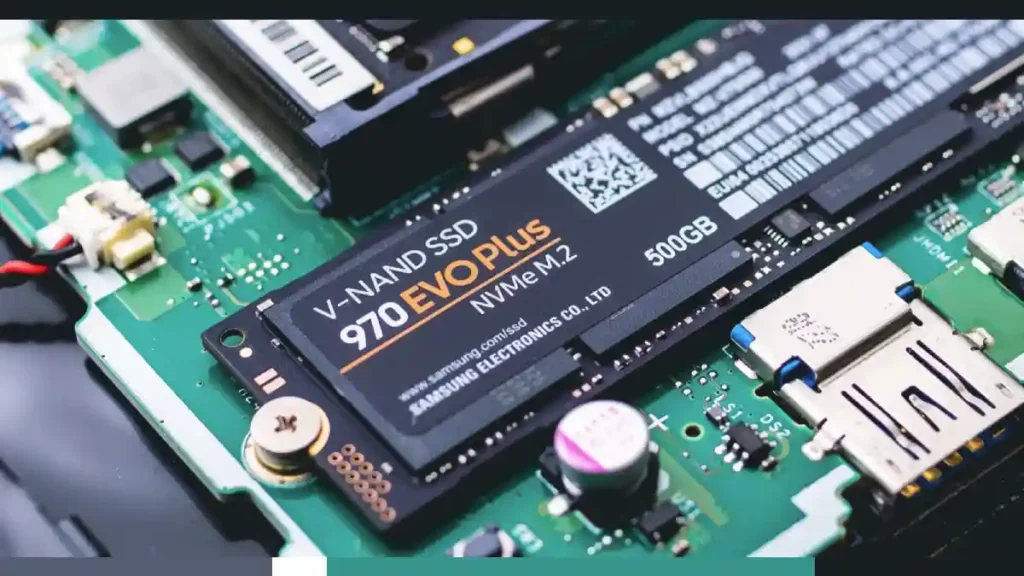
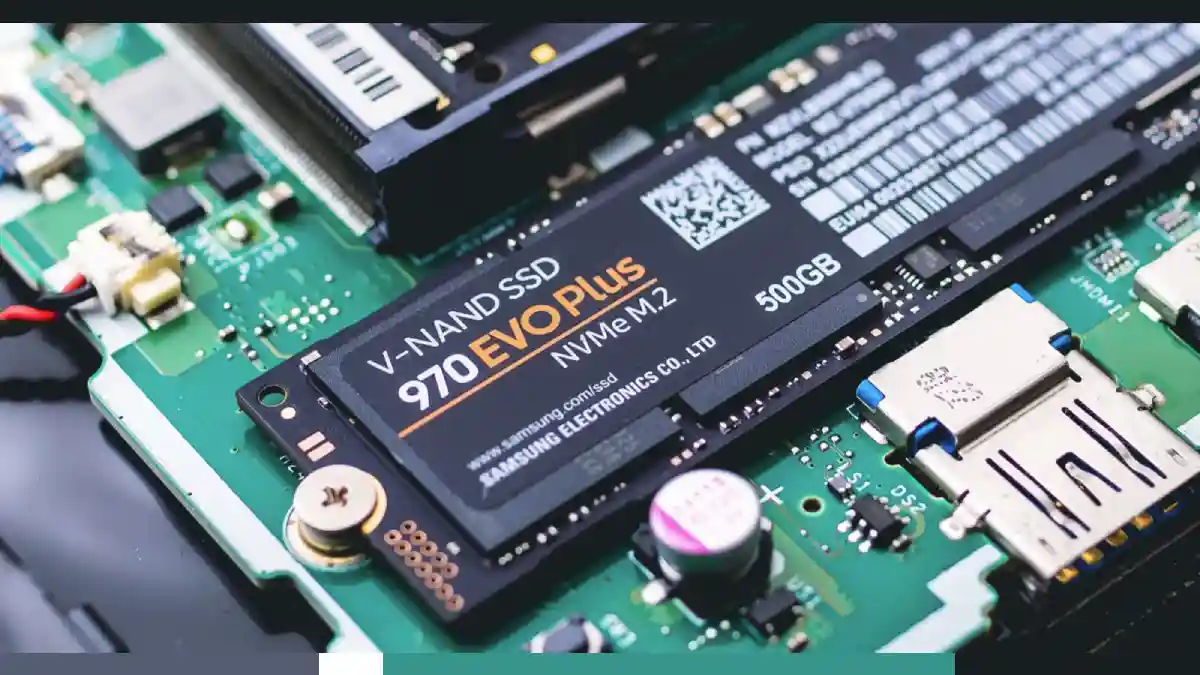
    NVMeM.2 SSD on a motherboard

    Using Your Main SSD for Cryptocurrency Plotting

    Why it reduces your drive’s life: Proof-of-space plotting (e.g., Chia) and similar workloads write and rewrite huge temporary files, consuming massive amounts of write endurance in weeks or months. Manufacturers often exclude plotting/mining from warranty coverage.

    Fix: If you want to experiment with plotting, use a dedicated system and combine fast SSDs for temporary plotting with slower HDDs or long-term storage drives. Don’t use your primary OS or gaming SSD for plotting.

    Defragmenting an SSD Using Third-Party Tool (Legacy HDD habit)

    Why it reduces your drive’s life: Defragmentation tools rewrite large amounts of data to reorganize files—a benefit for spinning HDDs but unnecessary and harmful for SSDs because it wastes write cycles.

    Fix: Don’t run manual third-party defrag utilities on SSDs. Let modern OSes handle SSD maintenance (TRIM and built-in optimization). If a third‑party tool prompts defrag for SSDs, disable it.
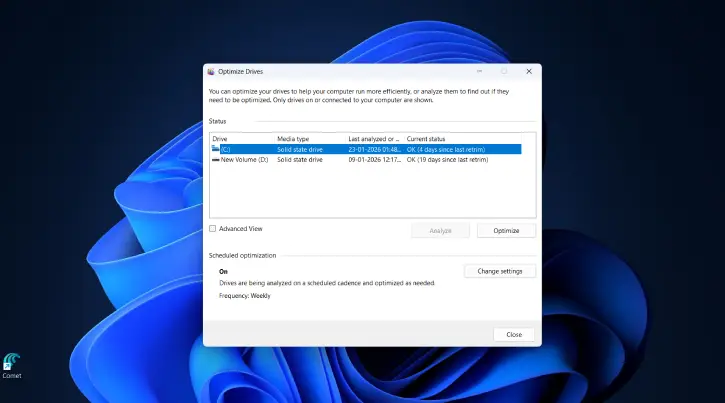
    Windows 11 Device Optimization

    Filling the Drive Completely (No Free Space)

    Why it reduces your drive’s life: SSD controllers use garbage collection and TRIM to consolidate and prepare free cells. Without enough free space, garbage collection runs during active writes, increasing write amplification and slowing the drive while consuming extra write cycles.

    Fix: Keep about 10–20% free space as headroom. If you need high performance and longevity, choose a larger drive or enable over-provisioning (reserve unpartitioned space) and prefer SSDs with DRAM caches for better wear levelling.

    Letting the SSD Run Hot (Poor Cooling)

    Why it reduces your drive’s life: High temperatures cause thermal throttling and long-term physical stress on components. Gen4/Gen5 NVMe drives, especially high-performance models, can run hot without proper heatsinks or airflow.

    Fix: Add airflow or heatsinks for M.2 NVMe drives, monitor SSD temps, and avoid cramming drives into poorly ventilated or compact cases. For long sustained workloads, prioritize models with thermal management.

    Using Your Primary SSD as the Scratch Disk for Heavy Apps

    Why it reduces your drive’s life: Programs like Photoshop, Premiere Pro, and other creative apps write lots of temporary/cache/scratch data. Constant write-heavy scratch activity on your primary drive accelerates wear.

    Fix: Assign a secondary SSD as the scratch disk or cache location for high-write applications. This spreads writes across drives and prolongs the life of your primary OS/game SSD.

    ALSO READ: Do You Still Need to Defragment Your Windows 11 Drive? Here’s the Simple Answer

    Quick Checklist to Protect Your SSD

    1. Avoid crypto plotting/mining on your main drive.
    2. Never defragment an SSD; rely on OS TRIM/optimization.
    3. Keep 10–20% of the drive free (or over-provision).
    4. Use heatsinks/adequate airflow for M.2 NVMe drives.
    5. Use a secondary SSD for scratch/cache-heavy apps.
    6. Example: Practical Setup for Gamers & Creators
    USERECOMMENDED STORAGE
    OS + AppsFast NVMe SSD (keep 10–20% free)
    GamesSeparate SSD (prevents OS scratch bloat)
    Scratch / Project FilesSecondary SSD dedicated to caching
    Mass storage / ArchivesHDDs or high-capacity SATA SSDs
    Crypto plottingSeparate machine with staging fast SSDs + HDDs

    Conclusion

    Small changes to how you use and cool your drives go a long way. Offload write-heavy tasks to secondary drives, leave free space for garbage collection, stop defragmenting SSDs, and keep temperatures in check. These steps will preserve SSD performance and extend its usable life.
  • 7 Common Causes and Fixes For Windows Computer Restarting Instead of Shutting Down

    7 Common Causes and Fixes For Windows Computer Restarting Instead of Shutting Down

    It can be frustrating when you try to shut down your Windows computer but instead of powering off it restarts. This issue can happen because of various reasons and knowing those reasons can help you find the right solution.

    Why does a Windows computer restarts instead of shutting down? External devices connected to your Windows computer, incorrect Power settings, fast start up feature, BIOS settings, software or driver issues, automatic restart function, etc., are the main causes for restarting your computer itself.

    Reasons and Fixes for Restarting Windows Itself

    1. External Devices Connected With the PC: This one of the common reasons for your PC to restart instead of shutting down. To fix it, unplug all devices from your computer to see if that helps.

    2. Software or Driver Issues: Software or driver conflicts is a main cause for restarting Windows itself. When you initiate a shutdown, certain software or drivers may not respond correctly, causing the system to restart instead.

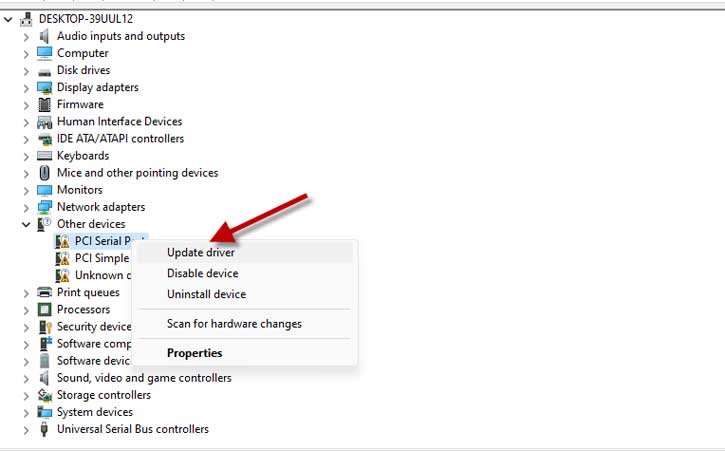
    To fix this issue, you can try updating your drivers to the latest version. Open the Device Manager, look for any devices with a yellow exclamation mark. Right-click on the device and select “Update driver.”

    Update drivers on a Windows PC

    You will also need to check for software updates for any recently installed programs that may be causing the conflict.

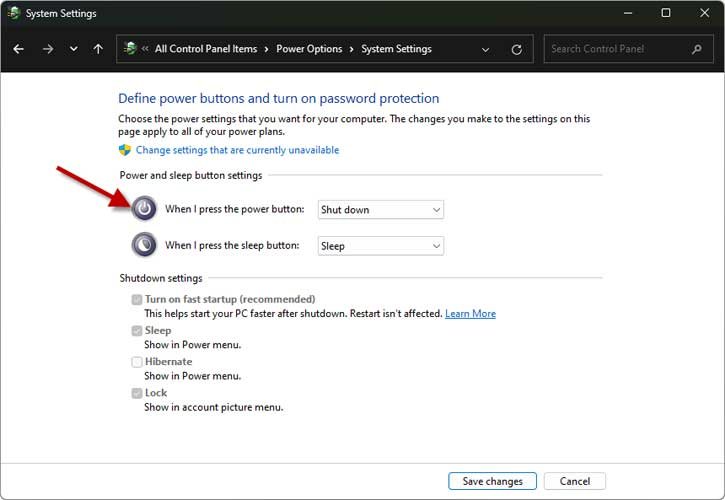
    3. Power settings: Incorrect power settings can also lead to restarting your PC instead of shutting down. This can happen if the power button is configured to restart the computer instead of shutting it down.

    To check and modify the power settings, go to the Control Panel and search for “Power Options.” Click on “Change what the power buttons do” and make sure the option to “Shut down” is selected for the “When I press the power button” settings.

    Set Shut Down option for Power button on Windows PC

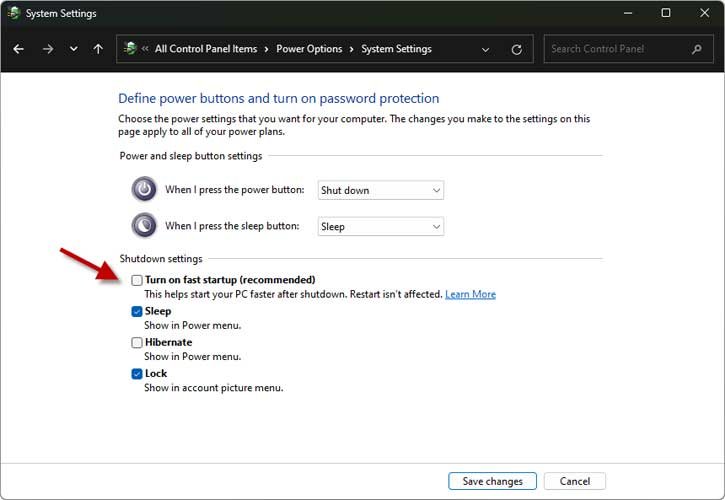
    4. Disable Fast Startup and Automatic Restart Option: Fast start up function and automatic restart option can cause for restarting a Windows computer instead of shutting down.

    Open Control panel and select Power options. Next click the “Choose what the power buttons do option” from the left sidebar.

    Click the “Change settings that are currently unavailable option” and uncheck the “Turn on fast startup (recommended)” checkbox and click Save Changes.

    Disable Fast Startup on Windows PC

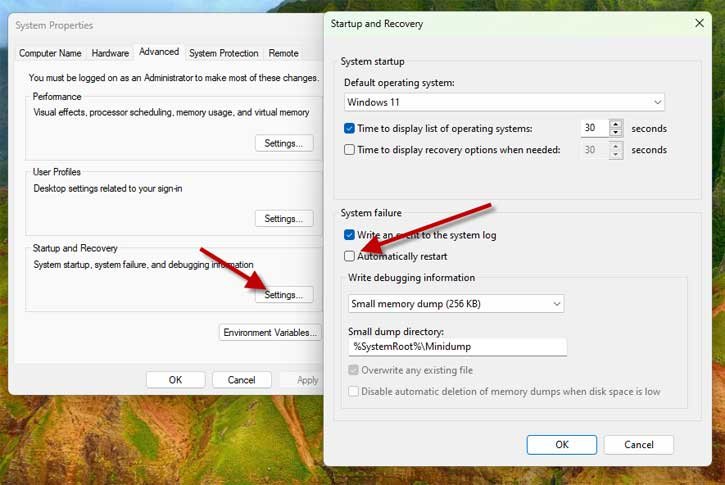
    A system failure during the shutdown process might force your Windows PC to reboot automatically. When that happens, Windows conducts the necessary checks and prevent delays during subsequent start ups. However, you can safely disable this function.

    Click the Start button on your Windows 11 PC, type “View Advanced System settings” in the search box and open it. Under “Startup and Recovery“, click the Settings button, uncheck the “Automatically restart” option and then hit OK.

    Disable Automatically Restart on Windows 11 PC

    5. Hardware Issues: Sometimes hardware issues can make a Windows computer restart itself. Faulty hardware parts inside your PC or an inadequate power supply can disturb the shutdown process. If you suspect a hardware issue it is best to ask for help from a technician.

    6. Windows Updates: Windows Updates can sometimes interfere with the shutdown process causing the computer to restart itself. This often happens when a pending update needs a restart to finish installing.

    To fix this make sure your computer is fully updated. Open the Settings app go to “Update & Security ” and click on “Check for updates.” Install any updates that’re available and restart your computer if you are asked to do so.

    7. Malware or Viruses: Sometimes malware or viruses can stop a Windows computer from shutting down. These harmful programs may disrupt system functions leading to unexpected restarts.

    You should run scans to find and remove any malicious files. Keep your antivirus software up to date. Perform a full system scan to make sure your computer is free of threats.

    Conclusion

    A Windows computer restarting instead of shutting down can be annoying. It may be due to software or driver issues, power settings, Windows Updates, malware or viruses or even hardware problems. By trying the fixes listed above you can solve the issue.