

Telegram has recently introduced an exciting new feature for its Android app that allows users to stream videos directly to their TV using a Chromecast device. This enhancement makes it easier for users to enjoy their favorite video content from Telegram on a larger screen, enhancing the viewing experience.
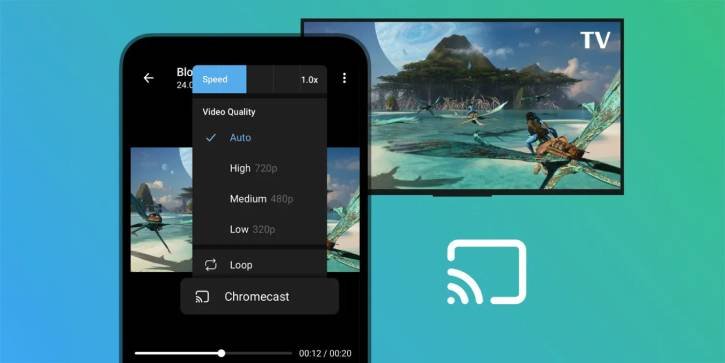
Previously, watching a video shared on Telegram on a TV required downloading the video file and using alternate apps with Cast support. Now, with the new update, Android users can cast videos directly to their Chromecast devices. Here’s a step-by-step guide on how to use this feature:
How to Stream Telegram Videos to Your TV via Chromecast
1. Make sure your Android device has the latest version of the Telegram app installed. You can check for updates in the Google Play Store.
2. Ensure that your Chromecast device is set up and connected to the same Wi-Fi network as your Android device.
3. Now, launch the Telegram app on your Android device.
4. Next, navigate to the chat or channel where the video you want to watch is located. This could be a personal chat, group chat, or a channel.
5. Tap on the video to start playing it. You will see the video controls on your screen.
6. Tap the Settings icon (gear wheel), and tap on the Chromecast option.
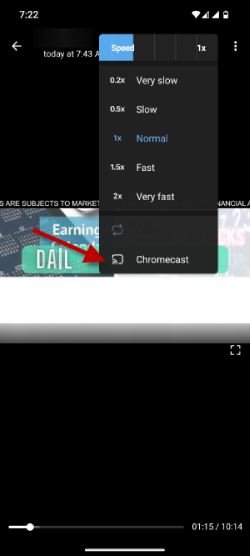
7. A list of available devices will appear. Select your Chromecast device from the list.
8. Once connected, the video will start streaming on your TV.
To stop casting, you can either tap the Cast icon again and select “Disconnect” or simply close the video on your device.
Depending on your internet connection, you may want to check the video quality settings in Telegram to ensure smooth playback. And, if you want to share your screen or cast other content, you can still use the standard screen mirroring features available on most Android devices.

