
Dashcams protect drivers by recording incidents, helping with insurance claims, and deterring theft. If your car lacks a built-in camera, you can use your Android or iPhone as a reliable dashcam with the Weel app. It records automatically, provides turn-by-turn navigation, supports front/rear camera switching and cabin audio, and shares incident clips quickly with insurers.
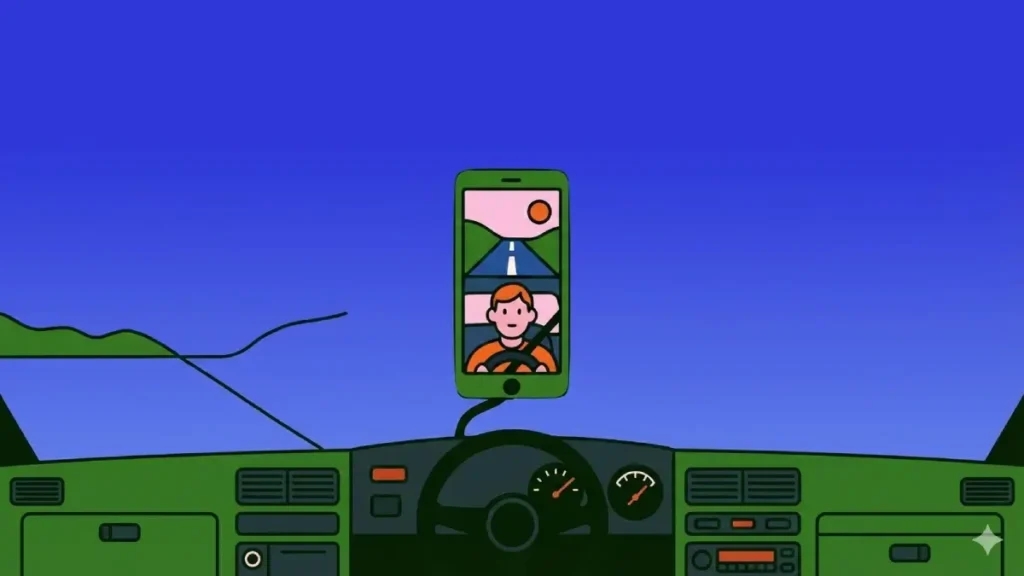
Dashcams have become an essential safety tool for modern drivers, providing crucial evidence and protection in various driving scenarios. While traditional dashcams can be expensive and complicated to install, smartphones now offer a convenient, cost-effective alternative.
Table of Contents
Why Use Your Phone as a Dashcam?
- Cost-effective: No expensive hardware or professional installation needed.
- Multi-purpose: Navigation + continuous video recording in one app.
- Easy evidence sharing: Detects incidents and helps send clips to insurers fast.
- Flexible views: Switch between front road view and rear/cabin view.
- Portable: Use the same setup across different vehicles.
Key Features of Phone Dashcam
- Automatic recording when you start driving — perfect for daily commuting or road trips.
- Front and rear camera switching for road and cabin recording.
- Crash/incident detection and instant alerts for quick action.
- Built-in navigation with turn-by-turn guidance — records your route and location metadata.
- Archive of saved videos for evidence, insurance claims, or review.
- Microphone support for in-car audio capture (toggleable for privacy).
Step-by-Step Guide to Setting Up Your Android Phone or iPhone Dashcam
1. Download Weel app from the Play Store or App Store.
2. Launch the app and create an account with email or Google login.
3. Open the hamburger menu → Settings → Recording. Enable Cabin camera and Microphone audio if desired.
4. Return to the main screen and enter your destination.
5. Start driving — recording begins automatically.
6. To access footage, open the hamburger menu → Archive.
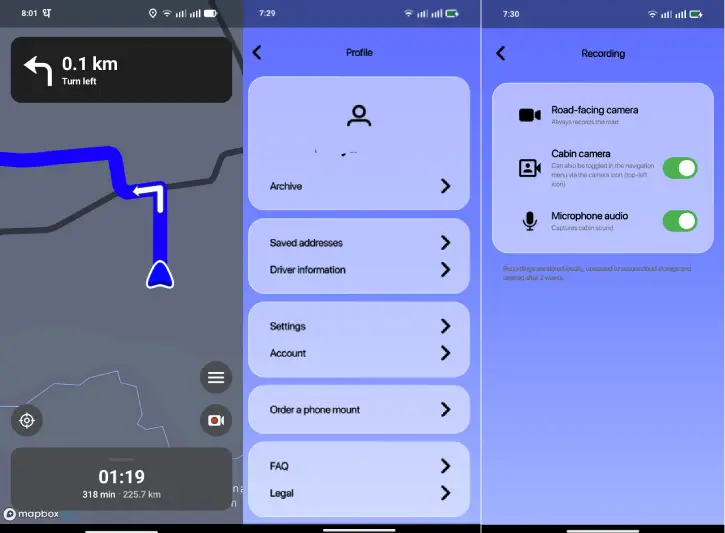
From app’s settings menu (hamburger > settings), you can change map style, recording, unit of measure and language.
ALSO READ: Add AI DasCam and ADAS Features to Your Car Using Magic Earth and Phone
Best Practices for Using a Phone as a Dashcam
- Mount your phone securely on the windshield or dashboard using a reliable phone mount.
- Keep the phone plugged into a charger for long trips to avoid battery drain.
- Respect local laws about recording audio and privacy — disable cabin audio when required.
FAQs
Q: Is the Weel app completely free?
Yes, the basic version is free. However, advanced features might require a premium subscription.
Q: How secure are the recordings?
Recordings are stored in a personal cloud, accessible only through your account, ensuring privacy and security.
Q: Can I use the app for both navigation and recording?
Absolutely! The Weel app seamlessly integrates navigation with dashcam functionality, providing turn-by-turn guidance while recording your journey.
Conclusion
In 2026, transforming your smartphone into a dashcam is not just convenient—it’s becoming a standard safety practice. With apps like Weel, drivers can easily document their journeys, protect themselves legally, and have peace of mind on the road.


