
 Posted by
 Turn a spare Android phone into a travel router to share a hotel or public Wi‑Fi connection with multiple devices. This can bypass per‑device limits on many networks, let you connect laptops/tablets/phones at once, and create a single secure SSID for your devices. Requirements and behavior vary by device and network – read the prerequisites and troubleshooting tips before relying on this method.
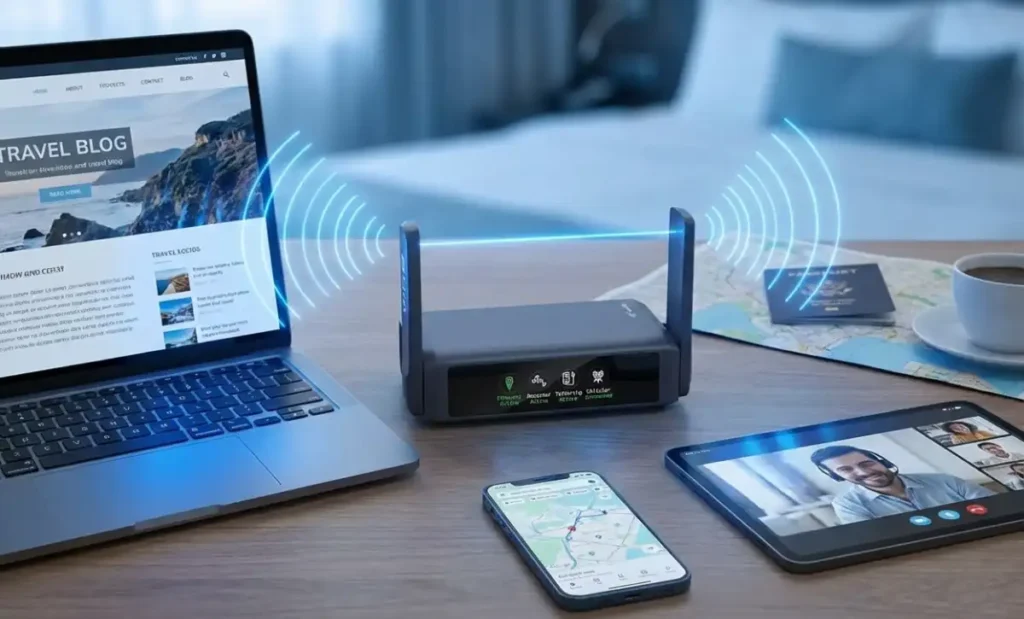
This guide explains how to use your Android phone as a travel router, enabling multiple devices to share its internet connection securely and reliably while you’re on the go.
Table of Contents
Quick checklist (requirements)
- Android 15+ (some Android 14 builds may work).
- Phone supports concurrent Wi‑Fi Station + Access Point (AP) modes (many newer phones do; some older/budget models do not).
- Power cable for long sessions (tethering drains battery).
- Complete captive‑portal login on the host phone before sharing.
- Mobile data off on the host phone (recommended to avoid carrier charges).
Why this works (and limits)
Many modern Android phones can act as a Wi‑Fi client (connected to a hotspot) and simultaneously run a portable Wi‑Fi hotspot, sharing the uplink to other devices.
Some public networks bind sessions to MAC addresses or enforce per‑device limits; those networks can block or restrict sharing. In such cases, a travel router, laptop bridge, or a device supporting MAC cloning might be needed.
Expect lower throughput and higher latency than a dedicated router. Keep the host phone plugged in and ventilated to avoid battery drain and overheating. Use WPA3 where available and a strong password.
Step‑by‑step: Share a Wi‑Fi connection from Android
1. Connect the Android phone to the host Wi‑Fi: Settings → Wi‑Fi → join the network you want to share.
2. Complete any captive‑portal/login steps: Open a browser and sign in to the network’s login page so the phone has an active internet session.
3. Verify internet access: Load a web page or run a quick speed test on the phone.
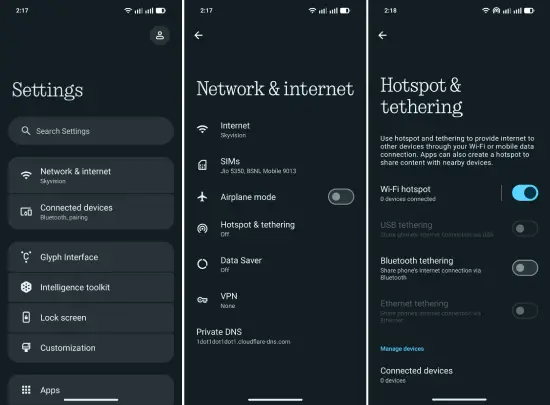
4. Enable the hotspot: Settings → Network & internet → Hotspot & tethering → Wi‑Fi hotspot (may be called Portable hotspot). Turn it on. If your device supports Wi‑Fi Sharing, Wi‑Fi will remain connected while the hotspot activates.
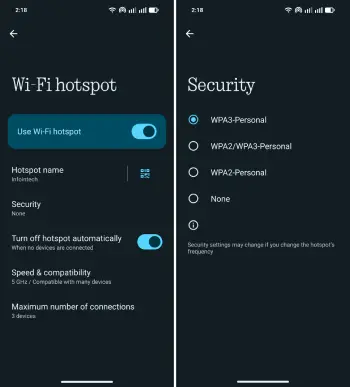
5. Configure hotspot security: Hotspot settings → set an easy‑to‑recognize SSID and strong WPA3/WPA2 password.
6. Optional: disable mobile data on the host phone: Settings → Network & internet → Mobile network → Mobile data (off).
7. Connect secondary devices: On each device, open Wi‑Fi, select the hotspot SSID, and enter the password.
8. Monitor and secure: Periodically check connected devices and data usage in hotspot settings; turn off hotspot or change the password when finished.
Troubleshooting (quick fixes)
Hotspot greyed out or Wi‑Fi disconnects when enabling hotspot: the phone likely lacks simultaneous AP+STA support. Try a different phone or use a travel router.
Captive portal reappears for client devices: some networks bind sessions to MAC addresses. Workarounds: use a travel router that supports client mode or MAC cloning, or bridge via a laptop that supports Wi‑Fi sharing.
Connected devices can’t access internet though phone has access: ensure the captive portal was fully completed on the phone before enabling the hotspot; avoid using a VPN on the host while logging in (VPN may block captive‑portal detection).
Slow or unstable connection: keep the host phone plugged in, close background apps, limit simultaneous devices, and move the phone to a spot with the best reception.
Security and polite use
- Use WPA3 when available; otherwise use WPA2 with a strong password and change it after the session.
- Enabling a VPN on the host phone encrypts traffic from connected devices beyond the local network, but may interfere with captive‑portal login. Some networks block VPNs.
- Respect the network’s terms of service—bypassing enforced device limits may violate provider rules.
Alternatives
- Travel router (recommended if you need stable multi‑device access, Ethernet ports, or MAC cloning).
- Wi‑Fi repeater/extender with client mode.
- Laptop with Wi‑Fi bridging or Ethernet passthrough (some laptops can share a Wi‑Fi uplink via hotspot).
Short FAQ (for quick reference)
Can I share hotel Wi‑Fi from my Android phone?
Yes, if the phone supports concurrent Wi‑Fi client+hotspot modes and you complete the captive‑portal login on the phone.
Will this work on iPhone/iPad?
No—iOS disables Wi‑Fi when creating a hotspot, so iPhones/iPads cannot serve as the primary Wi‑Fi bridge (they can be clients of an Android hotspot).
Should I leave mobile data on?
Turn mobile data off on the host phone to avoid accidental carrier usage; only enable it if you want to share cellular connection instead of the hotel Wi‑Fi.
Conclusion
Using an Android 15+ phone that supports concurrent Wi‑Fi Station + AP modes is a convenient, low‑cost way to create a travel router and share hotel Wi‑Fi with multiple devices. It’s great for short trips and quick fixes, though dedicated travel routers remain better for reliability, Ethernet access, and workarounds for networks that bind sessions by MAC address.