
Solid-state drives (SSDs) are fast, reliable, and now the standard storage in modern PCs – but they have limits. NAND flash endures only a finite number of write cycles, and some usage patterns or workloads on the computer can significantly reduce an SSD’s lifespan.
Let’s learn how our usage patterns and workloads can kill SSDs quickly. Below are five common SSD killing mistakes, why they matter, and simple fixes to keep your drive healthy and performing well.

Table of Contents
Using Your Main SSD for Cryptocurrency Plotting
Why it reduces your drive’s life: Proof-of-space plotting (e.g., Chia) and similar workloads write and rewrite huge temporary files, consuming massive amounts of write endurance in weeks or months. Manufacturers often exclude plotting/mining from warranty coverage.
Fix: If you want to experiment with plotting, use a dedicated system and combine fast SSDs for temporary plotting with slower HDDs or long-term storage drives. Don’t use your primary OS or gaming SSD for plotting.
Defragmenting an SSD Using Third-Party Tool (Legacy HDD habit)
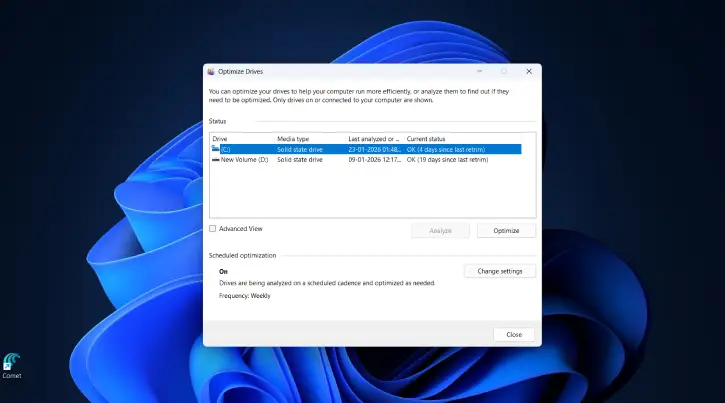
Why it reduces your drive’s life: Defragmentation tools rewrite large amounts of data to reorganize files—a benefit for spinning HDDs but unnecessary and harmful for SSDs because it wastes write cycles.
Fix: Don’t run manual third-party defrag utilities on SSDs. Let modern OSes handle SSD maintenance (TRIM and built-in optimization). If a third‑party tool prompts defrag for SSDs, disable it.
Filling the Drive Completely (No Free Space)
Why it reduces your drive’s life: SSD controllers use garbage collection and TRIM to consolidate and prepare free cells. Without enough free space, garbage collection runs during active writes, increasing write amplification and slowing the drive while consuming extra write cycles.
Fix: Keep about 10–20% free space as headroom. If you need high performance and longevity, choose a larger drive or enable over-provisioning (reserve unpartitioned space) and prefer SSDs with DRAM caches for better wear levelling.
Letting the SSD Run Hot (Poor Cooling)
Why it reduces your drive’s life: High temperatures cause thermal throttling and long-term physical stress on components. Gen4/Gen5 NVMe drives, especially high-performance models, can run hot without proper heatsinks or airflow.
Fix: Add airflow or heatsinks for M.2 NVMe drives, monitor SSD temps, and avoid cramming drives into poorly ventilated or compact cases. For long sustained workloads, prioritize models with thermal management.
Using Your Primary SSD as the Scratch Disk for Heavy Apps
Why it reduces your drive’s life: Programs like Photoshop, Premiere Pro, and other creative apps write lots of temporary/cache/scratch data. Constant write-heavy scratch activity on your primary drive accelerates wear.
Fix: Assign a secondary SSD as the scratch disk or cache location for high-write applications. This spreads writes across drives and prolongs the life of your primary OS/game SSD.
ALSO READ: Do You Still Need to Defragment Your Windows 11 Drive? Here’s the Simple Answer
Quick Checklist to Protect Your SSD
- Avoid crypto plotting/mining on your main drive.
- Never defragment an SSD; rely on OS TRIM/optimization.
- Keep 10–20% of the drive free (or over-provision).
- Use heatsinks/adequate airflow for M.2 NVMe drives.
- Use a secondary SSD for scratch/cache-heavy apps.
- Example: Practical Setup for Gamers & Creators
| USE | RECOMMENDED STORAGE |
| OS + Apps | Fast NVMe SSD (keep 10–20% free) |
| Games | Separate SSD (prevents OS scratch bloat) |
| Scratch / Project Files | Secondary SSD dedicated to caching |
| Mass storage / Archives | HDDs or high-capacity SATA SSDs |
| Crypto plotting | Separate machine with staging fast SSDs + HDDs |
Conclusion
Small changes to how you use and cool your drives go a long way. Offload write-heavy tasks to secondary drives, leave free space for garbage collection, stop defragmenting SSDs, and keep temperatures in check. These steps will preserve SSD performance and extend its usable life.


