

Microsoft has recently made a significant change to its Windows 11 operating system by introducing ads on the Start Menu. The latest version of Windows displays advertisement of apps in the Recommended section of the Start Menu. This move has sparked a lot of discussion and debate among Windows 11 users.
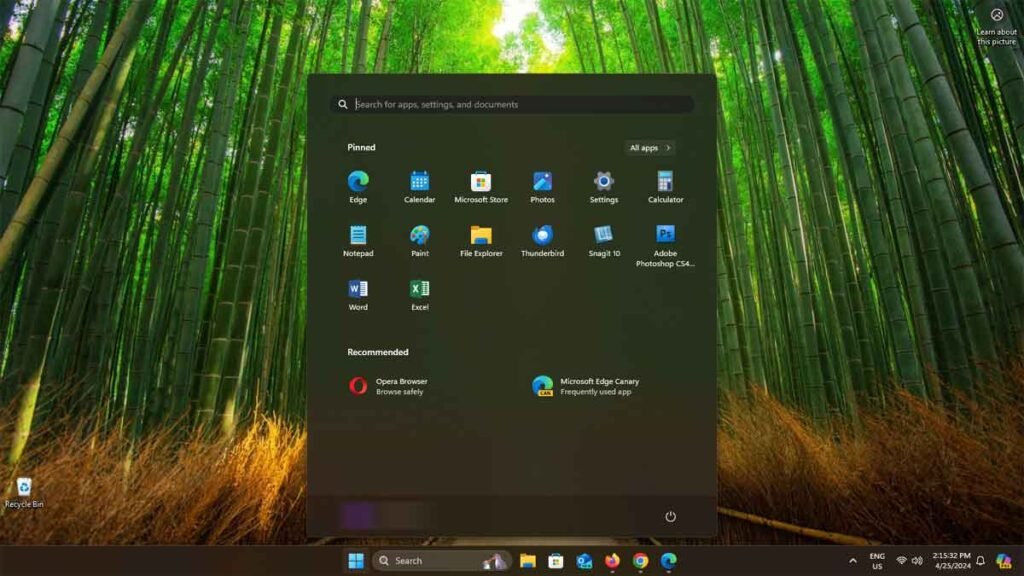
The Start Menu has always been a central part of the Windows experience, providing quick access to apps, documents, and settings. However, with the inclusion of ads, some users are concerned about the impact on their overall user experience.
Microsoft has stated that the ads will be relevant and non-intrusive, and they will not appear for users who have purchased a Windows 11 license. The company aims to provide personalized recommendations and suggestions to enhance productivity and efficiency.
While some users may find the ads useful, others may view them as a distraction or an invasion of privacy. It is important for Microsoft to strike a balance between generating revenue and respecting user preferences.
For those who are not interested in seeing ads on their Start Menu, Microsoft has provided an option to disable them. Here is how to turn off ads on Windows 11:
How to Turn Off Ads in Windows 11’s Start Menu?
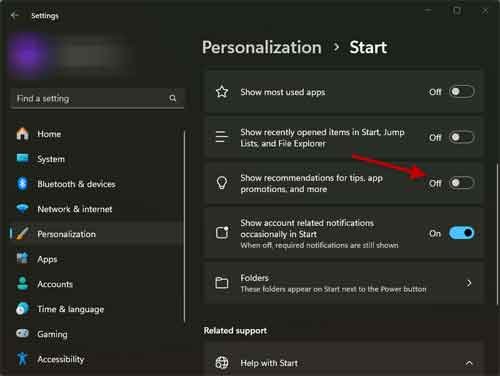
- Open the Settings app on your Windows 11 system.
- Go to Personalization and choose the Start option
- Disable “Show recommendations for tips, shortcuts, new apps, and more” option.
- It will disables ads in the recommended section of Windows 11’s Start Menu.
In conclusion, the introduction of ads on the Windows 11 Start Menu is a significant change that has sparked mixed reactions among users. Microsoft’s goal is to provide personalized recommendations while respecting user preferences. It remains to be seen how this change will be received and whether it will enhance or detract from the overall user experience.

