

You don’t need fancy apps or expensive software to track your fitness goals and build better habits. Google Sheets combined with AI prompts gives you a completely customizable, free solution that you can tailor exactly to your needs. Whether you want to track workouts, daily habits, or both, you can create a powerful fitness and habit tracker dashboard in minutes using ChatGPT or Claude prompts.
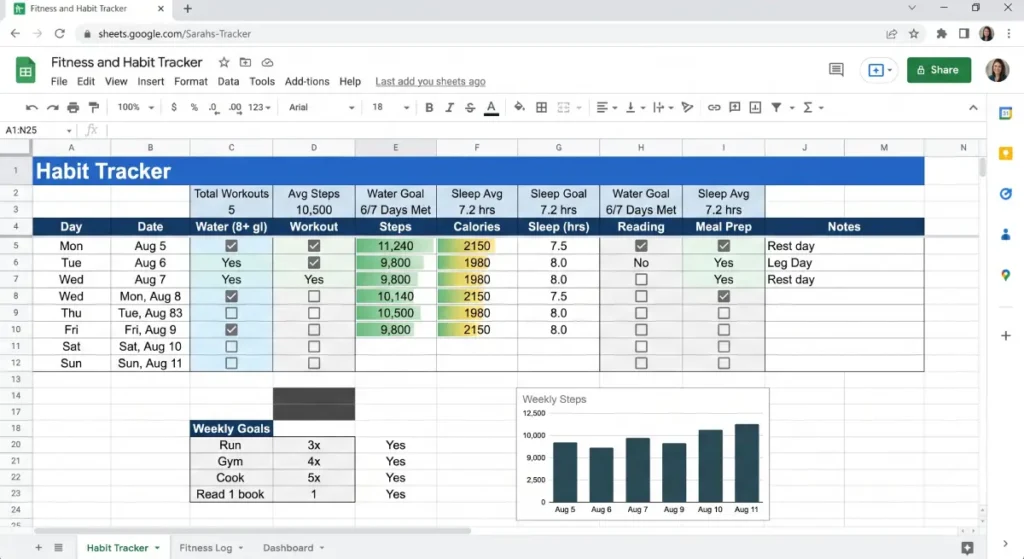
The beauty of this approach? No coding required. No subscription fees. Just you, a spreadsheet, and the right prompts to guide the AI in building what you need.
The Six Fitness and Habit Tracker Claude.ChatGPT Prompts That Actually Work
1. Tracker Layout Blueprint
What it does: Builds the foundation of your tracker
[Prompt]I want to build a Google Sheets fitness tracker that monitors my daily workouts and 5 key habits over 30 days. Can you design the layout with dates, checkboxes, a streak counter, columns for workout type/duration/calories, conditional formatting to highlight progress, and a weekly summary that auto-calculates my completion percentage? Also add a motivational quote section at the top.
The streak counter alone makes you think twice before breaking the chain.
2. Daily Fitness Logger
What it does: Captures the details that matter
[Prompt]Design a Google Sheets fitness tracking section with these columns: Date, Workout Type (dropdown menu), Duration (minutes), Calories Burned, and Notes. Add formulas to automatically calculate: (1) Total weekly minutes, (2) Total calories burned per week, (3) Average workout duration. Include data validation dropdowns for workout types (e.g., Running, Weightlifting, Yoga, Cycling). Show me the exact formulas needed for the calculations.
The notes column is underrated—jot down how you felt, energy levels, or any obstacles. Future you will thank present you for this context.
3. Habit Progress Visualizer
What it does: Makes consistency visible
[Prompt]Add conditional formatting to my habit tracker that: (1) Highlights current streaks in green, (2) Shows broken streaks in red, (3) Displays missed days in yellow. Create formulas to calculate: (1) Current streak length for each habit, (2) Longest streak achieved, (3) Overall completion percentage (completed days ÷ total days × 100). Add a summary chart showing habit completion rates across the 30 days.
This is where the tracker stops being data and starts being a daily motivator.
4. Weekly Summary Creator
What it does: Lets the numbers tell the story
[Prompt]
Create a weekly summary section at the top of my sheet that auto-calculates and updates: (1) Total workouts completed per week, (2) Habit completion percentage (habits completed ÷ habits tracked × 100), (3) Best performing day of the week (day with most completed activities), (4) Total calories burned per week. Use SUMIF and COUNTIF formulas to pull data from the daily log. Format as a clean table with conditional highlighting for high-performing weeks.
The weekly summary takes the pressure off daily perfection and shows real progress over time.
5. Goal Reminder + Motivation Prompt
What it does: Keeps you focused when motivation dips
Add a header section to my tracker with: (1) A rotating motivational quote (that changes weekly or on demand), (2) A weekly goal input box where I can type my fitness/habit goal for the week, (3) A "Goal Status" indicator showing progress toward that week's goal. Include a formula that marks the goal as "On Track," "Behind," or "Exceeded" based on actual completion. Make this section visually prominent with larger fonts and conditional color-coding.
Small friction is removed. Big wins follow.
6. Notion Sync Suggestion
What it does: Integrates with your other systems. If you use Notion, ask for a simple method to manually sync or embed your Google Sheets tracker.
[Prompt]Explain a simple workflow to sync my Google Sheets habit tracker with Notion: (1) Which data should I export from Sheets (daily logs, weekly summaries, streaks)? (2) Should I use Notion's native Google Sheets embed or manually copy data weekly? (3) Create a step-by-step guide for setting up an embedded Sheets view in Notion. (4) Suggest the best Notion database structure (properties/columns) that matches my Sheets data. Include screenshots of both the Sheets export and Notion setup.
One system, no friction. That’s the goal.
What You’ll Actually Get Using These Prompts
After running these prompts through Claude or ChatGPT, you’ll have:
- A clean, organized tracking dashboard you actually want to use
- Visual feedback (colors, streaks, progress bars) that keeps motivation high
- Automatic calculations so you’re not doing math by hand
- Weekly insights that show what’s working and what needs adjustment
- Zero barriers to entry—just open the sheet and check a box
- The tracker becomes so simple that the only hard part is doing the actual work. Which is exactly how it should be.
The Real Win
The best fitness tracker is the one you’ll actually use. A fancy app you ignore is worthless. A simple Google Sheets template that takes 30 seconds to update every day? That’s a system that sticks.
You’ve built something that reflects your actual goals, not someone else’s idea of what you should track. That ownership matters more than you’d think.
Start with one prompt. Build from there. In an afternoon, you’ll have a custom tracker that rivals any paid app—because you made it exactly for you.
Conclusion
Your fitness journey doesn’t need expensive apps or complicated software. With the right prompts and Google Sheets, you can build a tracker that’s actually yours—simple enough to use daily, powerful enough to show real progress. Start today. The only thing stopping you is thirty minutes and one good prompt.

