

Nothing phone has a built-in feature to add extra RAM on the device, for example, 2GB, 4GB, or 8GB, to improve the performance when running multiple apps and games. Called RAM Booster, it converts a portion of phone storage space into virtual RAM, allowing users to use it when there is a need for extra memory. Here is how to enable RAM Boost on Nothing Phone.
Before getting into the guide, RAM Booster is not a Nothing Phone’s exclusive feature. Samsung, Xiaomi, OnePlus, and Oppo phones have the same features but have different names. The working of RAM boost is similar to the Windows Page File system, and your phone will use this extra memory when in need.
How to Enable RAM Booster to Nothing Phone?
Before enabling RAM Booster, ensure your phone has 10GB or above free storage space.
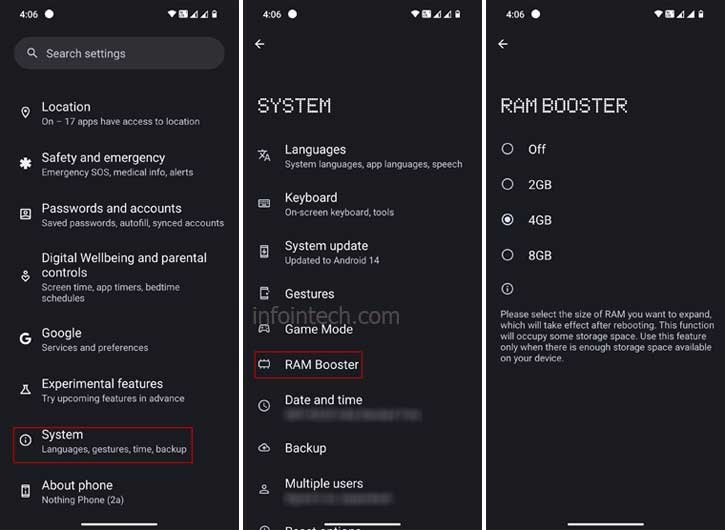
1. Launch the Settings app on your Nothing Phone.
2. In settings, scroll down and select System.
3. In the System, tap the RAM Booster option.
4. Now, select the required RAM GB (2GB, 4GB, or 8GB) based on the free storage space available on the device.
5. Once you select the RAM size, reboot your phone.
How to Enable RAM Expansion on OnePlus Phone?
1. Open Settings on your OnePlus phone and tap About Device.
2. Next, tap the RAM option and turn on the RAM Expansion toggle.
3. Select the 2GB, 3GB, or 5GB option, as per your requirement.
4. Once you select the size, restart your OnePlus phone.
How to Enable RAM Expansion in Oppo Phones?
1. Open the Settings app on your Oppo phone.
2. Next, scroll down and tap the About Phone option.
3. Choose RAM and toggle on the RAM Expansion option.
4. Next, select a required RAM size (2GB/3GB/5GB) depending on the available storage.
5. Now, restart your Oppo phone.
That is all how to expand RAM on Nothing, OnePlus, and Oppo phones. A similar feature is available on some Samsung and Xiaomi phones. Since Virtual RAM uses the storage space of the device, the performance will depend on the storage available.

