

Quick Share, previously called Nearby Share, is a built-in feature of Android that helps you share photos, videos, contacts, links, folders, and other files wirelessly between Android phones, Chromebooks, and Windows PCs. Google and Samsung is regularly improving the tool with new features for a seamless experience.
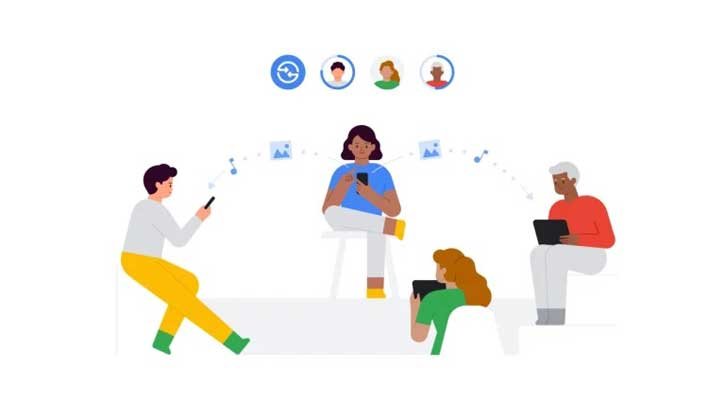
Quick Share recently received a new feature inspired by Apple’s AirDrop file-sharing tool. It now supports file transfers over Wi-Fi or mobile data, even when the connection is interrupted. Apple introduced this feature to AirDrop in 2023 with the iOS 17.1 update.
To enable AirDrop-like file sharing capabilities on Android’s Quick Share, make sure to update Google Play Services to version 25.04. Since it is rolled out in phases, it may take a few days to get the feature on your device.
Note that this feature was initially introduced by Samsung with the One UI 7.0 beta. It is now available globally for all Android users. Enjoy seamless file transfers between devices with this enhanced Quick Share functionality!
When transferring files, getting disconnected can be very annoying because you might have to start all over again. The good news is that with the latest update, file transfers won’t stop even if one device temporarily disconnects, as long as both devices are connected to mobile data or Wi-Fi. This update makes sharing files smoother and more reliable, so you can share your important files without any hassle.
Limitations of New File Transfer Feature of Quick Share
Keep in mind that this new feature of Quick Share uses mobile data and Wi-Fi for file sharing. If the devices disconnect during a transfer, the feature will use your internet data. If you share small files it won’t be an issue, but larger files may consume more data.
Also, when devices disconnect and the transfer continues over the internet, the transfer speed will depend on your internet connection. If your internet is slow, file transfers may take longer.

