

Chrome Remote Desktop is a convenient solution for remotely accessing your home or work computer using your phone, tablet, or another computer, as well as for sharing your screen with others. Though Windows 11 has a built-in Remote Desktop feature, Chrome Remote Desktop is a cross-platform solution that is secure, free, and easy to use.
In this guide, I let you know how to set up and use the Chrome Remote Desktop on your Windows 11 PC. You can use it to access your computer remotely or share your screen with a technician for troubleshooting the PC issues. This tool can be useful for everyone who need to connect to their Windows 11 machines from various locations.
What is Chrome Remote Desktop?
Chrome Remote Desktop, launched in 2011, has received significant enhancements recently. It ensures secure and encrypted remote connections between devices. It allows you to access your computer from anywhere using your Android, iOS device, or tablet, and also enables screen sharing for remote assistance.
Chrome Remote Desktop is a widely using solution for remote work settings, IT support tasks, and for personal computer management. Since it is a cross-platform solution, it works on Windows, macOS, Linux, and ChromeOS.
How to Setup Chrome Remote Desktop
1. First, open your Chrome browser and sign-in with your Google account.
2. Now, go to this page and select the “Access my computer” or “Share my screen” option from the available choices.
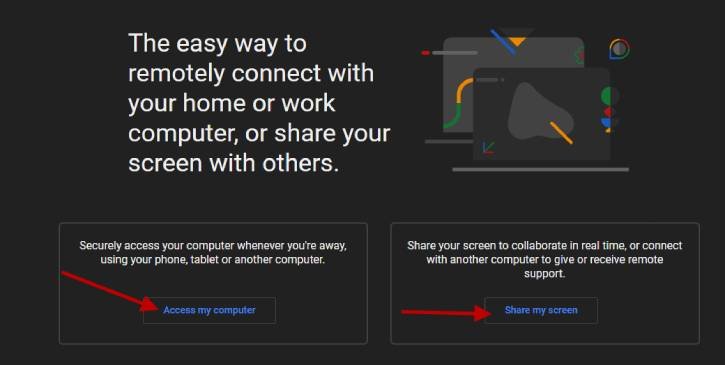
3. Next, tap on Download icon to downloaded Chrome Remote Desktop host app.
4. After downloading the file (21MB), double click on it to install it and follow to on screen instruction to set it up.
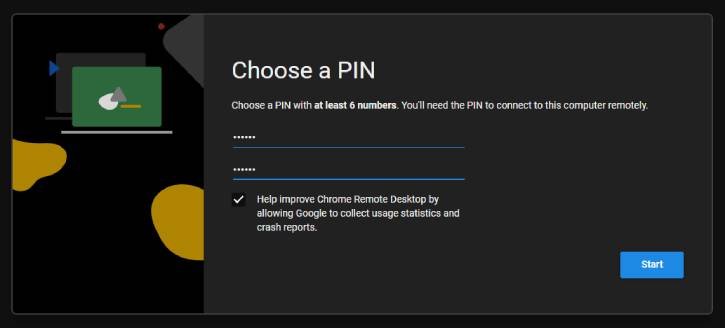
You have activated the Chrome Remote Desktop feature on your Windows 11 computer. Here’s how to use it to access your computer remotely from another device or to share your screen with others for remote assistance.
ALSO READ: Five Methods to Fix Remote Desktop Does Not Working in Windows 11
How to Use Chrome Remote Desktop
1. First, you must install the Chrome Remote Desktop extension on each device you wish to use for remote access.
2. Now, to access your computer remotely from another device, go to remotedesktop.google.com on your Chrome browser, choose “Remote Access” option.
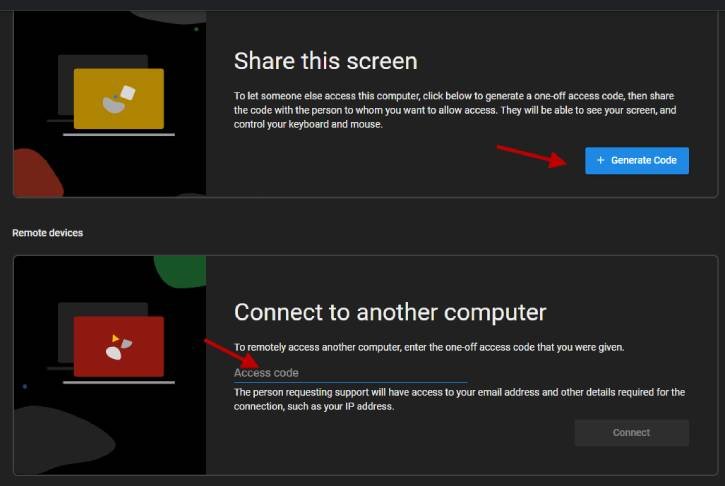
3. You can find the list of linked computers under the “Remote Devices” section of your account. Select the computer which you want to access. Use your PIN to connect your device.
4. Now, to share your computer screen, select Remote Support option, and click on Generate Code.
5. It will generate a 12-digit code. Share this access code to the person who will be assisting you.
Chrome Remote Desktop gives remote user full control of the host computer. As a remote users, you can access the start menu, create new files,open up file explorer, install applications, delete files and folders, and troupbleshoot issues.

