

A recent Google Chrome browser update causes a wierd issue for some users on Windows 11. Some users reported that their Chrome browser launches in blank screen, which may appear gray, white, or black. As a result, the user interface and text are not visible.
This Chrome update (version 139) appears to have caused issues with OpenGL hardware accelaration, resulting in rendering problems. This update affected how graphics are displayed in the browser.
Since many users have reported this issue, it might be a common problem. If you encounter this blank or gray screen on Chrome, you are not alone, and it seems to be affecting multiple people after the latest update.
ALSO READ: What is QUIC Protocol and How to Disable it in Chrome
In this guide, let us know how to fix Google Chrome gray screen issue on Windows 11.
Note: Google has fixed the gray screen issue with a new update.
How to Fix Google Chrome Gray Screen Issue on Windows 11
1. First, right-click on the Chrome desktop shortcut and select Properties.
2. In the target field, add --disable-gpu at the end of the entry and click Ok to save the settings.
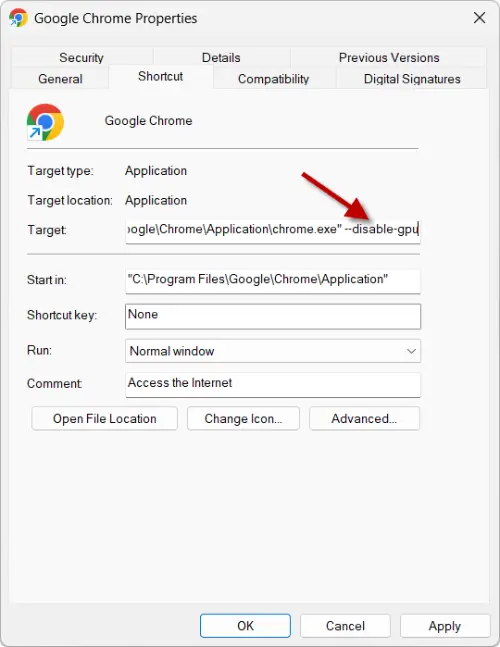
[It should look like this: C:\Program Files\Google\Chrome\Application\chrome.exe" --disable-gpu]
3. Now, launch Chrome, the gray screen will disappear.
4. Next, go to chrome://flags/#use-angle experimental page.
5. Click on the dropdown menu next to “Choose ANGLE graphics backend” and select Default.
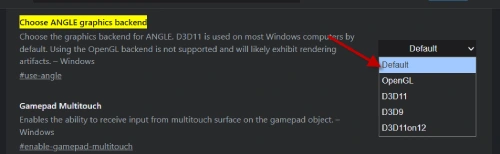
6. Relaunch Chrome, and you can use your browser normally.
7. You can remove the –disable-gpu option from the desktop shortcut now.
Note that, this solution is meant for Windows users only. The “–disable-gpu” command helps to turn off hardware acceleration, which fix graphic issues.
FYI, a bug report has been submitted to the Chromium Issue Tracker. The issue appeared on July 31st, which is the same day an early update for Chrome 139 was released. This update was version 139.0.7258.66, and it seems to be linked to the problem users are experiencing. The bug went unaddressed for a week after it was discovered. During this time, many users continued to face the same issue. Eventually, a new version of Chrome started to roll out to more users, aiming to fix the problem and improve their experience.

