

Chrome is the default browser on Android phones, but a common annoyance is the frequent unwanted notifications it sends. These notifications usually come from news sites and other websites you may not want to hear from.
Frequent, unwanted notifications on Android can be distracting for users. The good news is that you can easily block or turn off notifications in the Chrome mobile browser. This way, you can enjoy a quieter browsing experience with fewer interruptions while using your device.
In this article, I’ll show you how to stop Chrome from sending unwanted notifications on your Android phone.
Why Does Chrome Send Notifications from Websites?
When you visit a website on Chrome, it may ask for permission to send push notifications. If you accept, the site can send you updates, news, and advertisements directly to your device. This feature aims to keep you informed but can lead to excessive distractions from unwanted alerts.
Understanding how to manage these notifications helps enhance your browsing experience and allows you to focus on what matters most without interruptions. Here are three simple ways to stop these notifications.
Method 1: Disable Chrome Notifications on Android
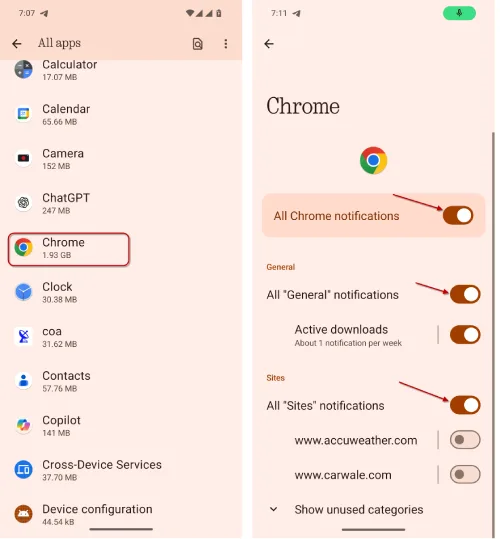
- Open the Settings app on your Android phone.
- Select Apps and then tap on All Apps.
- Choose Chrome from the list.
- Tap on Notifications or Manage Notifications.
- Here you can turn Off the toggle for Allow Notifications or All sites notifications.
ALSO READ: What is QUIC Protocol and How to Disable it in Chrome, Firefox & Edge
Method 2: Disable Chrome Notifications on Android
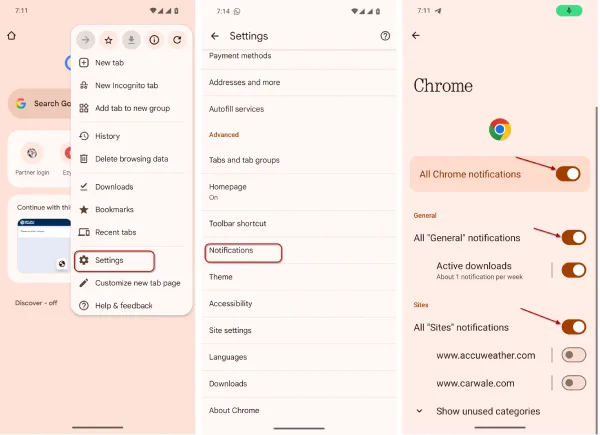
- Open the Chrome browser on your phone.
- Tap the three vertical dots menu in the top right corner and select Settings.
- Tap on Notifications.
- Turn Off the toggle for Allow Notifications/All Chrome Notifications/All General Notifications/ or All Sites notifcations.
Method 3: Disable Chrome Notifications on Android
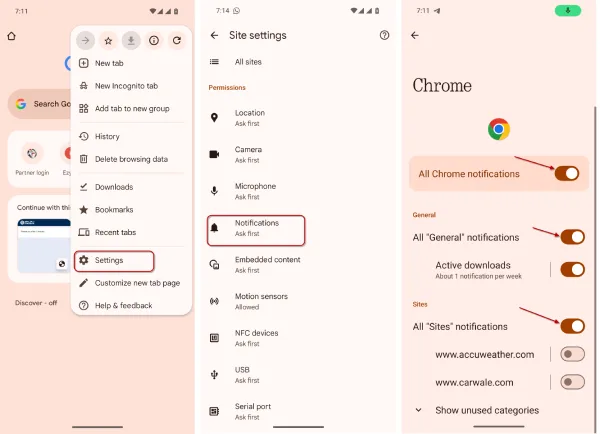
- Open the Chrome browser on your phone.
- Tap the three vertical dots menu in the top right corner and select Settings.
- Scroll down and tap on Site Settings.
- Tap on Notifications.
- Turn Off the toggle for Notifications.
ALSO READ: Enable Automatic Password Change Feature in Chrome
Conclusion
That’s it! By using any one of the three methods above, you can stop Chrome from sending unwanted notifications to your phone. Just remember, if you ever decide to turn the toggle back on following the same steps, Chrome will start sending notifications again

