

If you are a Mac user, you may have struggled with file sharing and clipboard syncing between your Android phone. Now, the O+ Connect app from Oppo makes these tasks much easier. Here is how to setup and use the app.
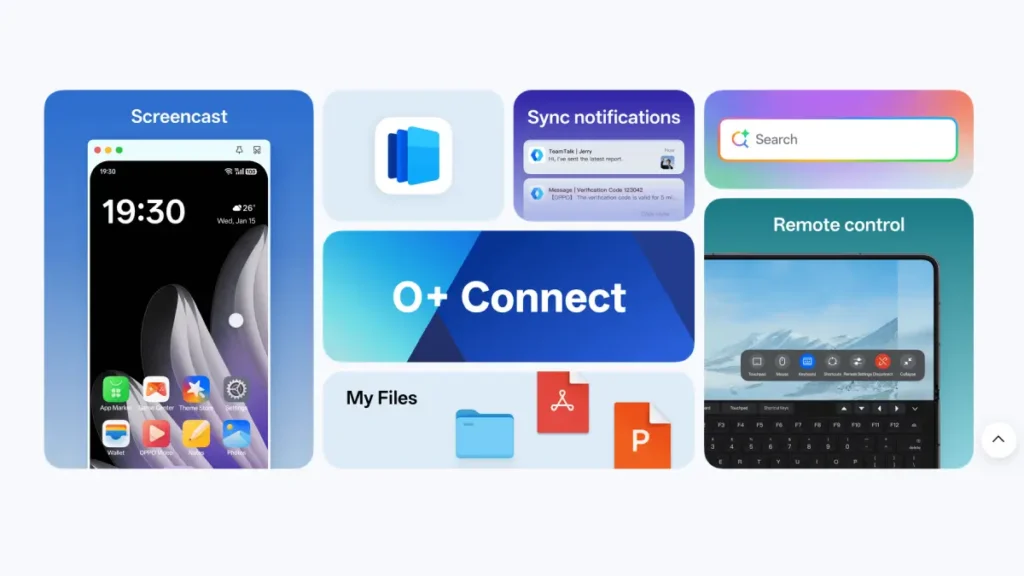
The O+ Connect app from Oppo simplifies file sharing and clipboard syncing between your Mac computer or Windows PC and Vivo, Oppo, or OnePlus phones, allowing easy content sharing and screen casting.
With the O+ Connect app, you can connect your Oppo or OnePlus phone to an iPhone, iPad, Mac, or Windows computer. This allows you to transfer files across systems, receive phone calls, messages, and notifications on multiple devices, cast your phone screen to your computer, or use your phone apps on your computer.
How to Connect Your Oppo/OnePlus Phone to a Mac Using O+ Connect App?
1. First, go to the O+ Connect software page and select the For-PC option to download it to your Mac.
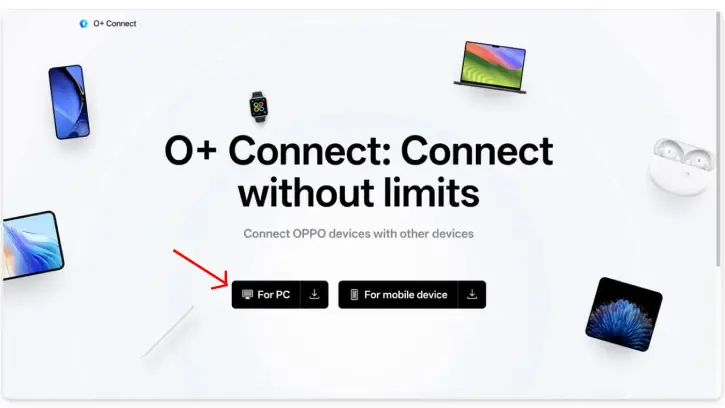
2. After downloading, install the software on your device.
3. Once installation is complete, follow the on-screen instructions to set up your device.
4. Now, open the O+ Connect app on your Mac and click on + Add Device.
5. The app will display a QR code. Use your OnePlus/Oppo/Vivo phone to scan the QR code.
6. Tap Allow to grant the connection, and your devices will be connected.
You have successfully connected your Mac with your OnePlus or Oppo phone. Now, let’s explore how to share files between your devices.
How to Share Files Between OnePlus/Oppo Phone and Mac
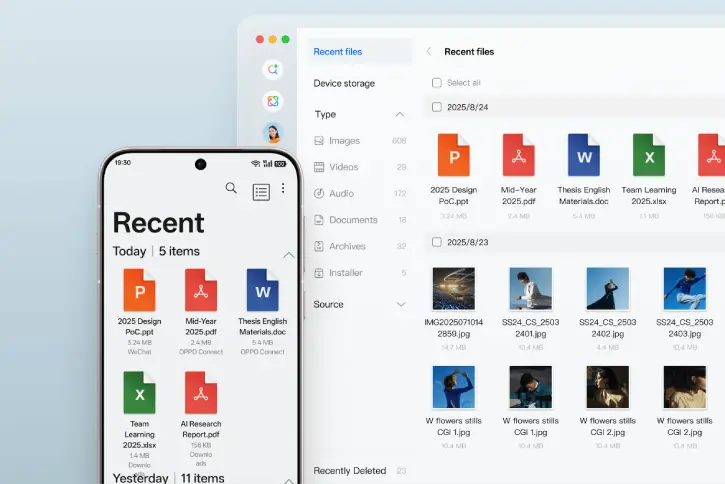
To share files, both devices must be connected. You can verify the connection status in the Devices tab. There are two methods for sharing files between devices: you can either browse the files on your mobile device directly from your PC or use the regular file transfer method.
Method 1: Browse Files on Your Phone from Your Mac
- Go to Files and tap on the O+ Connect app. Here, you can browse all the files on your mobile device.
- To transfer files from your OnePlus/Oppo phone to your Mac, select the file you want to transfer. Tap on it and choose Save to PC.
- To share files between a Mac and a OnePlus/Oppo, click on Import files. Select Save to PC and then click Open.
- You can view the files on your OnePlus/Oppo phone immediately.
Method 2: Sharing Files Between OnePlus/Oppo Phones and Mac Using Standard Method
- From OnePlus/Oppo Phone to Mac
- Select the file you want to share on your phone.
- Tap the share icon to start the sharing process.
- Choose “iPhone or iPad” and then select “MacBook” as the target device.
- From Mac to OnePlus/Oppo Phone
- Select the file you wish to share on your Mac.
- Drag and drop the chosen file into the O+ Connect app to send it to your phone.
Other Features O+ Connect App Offers
You can seamlessly share clipboard content between your Mac and OnePlus/Oppo smartphone without third-party tools. Ensure both devices are on the same network. Simply copy text on one device, and paste it on the other using the standard shortcuts.
Casting your OnePlus/Oppo phone to your Mac is straightforward and effective. Connect both devices to the same Wi-Fi, then initiate the Screen Cast option. Choose to display your entire screen or specific apps, and your phone’s interface will appear on your Mac.
With O+ Connect, accessing your Mac remotely is easy and efficient. Install the app, sign in, and ensure both devices are online. You can manage files, sync clipboards, and even cast screens, enhancing your overall user experience.
Conclusion
The O+ Connect app allows OnePlus/Oppo smartphones to integrate seamlessly with MacBooks. This feature enhances connectivity between Apple and Android devices, enabling features like remote access to Windows PCs and notifications from Apple Watches on Android smartphones.

