

Windows 11’s redesigned Start menu groups the Pinned, All, and Recommended sections into a single, larger unified view. The menu and app icons automatically scale with your screen size: on smaller displays the icons and menu are smaller, and on larger displays they are larger.
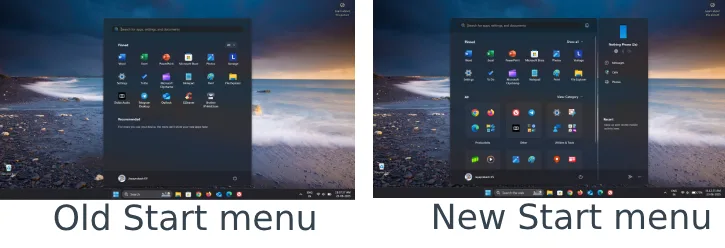
The redesigned Start menu also offers three ways to view the All apps section: Category, Grid, and List. You can also remove the Recommended section if you prefer.
If you prefer a slimmer Start that shows only your pinned apps—similar to an Android app drawer on your Windows 11—you can hide the All apps section with a simple Registry tweak. The method below is reversible and safe when followed carefully, and the guide answers common questions.
Why Hide the All Apps Section from Windows 11 Start Menu?
- Cleaner, less cluttered Start menu that displays only pinned apps.
- Avoid the larger, more opinionated default layout and category grouping.
- Useful if you always use Search or shortcuts to open unpinned apps.
Steps to Hide the All apps List from Windows 11 Start Menu (Registry Tweak)
1. Open Start, type regedit, and open Registry Editor.
2. Navigate to: HKEY_CURRENT_USER\Software\Microsoft\Windows\CurrentVersion\Policies. Name it: Explorer
Right-click the Policies key → New → Key
3. With the Explorer key selected, right-click in the right pane → New → DWORD (32-bit) Value. Name it: NoStartMenuMorePrograms
4. Double-click NoStartMenuMorePrograms and set Value data to: 1
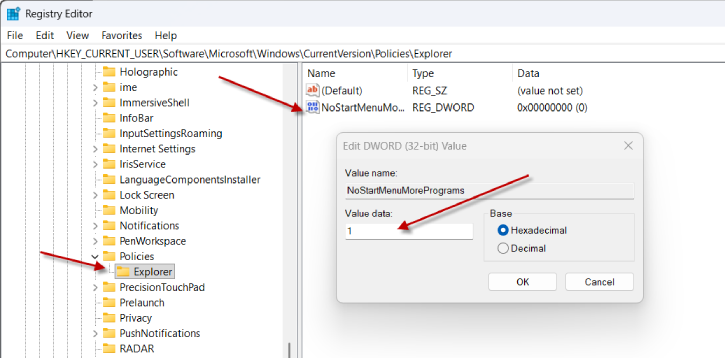
5. Click OK and restart your PC (or sign out/in).
After restarting, the Start menu will only show pinned apps. Use Windows Search or create desktop/taskbar shortcuts for apps you remove from the Start list.
Restore the All apps Section
Repeat steps above, but on step 5 delete the NoStartMenuMorePrograms DWORD (or set its value to 0), then restart Explorer or the PC.
ALSO READ: Navigate Windows Faster with Flow Launcher: A Lightweight Start Menu Alternative
Command-line alternative to Remove All Apps Section
You can apply the same change via command prompt or a script by creating the same Registry value. (Example: run reg.exe add “HKCU\Software\Microsoft\Windows\CurrentVersion\Policies\Explorer” /v NoStartMenuMorePrograms /t REG_DWORD /d 1 /f)
Safety and compatibility
- This tweak only changes the Start menu layout and is reversible.
- Editing the Registry carries risk—create a System Restore point or export the Registry key before changing it.
- Works on current Windows 11 releases; future updates may change behavior.
FAQ
Can you remove the All apps section? Yes—via Registry or command-line tweak.
Is there a built-in setting? No, Windows 11 has no native toggle for this.
Is it safe? Yes if done correctly; back up before editing the Registry.
What changes after removal? Start shows only pinned apps; use Search for unpinned apps.
Can I restore it? Yes—delete the NoStartMenuMorePrograms value or set it to 0 and restart.
Will this always work? Likely on current releases; future Windows updates could change behavior.
Conclusion
The new Start menu is designed to be more user-friendly, making it easier to access various apps and settings in Windows 11. However, users who frequently rely on a limited number of applications, the old Start menu is more effective. I belive that this guide will help you go back to the old Start menu.

