

Google Live Translate is an AI-powered feature of its Translate app that provides instant audio translation directly through headphones. Unlike traditional translation apps that require you to pause conversations, record audio, and wait for processing, Live Translate operates seamlessly in real time. Initially available for Android users, the feature is now available to iOS users as well. Here is how live translator for headphones works and how to set it up on your iPhone.
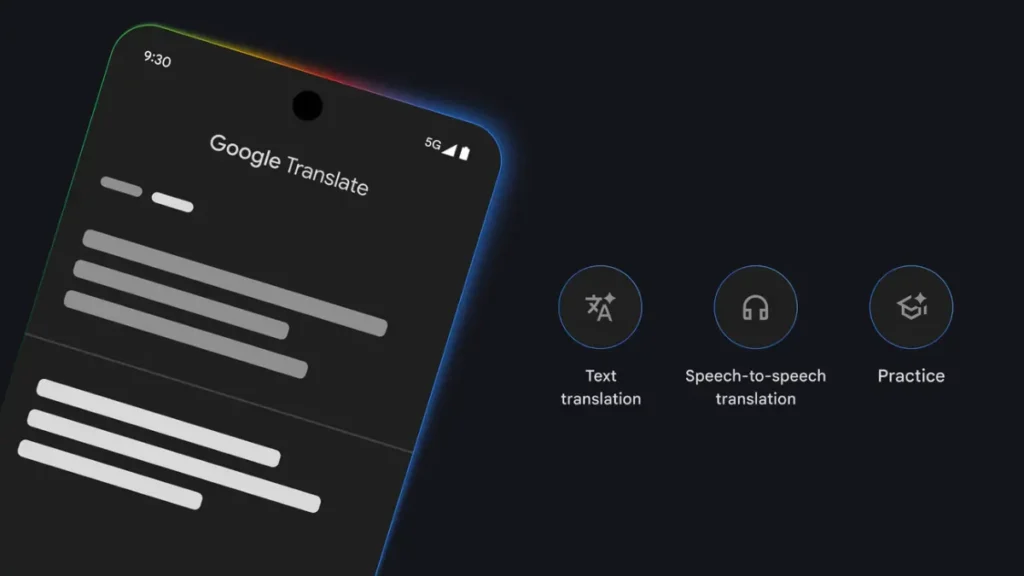
With the new Google Live Translate feature iPhone users can now use their headphones as live translator. The translated audio plays directly in ears, allowing users to maintain natural eye contact and hear the original speaker’s tone and emotions during conversations.
This breakthrough technology uses advanced speech-to-speech neural networks to process surrounding audio and deliver translations while preserving the rhythm, pitch, and emotional nuance of the original speaker.
How Does Google Live Translate Work?
Google Live Translate operates through a continuous, real-time audio processing system. When you activate the feature, your iPhone’s microphone or your headphones’ built-in microphone captures surrounding speech. Google’s AI instantly processes this audio, translates it, and delivers the translated output to your ears through your connected headphones.
The key advantage is speed and naturalness – the translation maintains the original speaker’s cadence and emotional delivery, making conversations feel genuine rather than robotic or delayed. This eliminates the awkward pause-and-wait cycle of older translation methods, enabling flowing, natural international communication.
Currently, Live Translate supports over 70 languages and is available in major cities including London, Paris, Berlin, and Tokyo.
How to Use Google Live Translate on iPhone (Step-by-Step Guide)
1. First, install the Google Translate app from Apple App Store (if you already don’t have) or update to the latest version.
2. Next, connect your headphones to your iPhone via Bluetooth or cable. Live Translate works with any pair of headphones, including AirPods, third-party wireless earbuds (TWS) and wired headphones.
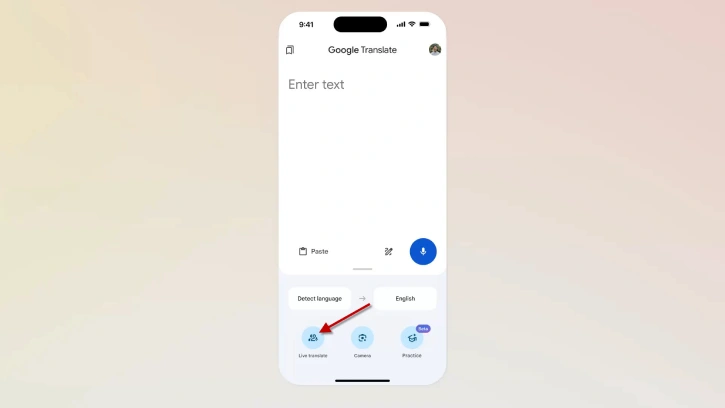
3. Now, open Google Translate app and tap “Live Translate” icon. You’ll see options for different translation modes.
4. Next, From the mode menu, select “Listening” mode, then choose input language (the language being spoken around you) and then select your output language (the language you want to hear in your ears).
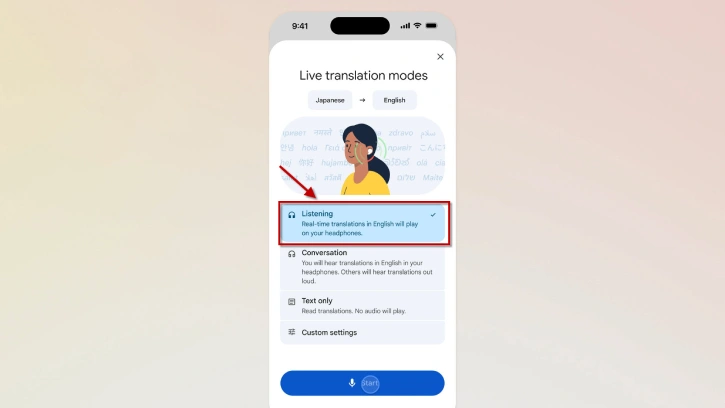
Note: If you choose “Conversation” mode instead, the app will read translations aloud through your speaker as well, which may not be ideal for discreet translation during conversations.
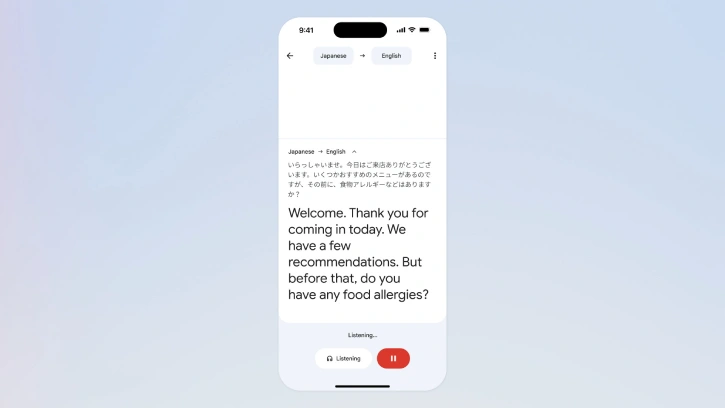
5. Once configured, the app will automatically detect and translate speech in real time. As the speaker talks, you’ll hear the translation directly in your headphones. The transcript of both the original speech and translation will also appear on your screen for reference.
Key Benefits of Using Live Translate
- Natural Communication: Maintain eye contact and engage authentically without awkward pauses or recording delays.
- Emotional Clarity: Hear the original speaker’s tone, pitch, and emotions preserved in the translation.
- Broad Language Support: Access translations for over 70 languages, making it useful for international travel and business.
- Device Flexibility: Works with any standard headphones—no special equipment required.
- Real-Time Processing: Instant translation eliminates the wait time of traditional translation apps.
Best Practices
- Use a quiet environment when possible to ensure accurate speech detection
- Position your microphone clearly, if using headphones with a built-in mic, keep it close to your mouth or the speaker
- Test your setup with a short conversation before relying on it for important discussions
- Check language availability for less common language pairs, as some may have limited support
Conclusion
Live Translate represents a significant leap forward in breaking down language barriers and making global communication accessible and natural for iPhone users.

