

Google Docs makes adding and managing footnotes incredibly simple, whether you’re writing a thesis, research article, or formal report. Footnote is an essential tool for academic papers, research documents, and professional writing. It allows you to provide citations, additional context, or clarifications without cluttering your main text.
In this guide, you’ll learn how to insert footnotes, customize their appearance, and use advanced techniques to streamline your workflow. Adding a footnote in Google Docs is very simple and takes just a few clicks. Below is the step-by-step instruction to do footnotes in Docs.
How to do Footnotes in Google Docs
1. Position your cursor where you want the footnote reference to appear in your document (typically at the end of a sentence or clause).
2. Click the “Insert” menu at the top of your document.
3. Select “Page elements” from the drop-down menu and choose “Footnote.”
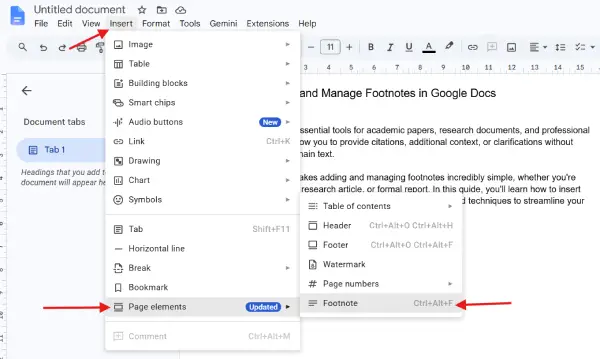
4. Alternatively, use the keyboard shortcut Ctrl + Alt + F (Windows/Chrome OS) or Cmd + Option + F (Mac) to add footnotes in Docs.
5. Google Docs will automatically add a superscript number in your text and create a corresponding footnote at the bottom of the page.
6. Next, type your footnote text in the footnote area at the page bottom.
7. Return to the main text by clicking where you left off, or simply continue typing, Google Docs will handle the formatting automatically.
Advantages of Using Footnotes in Google Docs
Footnotes offer numerous benefits that make them invaluable for serious writers and researchers.
Academic Credibility
Footnotes signal that your work is well-researched and properly cited, meeting the standards of academic institutions and professional publications.
Automatic Numbering and Organization
Google Docs automatically renumbers footnotes if you add or delete them anywhere in the document. This eliminates manual counting errors and saves hours of editing time.
Seamless Collaboration
When multiple authors work on a document, footnotes remain properly formatted and organized, making collaboration smooth and professional.
Improved Readability
By moving supplementary information to footnotes, you keep your main text clean and focused, allowing readers to follow your primary argument without distraction.
Easy Navigation
In Google Docs, you can click on footnote references to jump between the main text and the footnote, making it simple to review and edit citations.
Professional Formatting
Google Docs automatically formats footnotes according to standard conventions, including proper spacing and line breaks, without manual adjustment.
Mobile-Friendly
Footnotes work seamlessly across all devices—desktop, tablet, and mobile—ensuring consistent formatting regardless of where you’re editing.
Pro Tips for Managing Footnotes Effectively
Tip 1: Convert Between Footnotes and Endnotes
Sometimes you need endnotes (which appear at the end of the document) instead of footnotes. To switch:
- Click Insert > Footnote > Options
- Select “Endnotes” from the dropdown menu
- Click “Apply” to convert all existing footnotes to endnotes
Tip 2: Use Footnotes for Citations and Additional Context Separately
- Create a consistent style by using footnotes exclusively for citations and reserving endnotes for additional commentary. This helps readers distinguish between sourced material and supplementary information.
Tip 3: Delete Footnotes Properly
Never manually delete the footnote text at the bottom of the page. Instead:
- Locate the superscript number in your main text
- Right-click on it
- Select “Delete footnote”
- Google Docs will automatically remove the footnote and renumber all subsequent notes.
Tip 4: Customize Footnote Appearance
- Adjust how footnotes look by going to Insert > Page elements > Footnote > Options and selecting your preferred style for numbering (Arabic numerals, Roman numerals, letters, etc.).
Tip 5: Use Comments for Collaborative Feedback
- When working with others, distinguish between footnotes (permanent citations) and comments (temporary feedback). Use comments for peer review and save footnotes for finalized citations.
Tip 6: Copy Footnotes Across Documents
- If you’re copying text with footnotes from one Google Doc to another, the footnotes transfer automatically. However, numbering will adjust to match the new document’s sequence.
Tip 7: Print with Footnotes Intact
- Ensure footnotes appear correctly when printing by checking File > Print > More settings and confirming that formatting options are preserved.
Conclusion
Footnotes are a powerful feature in Google Docs that bring up the quality and professionalism of your writing. Whether you’re submitting an academic paper, creating a research document, or producing professional content, mastering footnotes will streamline your workflow and impress your readers. By following the simple steps outlined above and implementing the pro tips, you’ll be able to manage complex citations and supplementary information with ease. Google Docs’ automatic renumbering and seamless collaboration features make it an ideal platform for any writing project that requires rigorous documentation. Start using footnotes today and watch your writing reach new levels of professionalism and credibility.

