

Google Sheets offers powerful functions that Excel doesn’t have. Whether you’re a data analyst, business owner, or spreadsheet enthusiast, these exclusive Sheets functions can save you time and simplify your workflows. Let’s explore them with practical, easy-to-understand examples.
Table of Contents
Google Sheets Exclusive Functions
Query and Data Manipulation
- QUERY() – Performs SQL-like queries on data ranges, allowing you to filter, sort, and manipulate data with powerful syntax
- FILTER() – Filters a range to show only rows/columns that meet specified criteria
- SORT() – Sorts a range by one or more columns in ascending or descending order
- UNIQUE() – Returns only unique values from a range, removing duplicates
Text and Data Analysis
- REGEXMATCH() – Tests whether text matches a regular expression pattern
- REGEXEXTRACT() – Extracts matching text from a string using regex patterns
- REGEXREPLACE() – Replaces text matching a regex pattern with new text
- SPLIT() – Divides text in a cell into multiple cells based on a delimiter
Array and Lookup Functions
- ARRAYFORMULA() – Applies a formula to every row in a specified range without needing to copy it down
- FLATTEN() – Flattens a multi-dimensional array into a single column or row
- TRANSPOSE() – (Enhanced in Sheets) Works more dynamically with array formulas
Miscellaneous
- IMAGE() – Inserts an image from a URL directly into a cell
- SPARKLINE() – Creates tiny inline charts within cells
- GOOGLETRANSLATE() – Translates text between languages
- GOOGLEFINANCE() – Retrieves financial data (stock prices, exchange rates, etc.)
Google Sheets Exclusive Functions With Examples
FILTER() – Show Only What You Need
The FILTER() function lets you display only the rows that meet your criteria, without affecting the original data.
Example: You have a sales list with names, products, and amounts. You want to show only sales over 500.
Formula: =FILTER(A1:C5, C1:C5 > 500)
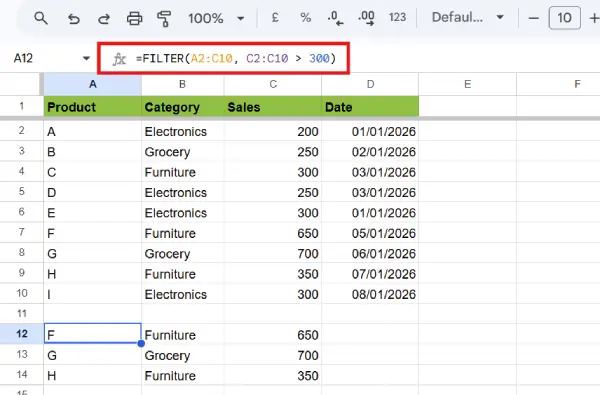
In Excel, you’d need to manually filter or use helper columns. Google Sheets does it with one formula!
QUERY() – SQL-Like Power for Your Data
The QUERY() function works like a mini database query language. You can filter, sort, and manipulate data all at once using SQL-style syntax.
Example: From the same sales data, you want to see only sales over 500, sorted by amount (highest first), showing only the Name and Amount columns.
Formula: =QUERY(A1:C5, "SELECT A, C WHERE C > 500 ORDER BY C DESC")
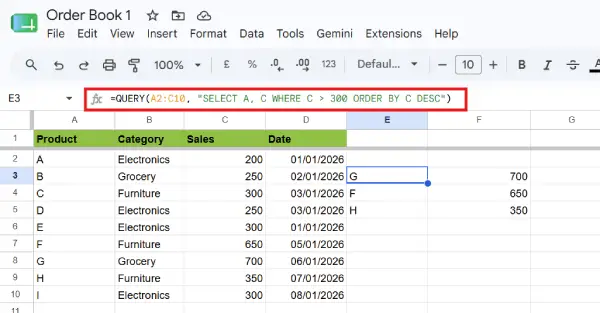
This combines filtering, sorting, and column selection in one elegant formula. Excel has no direct equivalent.
UNIQUE() – Remove Duplicates Instantly
The UNIQUE() function returns only one copy of each unique value in a range, perfect for cleaning up lists.
Example: You have a list of customer purchases with duplicate names.
Formula: =UNIQUE(A1:A6)
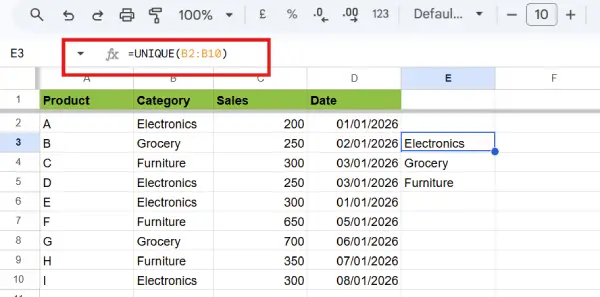
Excel requires multiple steps (helper columns or Data > Remove Duplicates). Google Sheets does it in one formula.
SPLIT() – Separate Text Into Columns Automatically
The SPLIT() function divides text at a delimiter and spreads it across columns automatically.
Example: You have full names in one column and need to split them into first and last names.
Formula: =SPLIT(A1:A3, " ")
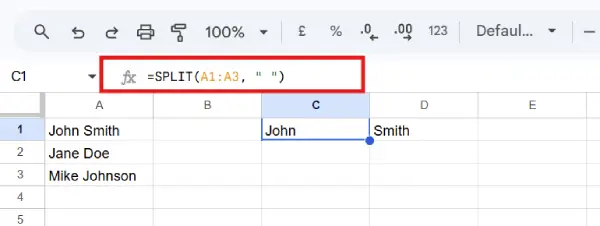
In Excel, you’d use Text to Columns (a menu feature, not a formula). Google Sheets automates it.
REGEXMATCH(), REGEXEXTRACT(), and REGEXREPLACE() – Pattern Matching Made Easy
These regex functions let you find, extract, or replace text patterns. Regular expressions are powerful for pattern matching.
REGEXMATCH() – Does This Text Match a Pattern?
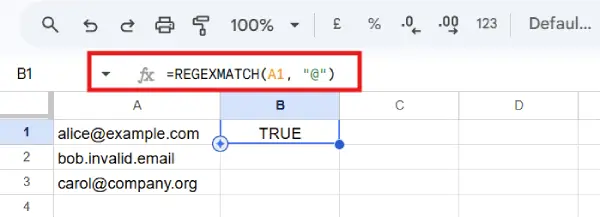
Example: You want to check if email addresses are valid (contain @ symbol).
Formula: =REGEXMATCH(A1, "@")
REGEXEXTRACT() – Pull Out Matching Text
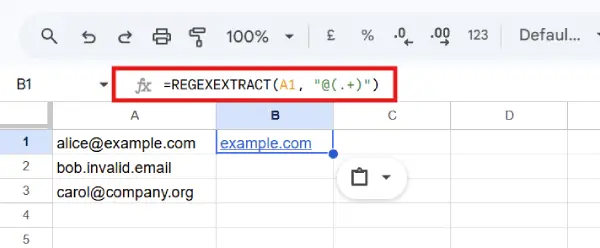
Example: Extract just the domain name from email addresses.
Formula: =REGEXEXTRACT(A1, "@(.+)")
REGEXREPLACE() – Replace Matching Patterns
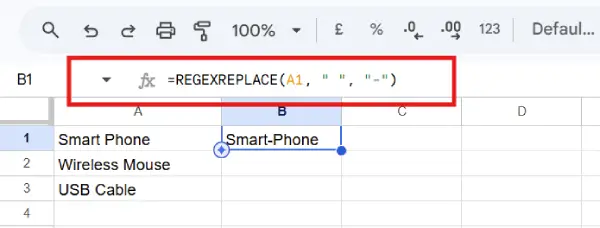
Example: Replace all spaces with hyphens in product names.
Formula: =REGEXREPLACE(A1, " ", "-")
Excel doesn’t have built-in regex functions like these.
ARRAYFORMULA() – Apply One Formula to an Entire Range
The ARRAYFORMULA() function applies a single formula to every row automatically, without copying it down.
Example: You want to multiply a price column by a quantity column for every row.
Formula in one cell: =ARRAYFORMULA(B2:B4 * C2:C4)
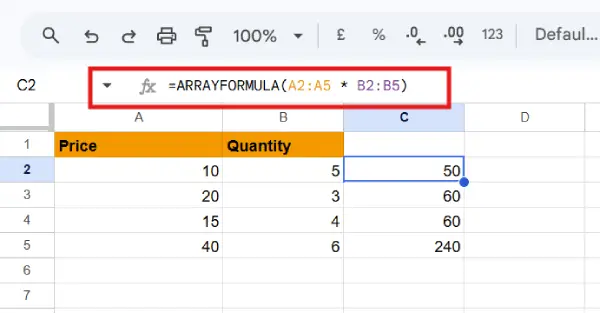
Instead of writing the formula three times, you write it once. Excel requires you to copy and paste formulas to each cell.
FLATTEN() – Turn Multi-Dimensional Data Into a Single List
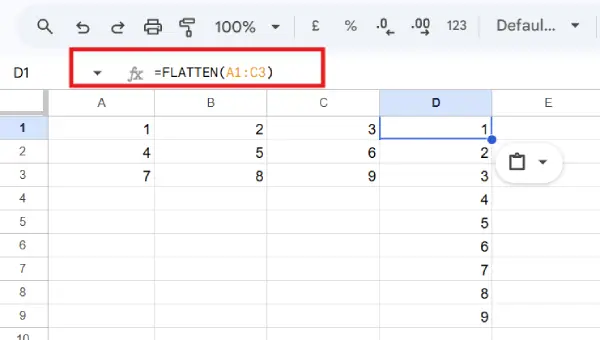
The FLATTEN() function collapses a multi-row, multi-column range into a single column.
Example: You have data in a 3×3 grid and want a single vertical list.
Formula: =FLATTEN(A1:C3)
This is tedious to do manually in Excel without helper columns.
IMAGE() – Add Pictures Directly in Cells
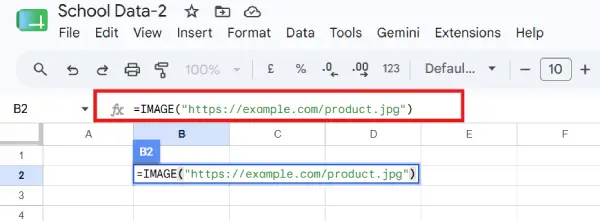
The IMAGE() function inserts an image from a URL right into your spreadsheet.
Example: You want to display product photos in your inventory sheet.
Formula: =IMAGE("https://example.com/product.jpg")
Excel doesn’t support this directly within formulas.
SPARKLINE() – Tiny Charts Inside Cells
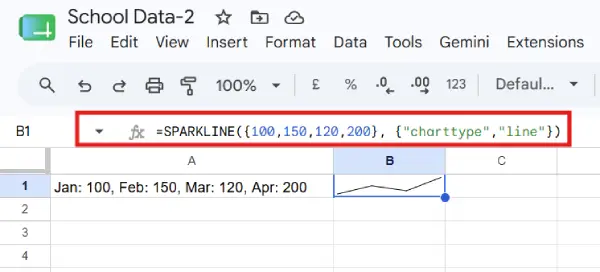
The SPARKLINE() function creates small, inline charts to visualize trends in a single cell.
Example: Show monthly sales trends as a tiny line chart.
Formula: =SPARKLINE({100,150,120,200}, {"charttype","line"})
Result: A tiny line chart appears in the cell showing the trend.
Excel requires separate chart objects; Google Sheets fits them in cells.
GOOGLETRANSLATE() – Translate Text Instantly
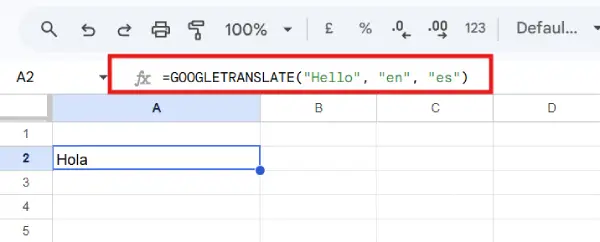
The GOOGLETRANSLATE() function translates text between languages.
Example: Translate a product name from English to Spanish.
Formula: =GOOGLETRANSLATE("Hello", "en", "es")
Excel has no translation function.
GOOGLEFINANCE() – Get Live Financial Data
The GOOGLEFINANCE() function retrieves stock prices, exchange rates, and other financial information.
Example: Get the current stock price for Apple.
Formula: =GOOGLEFINANCE("NASDAQ:AAPL")
Result: The current price of Apple stock.
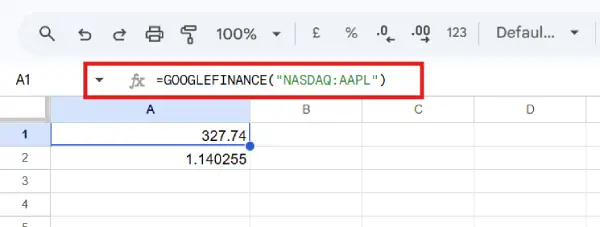
Another example: Convert currency.
=GOOGLEFINANCE("CURRENCY:EURUSD")
Excel requires external data connections; Google Sheets does it with a formula.
Key Takeaway
Google Sheets’ exclusive functions make common tasks faster and more intuitive. Functions like FILTER(), QUERY(), UNIQUE(), and the regex tools let you do in one formula what Excel requires multiple steps or menu options to accomplish.
If you’re working with data regularly, learning these functions will make you significantly more productive in Google Sheets. They’re designed for modern, collaborative workflows and reflect how data analysis actually works in practice.
Start with FILTER() and QUERY() if you’re new to Google Sheets—they’ll immediately change how you work with data.

