

Play Integrity check is an important security feature designed to safeguard Android devices from various forms of abuse, such as cheating, fraud, and unauthorized access to app functionalities. If your Android phone fails the integrity tests – Device, Basic, and Strong – important apps like banking, gaming and financial services may not function properly.
In this guide, let us learn how to check the Play Integrity test on your device using the Play Store app. It will ensure that your apps remain secure and fully operational.
Before we get into the process, it’s important to understand when and how the Play Integrity Check can fail. This knowledge will help you troubleshoot potential issues and maintain the integrity of your Android device.
How and When Play Integrity Check Fails (Common Reasons and Implications)
The Play Integrity Check can fail for several reasons, which can impact the functionality of apps on your Android device. Here are some common reasons for failure:
Rooted Device: If your device is rooted, it may fail the integrity checks. Rooting can modify system files and settings, making the device appear compromised.
Custom ROMs: Installing a custom ROM can alter the device’s software environment, leading to failures in the integrity tests.
Tampered Apps: If an app has been modified or tampered with, it may not pass the integrity checks, resulting in restricted access to certain features.
Incompatible Modifications: Flashing modules or making changes to the device that are not compatible with the Play Integrity API can cause failures.
Revoked Keybox XML File: For devices that require a keybox XML file for the Strong test, if this file is revoked or unavailable, the device will fail the Strong test.
Outdated Software: Running an outdated version of the operating system or apps can lead to compatibility issues, resulting in integrity check failures.
Security Settings: Certain security settings or configurations on the device may trigger a failure in the integrity checks.
When a device fails any of these tests, it can lead to restricted access to critical apps, such as banking or gaming applications, which rely on the Play Integrity Check for security.
ALSO READ: Easily Find Apps with Widget Support on the Google Play Store
How to Check Play Integrity Test Using Play Store App?
1. Launch the Play Store app and tap on your profile icon in the top right corner.
2. Select Settings from the menu.
3. In the Settings menu, scroll down and tap on About, then locate Play Store version.
4. Tap on Play Store version seven times to enable Developer Options.
5. Go back to the Play Store Settings, select General, scroll down, and tap on Developer Options.
6. In Developer Options, tap on Check integrity to view the results.
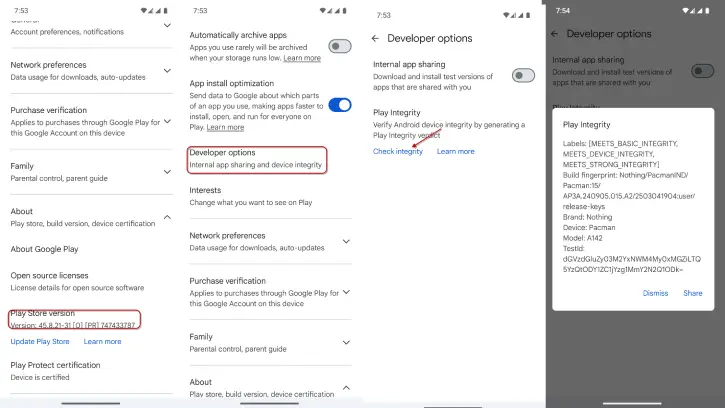
That’s it! You’ve successfully checked the Play Integrity Test from the Play Store.
What if Play Integrity check fails. You can pass the Device and Basic integrity tests by flashing a few modules, but for the Strong test, you’ll need an unrevoked keybox XML file. This file is difficult to find and often gets patched by Google within days. Once revoked, your device will fail the Strong Test, and starting May 2025, it will also fail the Device Test, as the keybox XML file will be required for both.

