
Android Auto is designed with safety in mind, offering customizable settings to minimize dangerous distractions while driving. Message notifications are one of the most annoying interruptions behind the wheel. Android Auto includes a built-in option to disable them completely, but what if you still want to receive alerts from specific apps or contacts?
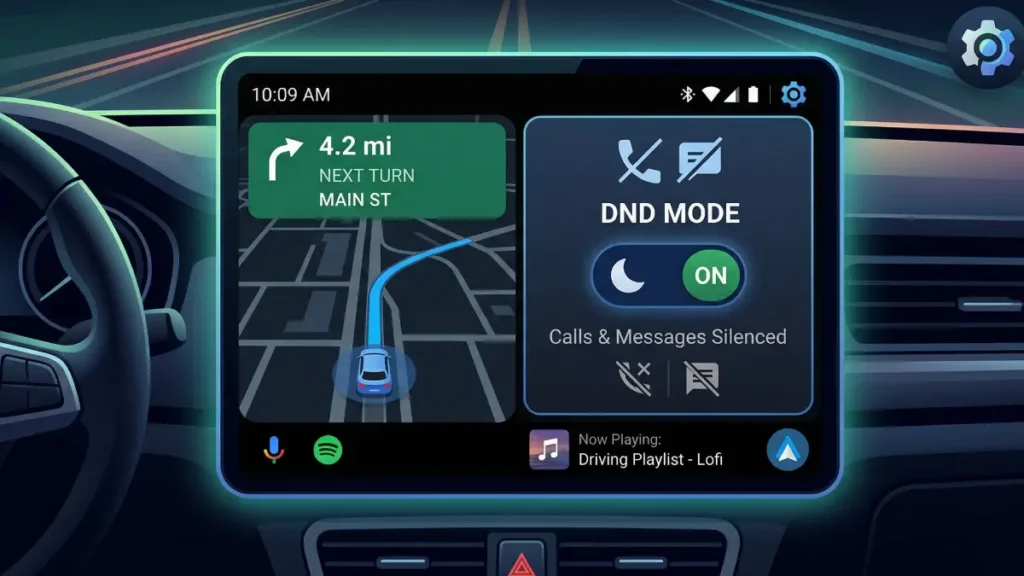
If you want to get alert from specific apps and contacts, there’s a hidden setting for Android Auto on your phone, called Driving Mode. It is not a built-in feature of Android Auto, but it works seamlessly with it. This feature lets you customize which apps can send you messages and who can call you while driving.
Driving Mode is available on most modern Android phones, though the feature name and location vary by manufacturer. It is a separate feature from Android Auto that enhances safety by controlling notifications. While Driving Mode can automatically activate when your phone connects to Android Auto, it’s an independent feature you can enable anytime you’re driving
Driving Mode operates through your phone’s Do Not Disturb system, giving you the same notification controls you’re already familiar with. You have full control over which apps can send notifications and which contacts can reach you by call or message. This flexibility makes it easy to tailor the feature to your specific needs, whether you want to allow all calls and messages through or restrict notifications to only your closest family and friends.
The real power of Driving Mode lies in its ability to silence all app notifications while keeping alerts from a select few apps—just like you do with calls and messages from specific contacts. Many people find it helpful to allow all calls and messages, since someone you’re meeting might call to let you know plans have changed. This way, you stay focused on the road while remaining reachable for what truly matters.
Table of Contents
How to Enable Driving Mode on Android Phones
Driving Mode reduces distractions while you’re behind the wheel by limiting notifications and controlling which contacts can reach you. The setup process varies depending on your phone’s manufacturer.
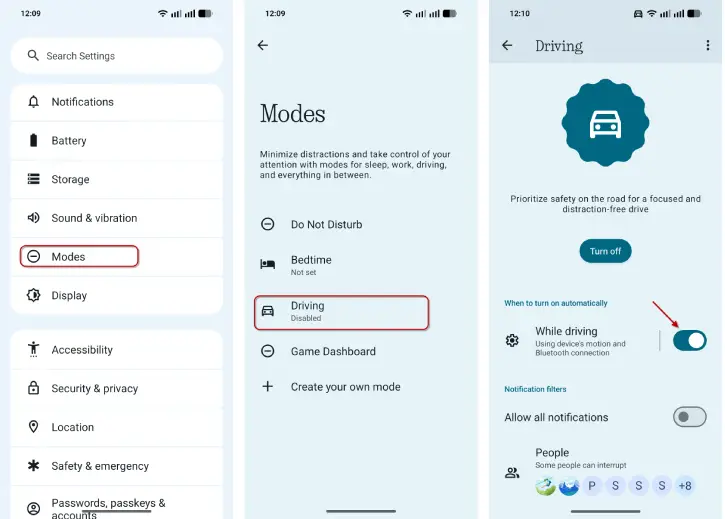
Enable Driving Mode on Google Pixel, Nothing Phone, and Other Stock Android Devices
1. Open Settings and navigate to Modes and tap Driving
2. Enable the While driving toggle
3. Turn off Allow all notifications to customize your communication preferences
- Tap People to select which contacts can call or message you
- Tap Apps to choose which applications can send you notifications
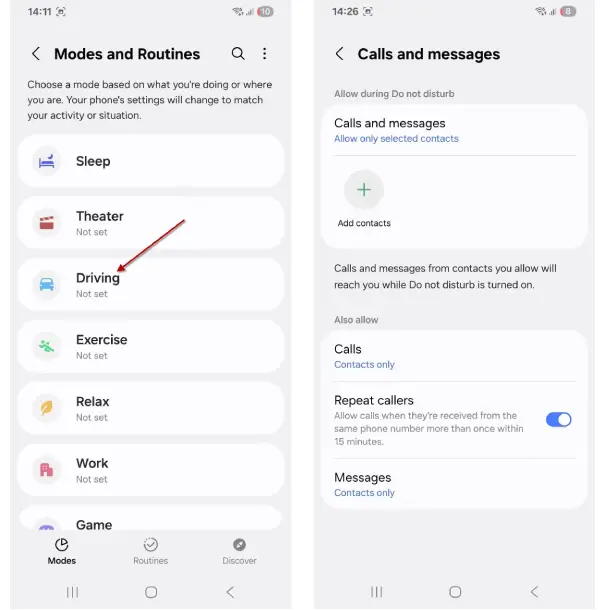
Enable Driving Mode on Samsung Phones
1. Go to Settings > Modes and Routines
2. Select Driving and tap Start
3. Set the mode to trigger automatically when Android Auto connects
4. Customize your notification and contact preferences as desired
Enable Driving Mode on OnePlus, Oppo, and Vivo Phones
1. Open Settings > Safety & emergency
2. Select Silence notifications while driving
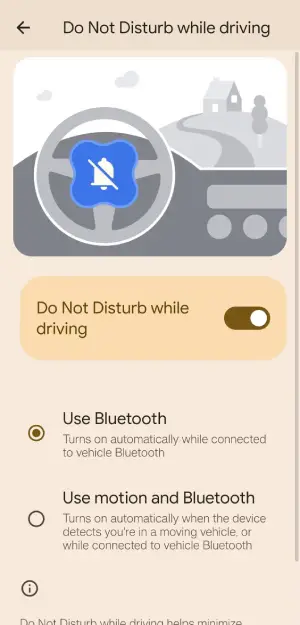
3. Configure the trigger method:
- Automatically enable Do Not Disturb when Bluetooth connects to your car
- Or enable it when both Bluetooth is connected AND the vehicle is moving
Driving Mode on Other Android Brands
If your phone isn’t listed above, search “driving” in Settings to locate a dedicated driving mode. If no built-in option exists, you can manually enable Do Not Disturb mode instead. For added convenience, consider mapping Do Not Disturb to a physical button on your phone to activate it quickly while driving.
Conclusion
Driving Mode transforms Android Auto from a one-size-fits-all safety tool into a personalized communication system that works for your lifestyle. Whether you’re commuting through city traffic or taking a long highway drive, you can stay focused on the road while remaining reachable for emergencies. The key is finding the right balance—silencing distractions without cutting yourself off completely. With these settings in place, you’ll drive safer knowing that only the notifications that truly matter will reach you.”


