

Since most of us keep our personal and important data on our smartphones, losing the phone is a significant concern. The latest Android smartphones have several features, such as theft detection lock, offline device lock and remote lock, to help you better secure your device and protect your personal information in case it is lost or stolen.
In this guide, let us learn how to turn on the anti-theft features on your Android phone. Before we start, please note that to access all the anti-theft features mentioned here, you will need a smartphone running Android 15 or later. However, some features are available starting with Android 10.
How to Enable Theft Detection Lock on Android
Once you enable this feature and someone has taken your phone and fled, your device’s screen will automatically lock to prevent unauthorized access to your personal data. Here’s how to enable this setting on your Android device:
- Open the Settings app on your phone, scroll down and tap Google.
- Select All services, scroll down and tap Theft protection.
- Next, turn on the Theft Detection Lock toggle.
- Select Turn on again when the confirmation box pops up.
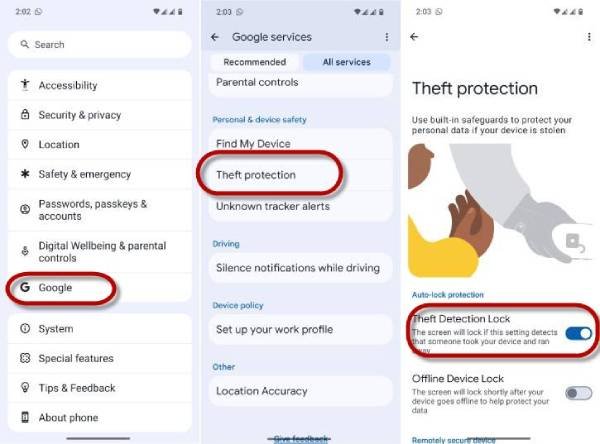
This feature utilizes motion sensors, Wi-Fi, Bluetooth, and smart device connections to determine if someone has stolen your phone and is attempting to escape
Additionally, this feature automatically activates if multiple lock attempts occur within a short timeframe. However, you can manually unlock your device if the lock engages during the day while you’re running or experiencing unstable connectivity.
How to Enable Offline Device Lock on Android
Once you enable this feature, your Android device’s screen will lock shortly after it goes offline, helping to protect your data. For instance, if someone steals your device and turns off the internet to prevent location tracking, the screen will automatically lock. Here’s how to enable this feature on your device:
- Open the Settings app on your phone and tap Google.
- Select All services, scroll down and tap Theft protection.
- Turn on the Offline Device Lock toggle.
- Select Turn on again when the confirmation box pops up.
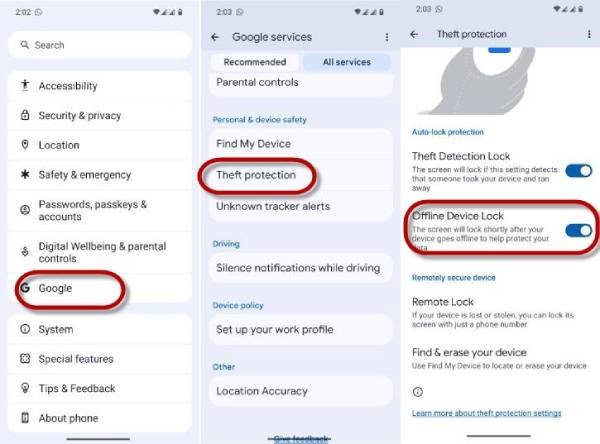
Note that the screen can be locked up to twice a day, making this feature useful in unexpected situations. So do not test it multiple times if you want this feature to remain functional when you need it to work.
ALSO READ: How to Use Find My Device to Track Your Friends and Family Members
How to Enable Remote Lock on Android
If your turn on this feature, and if your device is stolen or lost, you can lock its screen with a phone number (assigned by you) at android.com/lock. This feature is available under Find my Device section. Here’s how to set it up:
- Open the Settings app on your phone and tap Google.
- Select All services, scroll down and tap Theft protection.
- Select Remote Lock.
- Turn on the Use Remote Lock toggle.
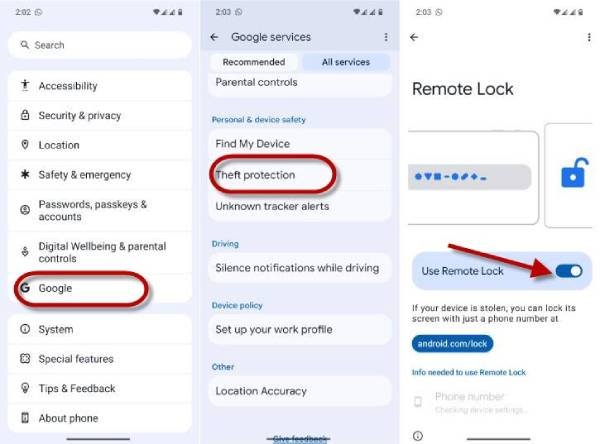
If Remote Lock is activated, you can unlock your device locally by entering your password, PIN, or using biometrics. Similar to Offline Device Lock, this feature can only be used twice within a 24-hour period.
To utilize Remote Lock, you need to have a screen lock enabled, an active SIM card, and a device with a verified phone number. Additionally, make sure your device is online and that Find My Device is turned on.

