
Microsoft recently added the handy AI Actions option to File Explorer in Windows 11 — a quick way to edit images, summarize documents, or apply other AI-powered actions directly from the right-click menu. Here’s a concise, step-by-step guide to turn the AI Actions context menu on or off, plus why you might want to use it.
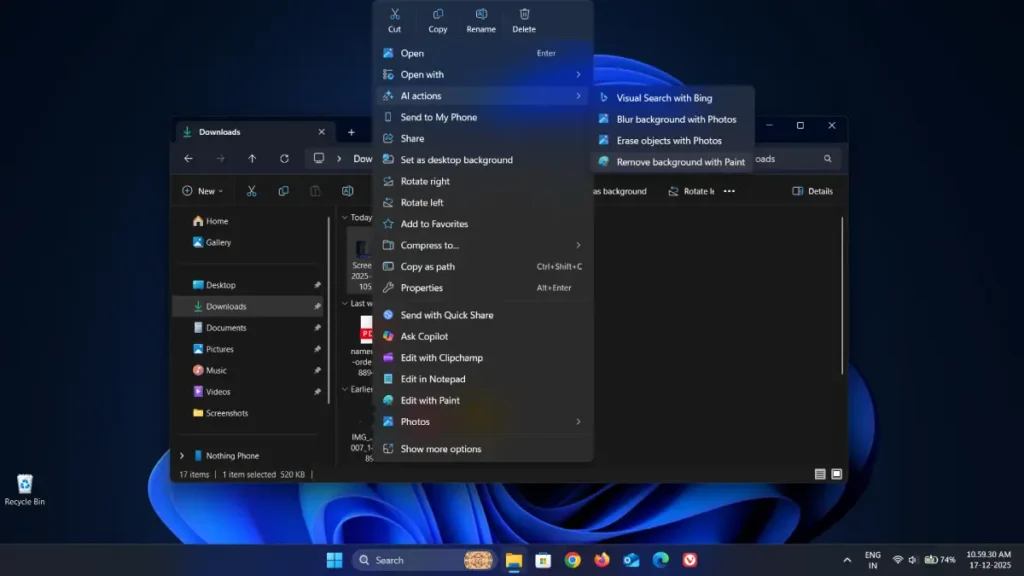
Table of Contents
What is AI Actions?
AI Actions integrates AI-powered features into the File Explorer context menu. When enabled, right-clicking an image or document shows AI-driven options like image editing (blur image background, erase object from photos, remove background, etc.), content summarization, and other helpful shortcuts that speed up common workflows without opening separate apps.
Why enable AI Actions?
Save time: Quick edits and summaries without launching extra software.
Streamline workflows: Ideal for creators, students, and professionals who frequently process images and documents.
Built into Windows: No third-party installs required if your system is updated.
ALSO READ: What is Developer Mode and How to Enable it on Windows 11
How to enable or disable AI Actions (Windows 11)
1. Press Windows + I to open Settings.
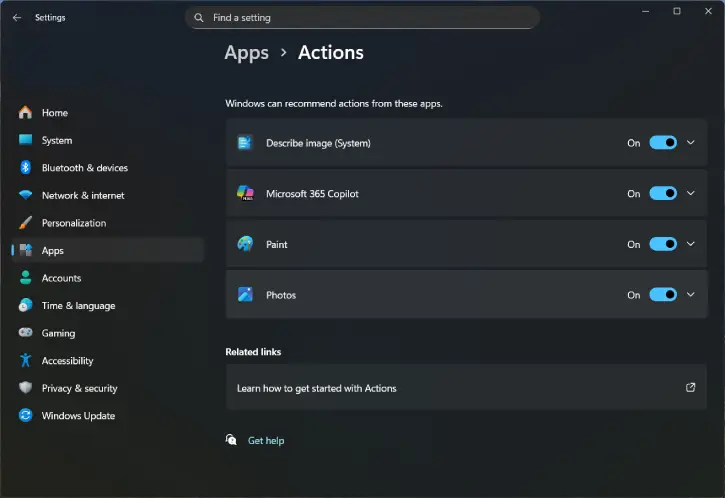
2. Go to Apps > Actions.
3. To enable AI Actions: turn On all available app actions — this adds the “AI Actions” entry to the File Explorer context menu.
4. To disable AI Actions: turn Off all available app actions — this removes the “AI Actions” entry from the right-click menu.
Note: Make sure Windows 11 is updated to the latest version for the AI Actions feature to appear.
Tips and troubleshooting
If you don’t see the Actions setting, check for Windows updates (Settings > Windows Update).
Restart File Explorer or sign out and back in after toggling the setting to ensure the context menu updates immediately.
If AI Actions still don’t appear, verify that system policies or third-party context menu managers aren’t blocking new entries.
Conclusion
Enable AI Actions to speed up everyday file tasks, or disable it to keep your right-click menu minimal — the choice is quick and reversible through Settings.


