

Microsoft Office, Word, Excel, and PowerPoint, files often contain images, videos, and other embedded content, but saving them individually can be tedious. Fortunately, there’s a simple workaround that leverages the modern Office file format. By using this trick, you can efficiently retrieve embedded media – photos, videos and audio – from your Office documents without the hassle.

Since Microsoft Office 2007, documents have utilized the Office Open XML format, with extensions like .docx for Word, .pptx for PowerPoint, and .xlsx for Excel. This format is also compatible with Office web apps, mobile apps, and Google Docs when exporting to Office formats.
The best part is that these Office files are essentially .zip files in disguise. By changing the file extension and unzipping them, you can directly access all embedded media, including images, videos, and audio files. This method is particularly useful for quickly extracting multiple images from documents, saving you time compared to searching for each one individually.
Table of Contents
How to Extract All Embedded Media Files (Photos, Videos, and Audio) from Microsoft Office Files
1. Create a Duplicate of the Office File: Start by making a copy of the Office file you want to extract media from. Right-click the file and select “Copy,” then paste it in the same directory.
2. Change the File Extension: For this example, we will use a PowerPoint presentation. Change the file extension from .pptx to .zip. To do this on Windows 11, go to the top menu and click on View > Show, then enable File name extensions.
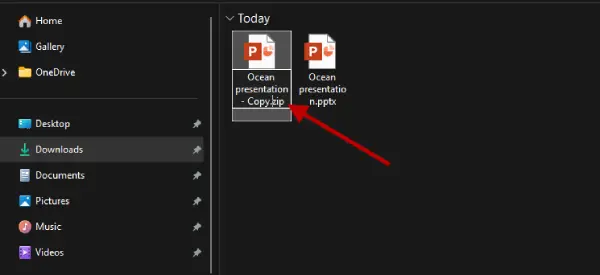
3. Unzip the File: After changing the extension, unzip the file using your preferred extraction tool. This will create a new folder containing various XML files and subfolders.
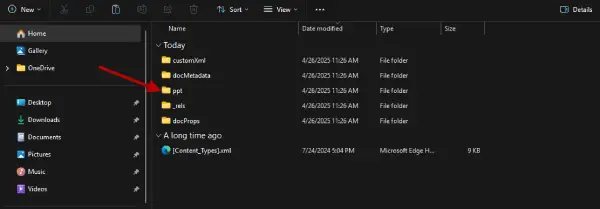
4. Locate the Media Folder: Open the main folder (in this case, the ppt folder). Inside, you will find a folder named media.
5. Access Embedded Media Files: The media folder contains all the embedded files, including photos, videos, and audio.
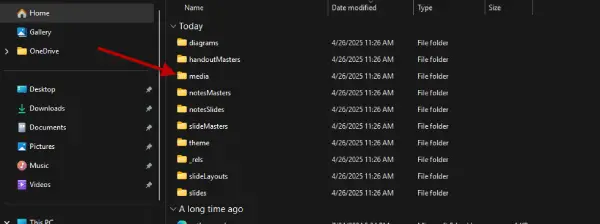
Note that the media files will not retain their original names after extraction, but their original file extensions and some metadata will still be available. By following these steps, you can easily extract all embedded media from your Office files.
Extracting Embedded Media from Microsoft Office Documents: A Handy Trick
Even with certain limitations, this method can be incredibly useful for extracting images, videos, and other embedded files from Office documents. This is especially beneficial for users on computers that lack the necessary applications to open these files.
By following this simple process, you can easily access and retrieve media content without needing specialized software. Whether you’re working on a presentation, report, or any other Office document, this trick ensures you can get the media you need quickly and efficiently.

