


Driver installation failures on Windows 11 are frustrating, but they’re usually easy to fix. The most common reasons are security features like Memory Integrity (Core Isolation), strict driver signature enforcement, outdated Windows components, or conflicting software. If you’re unable to install drivers on Windows 11, this guide provides comprehensive, step-by-step solutions to get your hardware working without errors.
Table of Contents
Why Can’t You Install Drivers on Windows 11?
Before diving into fixes, it helps to understand why Windows 11 blocks device driver installations. Windows 11 has stronger security protections than previous versions, including:
- Memory Integrity (Core Isolation) – Prevents incompatible or unsigned drivers from loading
- Driver Signature Enforcement – Requires drivers to be signed by Microsoft or approved vendors
- Real-time Antivirus Protection – Can interfere with driver installation processes
- Outdated or Missing Dependencies – Missing Windows updates or system components
- Software Conflicts – Background apps or utilities blocking the installer
Understanding the cause helps you choose the right fix without compromising system security.
Fix 1: Turn Off Memory Integrity (Core Isolation)
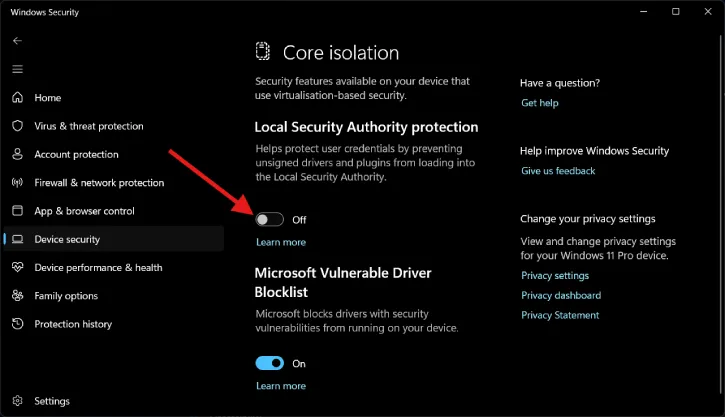
Memory Integrity is a Windows 11 security feature that blocks drivers it considers incompatible. This is often the primary culprit for older or unsigned drivers. Here’s how to disable it temporarily:
Steps to Disable Memory Integrity
1. Open Settings → Privacy & Security → Windows Security
2. Select Device security
3. Click Core isolation details
4. Toggle Memory Integrity to Off
5. Restart your PC
6. Attempt the driver installation again
Important: Only disable this feature temporarily. Re-enable Memory Integrity after successful driver installation to maintain your system’s security protections.
ALSO READ: How to Identify Unknown Device in Windows 11 and How to Fix It
Fix 2: Temporarily Disable Driver Signature Enforcement
If your driver is unsigned or blocked by Microsoft signature checks, this method bypasses that restriction. This should only be used when you trust the driver source.
Steps to Disable Driver Signature Enforcement
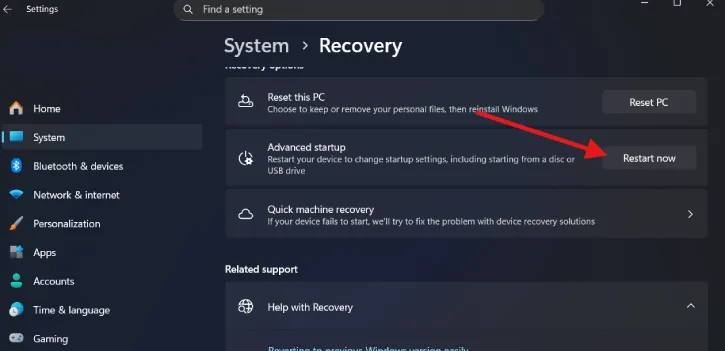
1. Open Settings → System → Recovery
2. Click Restart now under Advanced startup
3. In the blue recovery menu, select Troubleshoot → Advanced options → Startup Settings → Restart
4. After reboot, press 7 (or F7) to disable driver signature enforcement
5. Install the driver immediately
6. Restart your PC normally (this re-enables signature enforcement automatically)
Warning: Only use this method when absolutely necessary and only with drivers from trusted sources. Always re-enable signature enforcement to protect your system from malicious code.
Fix 3: Install Drivers in Clean Boot Mode
Software conflicts from background utilities, security apps, or startup programs can prevent driver installation. A clean boot removes these conflicts temporarily.
Steps for Clean Boot Installation
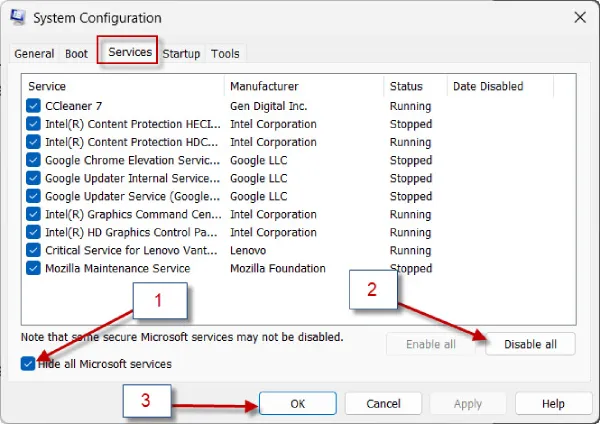
1. Press Win + R, type msconfig, and press Enter
2. Go to the Services tab
3. Check the box for Hide all Microsoft services
4. Click Disable all
5. Restart your PC
6. Install the driver
7. Return to msconfig, uncheck Hide all Microsoft services, and click Enable all to restore normal operation
Clean boot mode isolates the driver installation from interference, making it one of the most effective troubleshooting methods.
Fix 4: Update Windows & Install Optional Driver Updates
Microsoft regularly releases verified, compatible drivers through Windows Update. This is often the safest way to install drivers without conflicts.
Steps to Update Drivers via Windows Update
1. Open Settings → Windows Update
2. Click Check for updates
3. Wait for Windows to scan and install available updates
4. Expand Advanced options → Optional updates
5. Look for Driver updates section
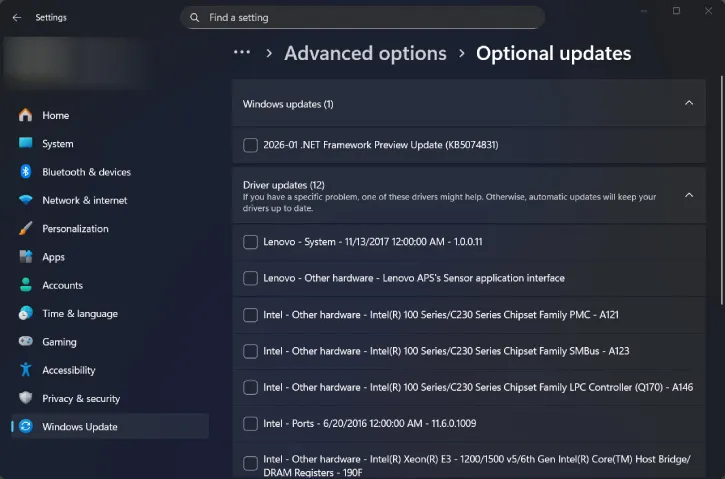
6. Select any available drivers and click Download and install
Benefit: These drivers are tested by Microsoft for compatibility and stability, reducing the risk of installation failures.
Fix 5: Manually Install Drivers via Device Manager
When automated installers fail, manual installation through Device Manager often succeeds. This method gives you direct control over the installation process.
Steps for Manual Driver Installation
1. Right-click the Start button and select Device Manager
2. Locate the device with the failed driver (usually marked with a yellow exclamation mark)
3. Right-click the device and select Update driver
4. Choose Browse my computer for drivers
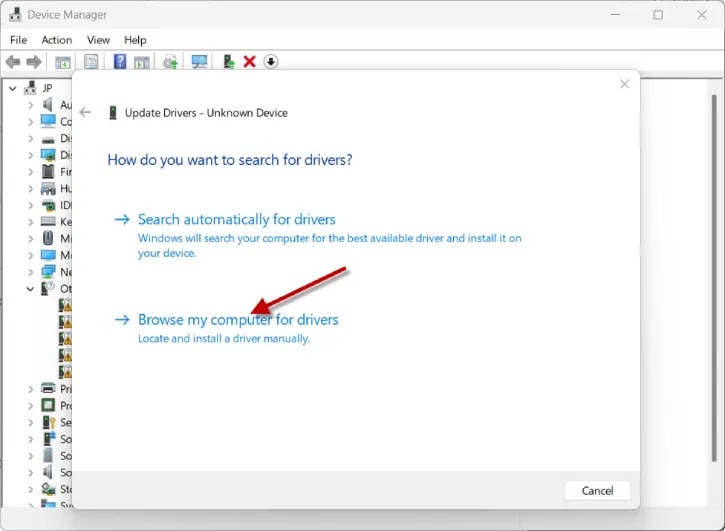
5. Navigate to your downloaded driver folder and select it
6. Click Next and follow the prompts to complete installation
7. Restart your PC if prompted
This method bypasses installer programs that may have compatibility issues, making it a reliable fallback option.
Fix 6: Temporarily Disable Antivirus or Real-time Protection
Real-time antivirus protection, including Microsoft Defender, can block driver installation processes. Temporarily disabling it can resolve installation failures.
Steps to Disable Real-time Protection
1. Open Windows Security → Virus & threat protection → Manage settings
2. Toggle Real-time protection to Off
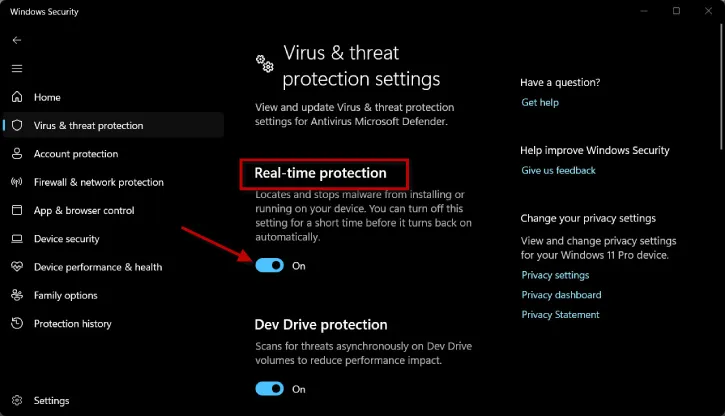
3. Install your driver
4. Immediately toggle Real-time protection back On
Critical: Only disable antivirus protection when you trust the driver source completely. Re-enable protection immediately after installation to maintain system security.
Additional Tips for Successful Driver Installation
Use Official Driver Sources: Always download drivers from the manufacturer’s official website (NVIDIA, Intel, AMD, etc.) or the device manufacturer’s support page. Avoid third-party driver websites, which may host modified or malicious versions.
Check for Windows Updates First: Before attempting manual driver installation, ensure Windows 11 is fully updated. Missing system updates can cause compatibility issues.
Uninstall the Old Driver First: If you’re updating an existing driver, uninstall the old version first through Device Manager before installing the new one. Right-click the device and select Uninstall device, then restart before installing the new driver.
Check Compatibility: Verify the driver is compatible with your specific Windows 11 version (Home, Pro, Enterprise) and system architecture (32-bit or 64-bit). Most modern systems use 64-bit Windows 11.
Conclusion
Driver installation failures on Windows 11 are usually solvable with the right approach. Windows 11’s enhanced security features—while protective—can sometimes block legitimate drivers. By systematically working through these six methods, you can identify the cause and resolve the issue. Always prioritize using official drivers from manufacturer websites and re-enable security features after successful installation. Start with the safest methods (Windows Update, Device Manager) before moving to more aggressive approaches like disabling signature enforcement.