

When you open Device Manager on Windows 11 you will notice yellow colored warning icons — triangles with exclamation marks—next to unknown devices. It means the system cannot identify the hardware and might need drivers or troubleshooting to fix the issue. If you ignore device problems the hardware could fail and the computer might run slower or have other issues.
This guide will show you how to find unknown device drivers on Windows 11, why they appear and how to solve the problem. We will also explain how to download the driver files for the unknown devices and how to install them on your Windows 11 computer to fix the problem.
Reasons For Unknown Devices Shown in Windows 11 Device Manager
The main reason for unknown devices in Windows 11 is the absence of correct drivers installed on the system. It may be due to faulty, corrupted, or outdated driver programs. Moreover, the latest driver files that Windows attempts to install after a new system restart may fail to be recognized by the operating system.
Another factor contributing to unknown devices is that some peripherals connected to the PC via USB ports, such as printers and scanners, require users to manually install their drivers.
Furthermore, the execution of Windows update procedures may inadvertently remove essential drivers or replace them, leading to the appearance of unknown device alert messages.
How to Identify Unknown Device in Windows 11 and How to Fix It
1. First, right-click on the Start button in Windows 11 and select Device Manger from the list.
2. Now, look for the Unknown devices with yellow warning triangles.
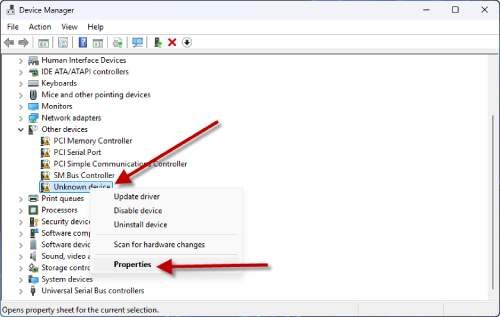
3. Next, right-click on the Unknown device and select Properties.
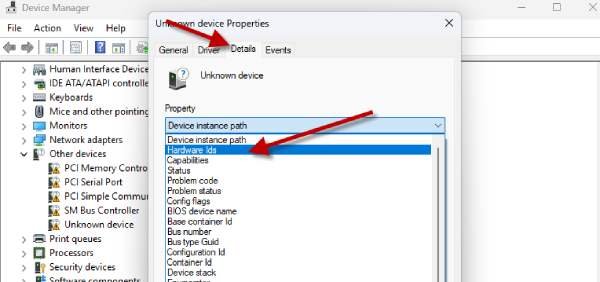
4. Select Details tab and choose Hardware IDs from the drop-down menu under Properties.
5. Now, right click the first value and select ‘Copy”.
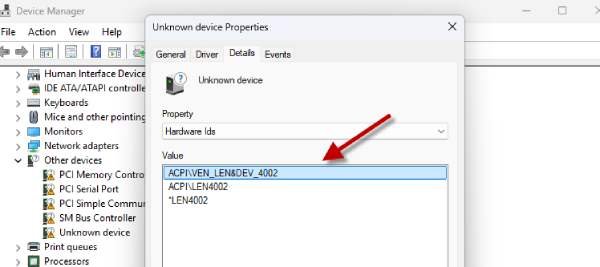
6. Next, launch your browser and search for the hardware ID you have copied.
7. In search result, choose the driver provided by the manufacturer of the device from its official website. Tap “Download” option visible for the latest driver available.
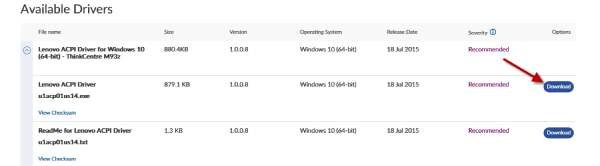
You have now downloaded the driver file for your device. Here’s how to install it manually. If the downloaded driver is an .exe file, you can double-click it to install it directly. If it is a package file, please follow the instructions below to install it.
How to Install the Driver Manually in Windows 11
1. Go to Device Manager, right-click the Unknown device and select Update driver option.
2. Tap Browse my computer for drivers and choose the location that contains the downloaded driver and designate that file.
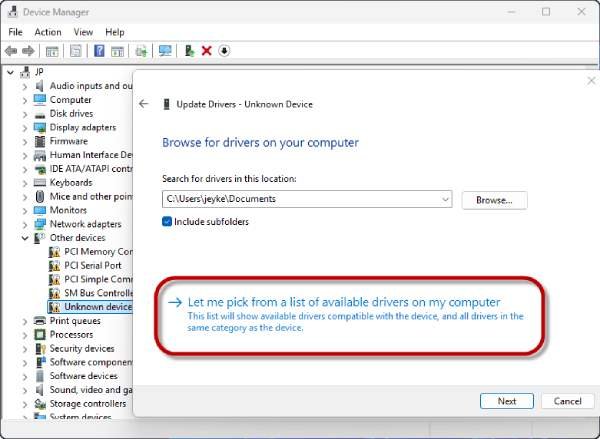
3. The installation process can be finalized by following the prompts displayed on the screen.
4. Once done restart your computer.
The system requires a reboot to apply the driver-related changes after installation. Once the restart is complete, Device Manager will correctly identify the previously unknown device, eliminating the warning sign.

