

Chrome is testing a new Split View feature, allowing users to browse two tabs side by side simultaneously, enhancing multitasking capabilities and improving the browsing experience for users who require access to multiple pages.
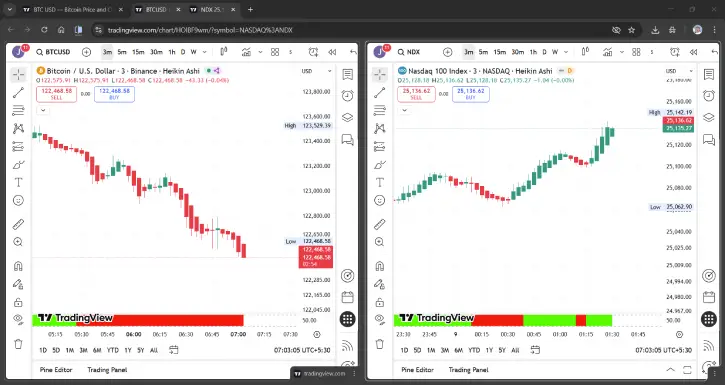
The Split View feature is currently available in Brave, Edge, and Vivaldi browsers, but in different names. Here’s how to activate it in Chrome for a more efficient browsing experience.
Benefits of Using the Split View Feature in Chrome
The Split View feature offers several significant benefits in real life. Unlike the Windows Snap Layout feature, it not only helps you avoid switching between tabs to access information from one webpage while using another, but it also serves additional important purposes.
For example, platforms like TradingView do not allow you to load two script charts simultaneously in the free version, but the Split View option lets you view both charts together.
How to Enable Split View Feature in Chrome?
1. Launch the Chrome browser and enter chrome://flags in the address bar, then press Enter to access the Experiments page.
2. In the search box, type Split View to find the option.
3. Next to Split View entry, select Enabled from the dropdown menu.
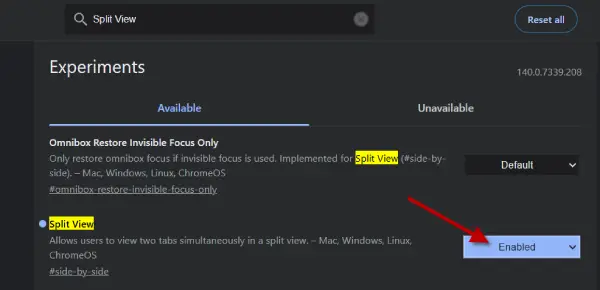
4. Relaunch the Chrome browser to activate the feature.
You have successfully enabled Split View in Chrome. Now, let’s explore how to use this feature to browse two webpages simultaneously.
How to Use Split View Feature to View Two Tabs Side-by-Side?
1. First, open two pages in separate tabs.
2. Right-click on one tab and select the new Add tab to new split view option. This will split the main browsing area into two, placing the current tab on the left.
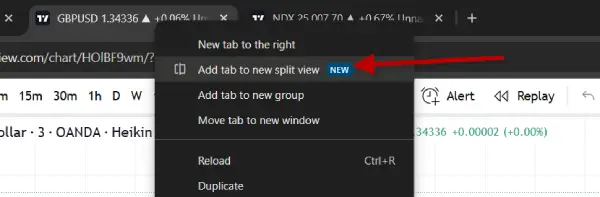
3. Choose an open webpage to display on the right.
4. Alternatively, type a URL or search query in the address bar to load a new page.
5. To swap the two views, right-click the split tab and select Arrange split view, then choose Reverse views.
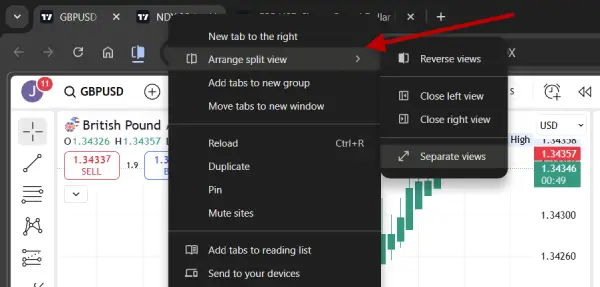
6. You can also close either side or separate the split view back into two individual tabs.
Conclusion
Incorporating the Split View feature in Chrome enhances multitasking by allowing users to efficiently access multiple tabs side by side. This capability transforms browsing, making it easier to compare information and streamline workflows across various web pages.

