

The launch of ChatGPT, the AI chatbot developed by OpenAI, artificial intelligence has gained a lot of attention. Now with the help of customized tools like LM Studio, users can install ChatGPT like different LLMs (Large Language Models), such as the, Llama (Meta AI), Phi 3, Falcon, Gemma, Replit, etc., on their computers for offline use.
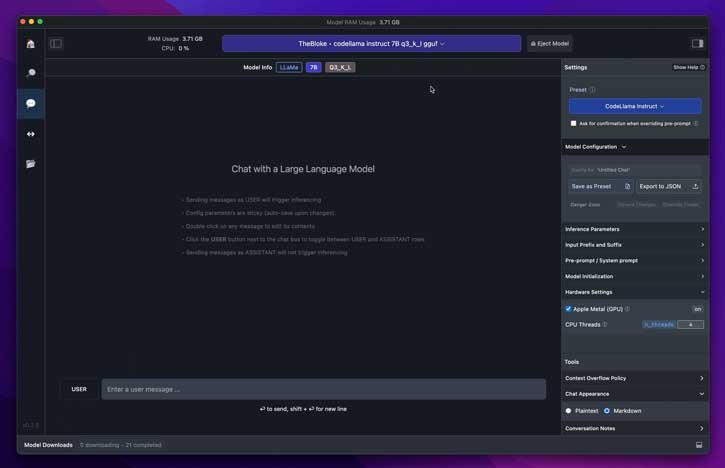
LM Studio opens up a whole new realm of possibilities for AI applications. Being able to access AI capabilities even without an internet connection could greatly enhance privacy, security, and accessibility for users across various domains.
Here is how you can install ChatGPT like LLM models on your computer and use it offline with the help of LM Studio app. With this app, you can choose different LLMs, for example, Llama 3 from Meta AI, to install on your compatible computer. And it’s free for personal use.
So if you want to make your computer an AI chatbot, here is how to install LLM Studio on your computer. Below are minimum hardware specifications to install and use LLM Studio app.
Minimum Hardware Requirements:
- Apple Silicon Mac (M1/M2/M3) with macOS 13.6 or newer
- Windows/Linux PC with a processor that supports AVX2 (typically newer PCs)
- 16GB+ of RAM is recommended. For PCs, 6GB+ of VRAM is recommended
- NVIDIA/AMD GPUs supported
How to Install ChatGPT-Like LLM Models on Your PC to Use Offline?
1. Download LM Studio software (weighs around 400MB in size) for your Window, Mac or Linux from here (link) and install it.
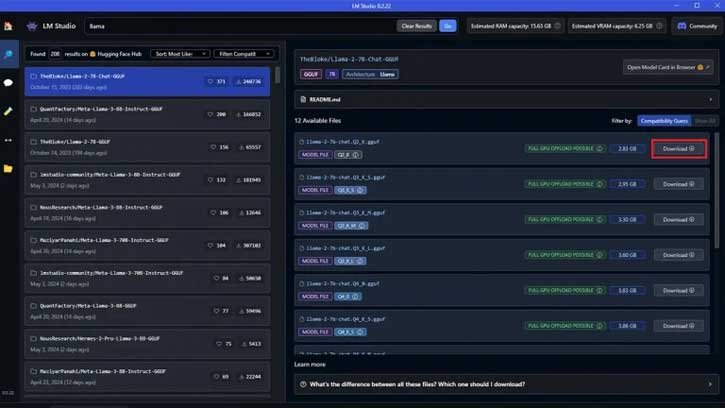
2. After installation, launch the app. In the Search bar, you can search for supported LLMs and install it on your PC.
3. LM Studio supports Llama 3, Phi 3, Falcon, Gemma, Replit, GPT-Neo-X, etc. For example, in the search box, type Llama (from Meta AI) and press Enter.
4. Select Llama2 or Llama3 from the available list.
5. You will see all the details about the model on the right side of the app window, like size, and GPU offload.
6. Click the Download button next to the model you want to install on your PC.
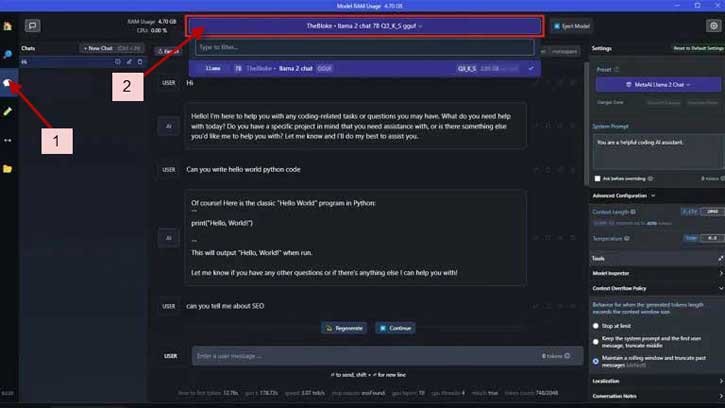
7. Once the installation process completes, tap the AI Chat icon (bubble icon) from the side menu and select the LLM model you installed.
8. It will load the selected model which can take a few seconds. Once it is loaded, you will be able to chat with AI just like Chat GPT.
Conclusion:
You can ask any query to your new chatbot even while offline. The response time will be influenced by the capabilities of your PC’s hardware and software. If you’re using a high-end system, you can expect improved performance, even when dealing with larger AI models. Importantly, all operations occur locally on your PC, ensuring complete privacy.

