
AI video generators have improved rapidly, making it hard to tell real from fake. Many people now create and share realistic AI-generated videos on social media, increasing the spread of misleading content and making truth harder to verify for casual viewers.
People aware of AI can spot synthetic videos, but many unfamiliar users believe what they see. This leads to misinformation and confusion, as convincing AI-made clips are accepted as genuine events, affecting opinions and trust without clear signals of authenticity.
Fortunately, there are various methods to determine if a video is AI-generated or real. For instance, Google recently introduced a feature in Gemini that can identify the authenticity of videos, marking a significant step in combating misinformation.
Additionally, other tools and manual techniques can help in this identification process. So before sharing a video on social media, you can make sure the video is original or fake. In this article, we will explore these options to assist you in verifying whether a video is genuine or created by AI technology.
Table of Contents
How to Use Gemini to Check If a Video is Real or AI-Generated
Since Google embeds a synthetic ID in all videos and images generated using Google AI models, they are easy to identify. Google provides a verification tool inside Gemini to check whether a video was AI-generated.
1. Open the Google Gemini app on your phone or go to the Gemini website and sign in with your Google account.
2. Tap the plus (+) button and choose “Upload file.”
3. Upload the video and wait for it to finish uploading.
4. After the upload, type a prompt like: “Is this video generated by AI?” or “Was this created by Google AI?”
5. Gemini will check the file and tell you if the video was made by AI.

Limitations: It can detect video generated by Google model only. Another limitation is that uploaded files can only be up to 100 MB in size and 90 seconds in duration.
ALSO READ: How to Convert Images Into AI Text Prompts
How to Use Hive Chrome Extension to Identify AI-Generated Video
Hive extension detects AI-generated text, images, videos, and audio across webpages; tap the movable Hive icon to analyze content instantly—video detection is notably accurate for identifying synthetic media.
1. Install Hive Chrome extension from the Chrome Web Store.
2. Navigate to any webpage containing embedded video to check.
3. Click the Hive icon located on-screen (drag to reposition if desired).
4. Choose detection for text, image, video, or audio.
5. Run the analysis; wait for the result.
6. Examine Hive’s detection output and confidence indicators.
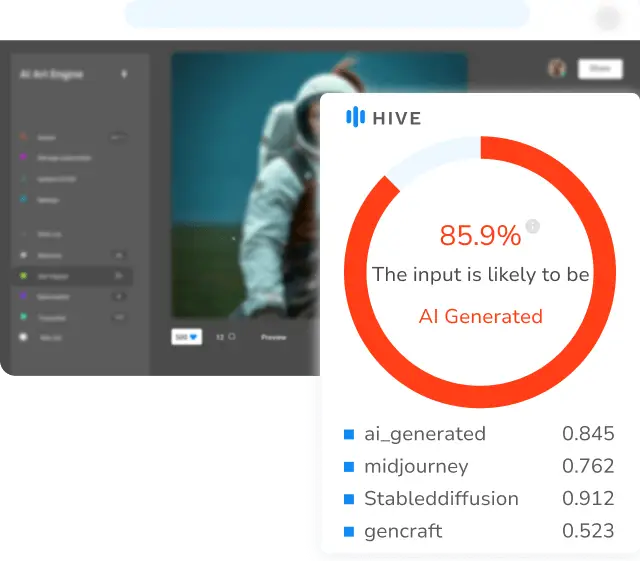
You can also use Hive’s standalone tool to detect fake AI-generated videos. It does not require an account to check.
Physical Inspection Techniques to Spot AI-Generated Videos
Find natural motion: Look for realistic movement. AI can mess up real-world physics, so watch for strange paths, objects not lining up, or timing that feels off.
Watch eye movement and blinking: Check the eyes—fake faces may blink weirdly, blink too fast or not at all, or look around unnaturally.
Check for repetitive or robotic gestures: Notice repeated or stiff motions in the eyes, hands, lips, or body—these patterns can mean the video is synthetic.
Examine skin tone, lighting, and background: Fake people often have too-smooth skin, lighting that doesn’t match the scene, or odd background errors. If the person and the setting don’t match, be suspicious.
Conclusion
Check whether a video is AI-generated or real before sharing it. Verify sources first—don’t share viral clips immediately. Find where the video came from, check reliable news outlets, and reverse-search frames to confirm it’s authentic.


