

The internet is currently filled with AI-generated images, and you might be interested in creating similar artistic photos for yourself. To produce stunning AI images, a well-crafted prompt is essential. However, many individuals do not disclose the prompts they used to generate these images.
Fortunately, you can easily uncover the prompts behind the AI images. In this guide, we will learn how to find the prompts used to create AI images. The process is quite simple. You can reverse engineer the images using your favorite AI tools, such as Gemini Nano Banana, Chat GPT, to uncover the prompts behind them.
You can use Gemini or ChatGPT to convert images into AI text prompts, a process known as reverse engineering. If you’ve ever wondered what prompt was used to generate a specific image, this method can help you find out.
How to Convert Images into AI Text Prompts?
1. Open either Gemini or ChatGPT.
2. Select the image you want to convert into a text prompt and upload it.
3. After uploading, ask the AI, “Create a detailed text prompt based on this image.”
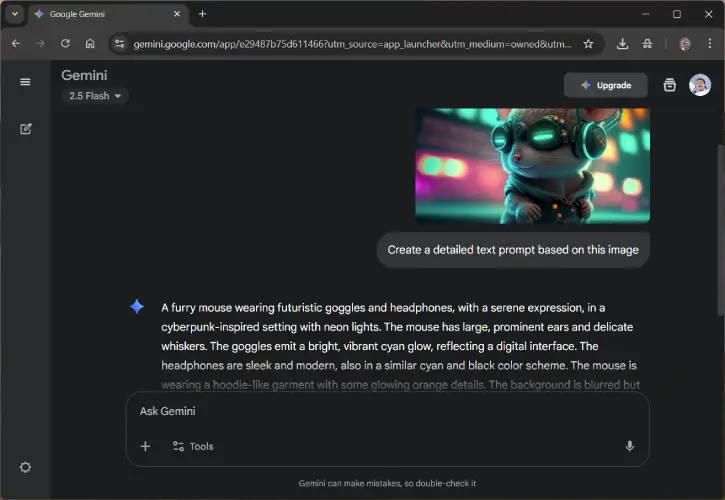
4. The AI will analyze the image for its colors, objects, and other features, then provide you with a descriptive prompt.
5. Take the generated prompt and use it to create a new image.
6. If the new image doesn’t match your expectations, you can upload the new image and ask the AI tool to refine the prompt.
Can You Retrieve the Exact Prompt for an AI Image?
You can’t always get the exact prompt used to create an AI image. However, AI prompt-extraction tools can provide a close guess by looking at the image’s subjects, style, and details.
If the original creator used specific keywords or unique styles, those might not be fully captured. The result is usually a strong descriptive prompt that you can improve further through adjustments and iterations.
Do These Tools Work for AI Images and Real Photos?
These tools can be used for both AI-generated images and real photographs. For AI images, the extracted prompt usually resembles what an image-generation model would accept, making it more accurate.
For real photographs, the output will describe the scene but may not create a perfect prompt for generating new images. However, you can still use it as a starting point to create stylized AI versions of real photos.

