

Microsoft Edge is a widely used web browser that comes with a range of useful features, including a built-in screenshot tool. This tool allows users to capture screenshots of web pages, making it easier to save and share information. Microsoft is now testing a new Snipping Tool with Copilot integration for Edge browser. In this article, we will explore what is new in the new screenshot tool and how to use it.
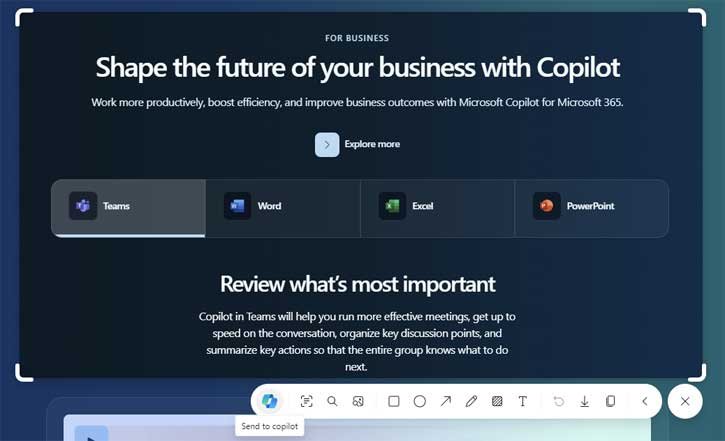
Table of Contents
Features of New Snipping Tool in Microsoft Edge?
The main features of the new Snipping Tool in Microsoft Edge is Copilot integration. After capturing the screenshot, you can send it to Copilot to get more details about it.
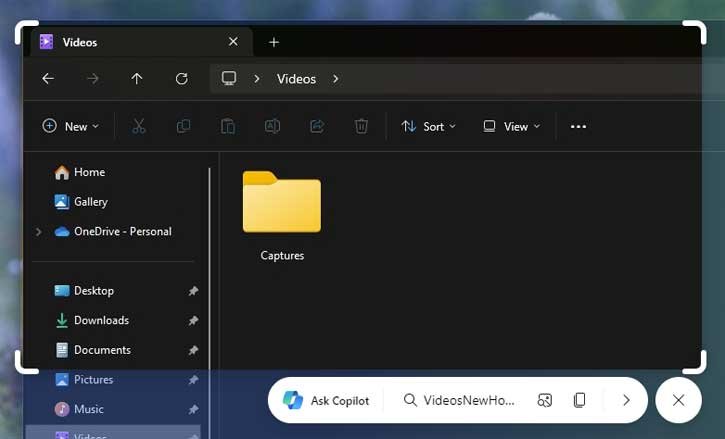
Another important feature of the new screenshot tool is that you can use it to capture screenshots of outside the Edge browser. That is, not just within the web pages, it lets you capture screenshot of any screen on your computer, like the default Snipping tool in Windows 11.
Using the New Snipping Tool With Copilot Integration on Edge Browser
The new screenshot tool is available in Microsoft Edge canary build (version125). To use it, simply open the browser and follow these steps:
1. Click the Alt + Shift + S shortcut key (to capture outside the Edge browser, minimize it to taskbar).
2. Now, draw the area that you want to capture.
3. A toolbar will appear with an arrow button, Ask with Copilot, Search screenshot with Bing and Copy options.
4. Click on the arrow button to use the all available tools, such as adding text, highlighting areas, or drawing shapes.
5. Once you are satisfied with the annotated screenshot, you can save it to your device or share it directly with others.
Additional Features
In addition to capturing screenshots, the new screenshot tool in Microsoft Edge offers some additional features to enhance your experience. These include:
1. Ask with Copilot: You can send the screenshot to Copilot for analyzing it with AI and getting more information about the screenshot.
2. Search Image with Bing: If you choose this option, Bing will analyze the image and brings details about it on the right sidebar of the Edge.
3. Text Detect: Clicking on this option will highlight the text on the screenshot.
4. Search Text with Bing: If your screenshot contain text, click the Search Text with Bing option to search the web.
Conclusion
The new Snipping Tool in Microsoft Edge is a valuable feature that allows users to capture and annotate screenshots of web pages. Whether you need to save important information, get more information about the image or text, or simply keep a record of something, the screenshot tool in Microsoft Edge offers a convenient and user-friendly solution. Give it a try and make the most out of your browsing experience.

