
Android Auto transforms your driving experience by delivering a simplified, safety-focused interface for navigation, calls, and media. But did you know you can play your personal music collection directly through Android Auto without relying on streaming services like Spotify or YouTube Music?
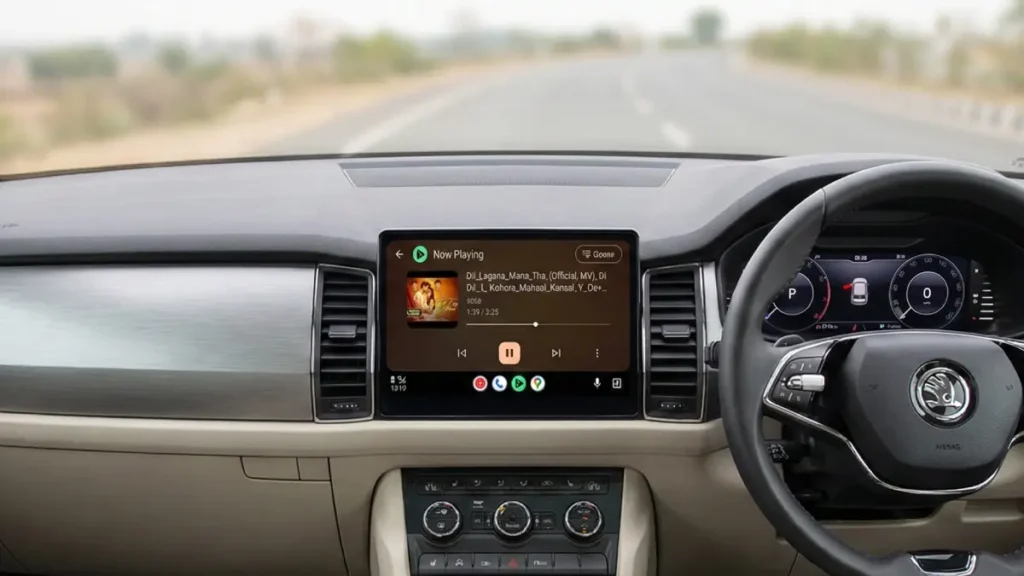
Table of Contents
Why Play Local Music on Android Auto?
Playing music files stored locally on your Android phone offers several advantages. You maintain complete control over your music library, eliminate dependency on internet connectivity, and avoid streaming subscription costs. Whether you have MP3s, AAC files, FLAC tracks, or other audio formats, Android Auto can deliver them through your car’s speakers—if you use the right app.
The Challenge: Android Auto Needs a Compatible App
Android Auto doesn’t include a built-in file player, so you’ll need a compatible media application on your phone to bridge the gap. Several options exist, including Poweramp, MediaMonkey, and AIMP, but Musicolet stands out as an excellent choice for local music playback.
Why Musicolet?
Musicolet is a free, lightweight, ad-free media player designed specifically for playing music stored locally on your device. Here’s what makes it ideal for Android Auto users:
- No advertisements – Enjoy uninterrupted listening
- Lightweight design – Minimal impact on your phone’s performance
- Comprehensive format support – Plays MP3, FLAC, AAC, and other major audio formats
- Folder and tag browsing – Easily organize and navigate your music library
- Offline playback – Listen to your entire collection without internet
- Playlist creation – Build custom playlists for different moods or occasions
- Playback speed adjustment – Speed up or slow down tracks as needed
- Graphic equalizer – Fine-tune sound quality to your preference
- Audio cutter tool – Trim the start and end of tracks for seamless listening
ALSO READ: Turn Your Smartphone into a Powerful Dashcam: A Complete Guide for 2026
Step-by-Step Guide: Setting Up Musicolet on Android Auto
Follow these simple steps to start playing your local music collection on Android Auto:
Step 1: Install Musicolet: Download and install Musicolet from the Google Play Store on your Android phone.
Step 2: Grant Permissions: Launch Musicolet and grant storage and music access permissions when prompted. Click “Next” to proceed.
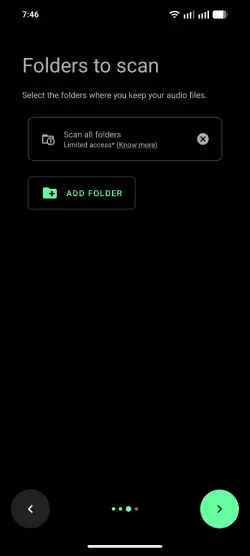
Step 3: Add Your Music Folders: Select and add the folder(s) where your music files are stored on your phone. Musicolet will scan these directories and build your library.
Step 4: Connect to Your Car: Connect your phone to your car’s head unit using either a USB cable or a wireless connection (if your vehicle supports it).
Step 5: Select Musicolet and Play: From the app list in Android Auto, select Musicolet and begin playing your favorite songs.
Final Thoughts
Musicolet makes playing local music on Android Auto straightforward and enjoyable. Its combination of powerful features, clean interface, and zero-advertisement approach makes it the ideal choice for drivers who want to enjoy their personal music collection during every commute. Whether you’re driving across town or on a long road trip, your entire offline music library is just a few taps away.


