
Samsung has just made cross-ecosystem file sharing significantly easier. The company has introduced AirDrop support to its Galaxy devices through an enhanced Quick Share feature, allowing seamless file transfers between Samsung and Apple devices. If you own a Galaxy phone and want to share photos, videos, or documents with iPhone or iPad users, here’s everything you need to know.

Table of Contents
What’s New: Samsung Galaxy Meets Apple’s AirDrop
Samsung’s new AirDrop-like capability represents a major breakthrough for users juggling multiple ecosystems. Previously, transferring files between Android and iOS devices required third-party apps or workarounds. Now, with Quick Share’s Apple device support, the process is as simple as a few taps.
This feature addresses one of the biggest pain points for users who rely on a mix of Samsung and Apple devices. You can now send and receive photos, videos, documents, and other files directly between Galaxy phones and iPhones, iPads, or Macs – without any intermediary apps or cloud services.
The rollout is currently limited to Galaxy S26 series devices in select regions, but Samsung plans to expand it globally and extend support to additional Galaxy models over time.
Note that since this is the first phase of the rollout, the feature arrives disabled to prevent confusion. You’ll need to manually enable it before you can start sharing files with Apple devices. The good news? It only takes a few minutes to set up.
ALSO READ: Fix Google’s Quick Share Not Working with Apple’s AirDrop Issue
How to Enable AirDrop Support on Samsung Galaxy
Follow these steps to activate cross-device file sharing on your Galaxy phone.
Step 1: Update Your Galaxy Device
Ensure your device is running the latest software version that includes AirDrop support. Go to Settings > About Phone > Software Update and install any pending updates. This is important – without the latest firmware, the feature won’t be available.
Step 2: Verify Google Play Services Version
Check that Google Play Services is version 26.11.xx or higher. Outdated versions may not support the new AirDrop functionality. To verify or update, open Settings > Apps > tap Google Play Services > and select App Source Info. Tap Update if a newer version is available
Step 3: Enable “Share with Apple Devices”
Once both updates are confirmed, you’re ready to enable the feature:
- Go to Settings > Connected Devices > Quick Share
- Look for the new option labeled “Share with Apple Devices”
- Toggle the switch to ON
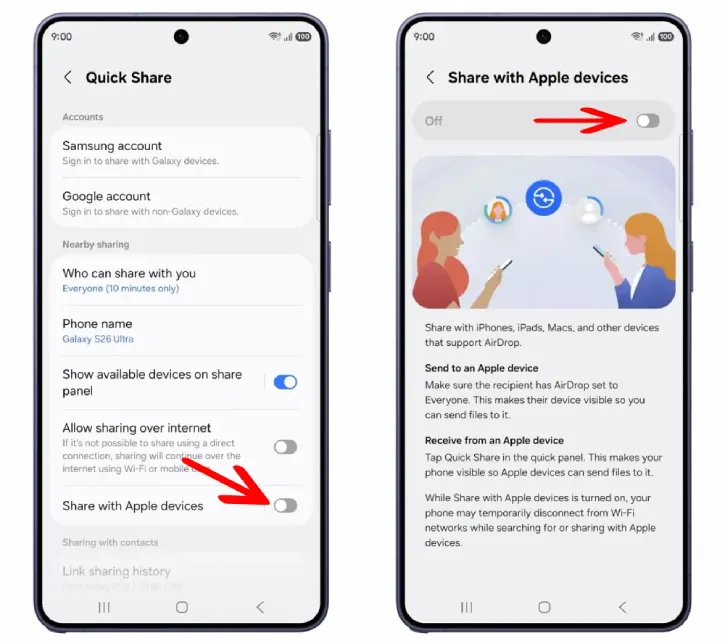
That’s it – your Galaxy device is now ready to share files with Apple devices.
How to Use AirDrop File Sharing on Samsung Galaxy
With the feature enabled, sending and receiving files between Samsung and Apple devices is straightforward.
Sending Files to an Apple Device
To share files from your Galaxy phone to an iPhone, iPad, or Mac:
- Select the files you want to send (photos, videos, documents, etc.) and tap Share
- Choose Quick Share, the compatible Apple device will appear in the list – tap on it
- Follow the on-screen instructions to complete the transfer
Important: The Apple device recipient must have AirDrop enabled and set to “Everyone” for their device to appear on your Galaxy phone.
Receiving Files from an Apple Device
To make your Galaxy phone visible for incoming files from iPhones, iPads, or Macs:
- Open the Quick Share quick panel (swipe down from the top of your screen)
- Tap Quick Share to activate it
- Your device will now appear on nearby Apple devices, and they can send files to you
Important Considerations and Limitations
Be aware of one potential side effect: While “Share with Apple Devices” is enabled, your phone may temporarily disconnect from Wi-Fi networks while searching for or connecting to Apple devices. This is a normal part of the discovery process and shouldn’t significantly impact your experience, but it’s worth knowing.
Additionally, this feature is currently available only in select regions and limited to Galaxy S26 series devices. If you don’t see the option in your Quick Share settings, it may not yet be available in your location or on your specific device model.
The Bottom Line
Samsung’s AirDrop support is a game-changer for mixed-device households. By breaking down the barriers between Android and iOS, Quick Share now offers a seamless, native way to share files across ecosystems- no third-party apps required.
If you’re part of a family or team that uses both Samsung and Apple devices, enabling this feature is highly recommended. The setup takes just minutes, and the convenience it brings to daily file sharing is well worth it.
Have you tried Samsung’s new AirDrop support yet? Let us know your experience in the comments below.


