Tag: Windows Commands

  • How to Enable Right-Click Menu in Windows Terminal/Command Prompt

    How to Enable Right-Click Menu in Windows Terminal/Command Prompt

    Windows Terminal/Command Prompt in Windows 11 don’t enable the right-click menu by default. However, you can activate this feature easily. This guide will show you how to enable and use the right-click menu in both applications.
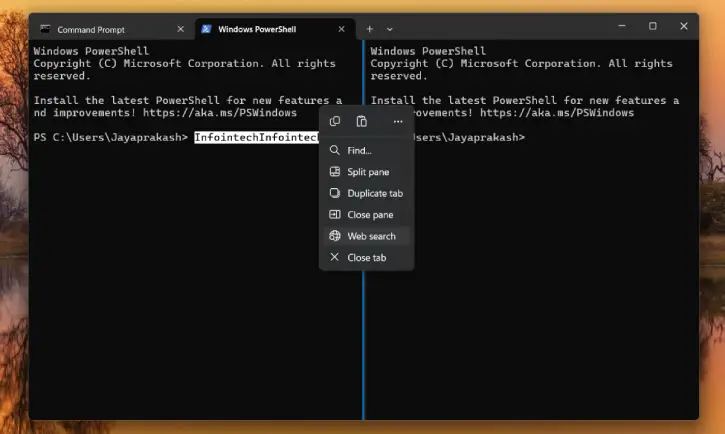
    Enable right-click menu in Windows Terminal

    The right-click menu in Windows Terminal/Command Prompt offers several options, including Split pane, Find, Web search, Duplicate pane, and Close tab. These features enhance usability, allowing for more efficient navigation and management of tasks within the applications.

    You can easily access various options in Windows Terminal/Command Prompt without having to right-click on the profile tab. Instead, you can use the right-click context menu for individual profiles or all profiles. Here’s a simple guide to help you through the process.

    How to Enable Right-Click Menu in Windows Terminal/Command Prompt

    1. Open Windows Terminal or Command Prompt on your Windows 11 PC.

    2. Click on the drop-down icon at the top and select Settings.

    3. In the right pane under the Profiles section, select Defaults (you can also select Windows PowerShell, Command Prompt, or Azure Cloud Shell to enable the right-click menu).

    4. In the right pane, select Advanced under the Additional settings section.
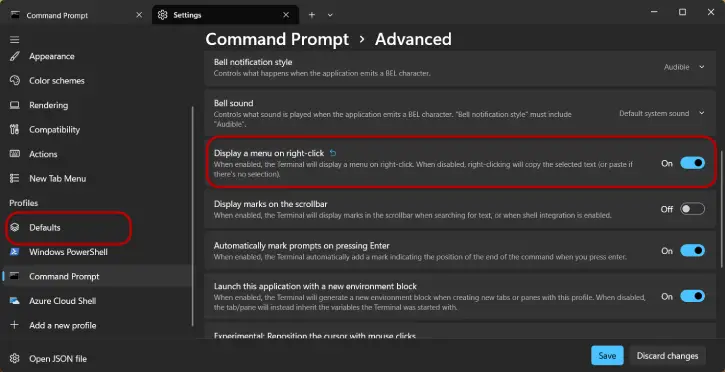
    How to Enable Right-Click Menu in Windows Terminal/Command Prompt

    5. Turn on the Display a menu on right-click option and press the Save button.

    After enabling the right-click menu in Windows Terminal or Command Prompt, you can easily copy and paste text directly, simplifying your workflow and enhancing efficiency in command-line tasks. Here is how to.

    How to Use Right-Click Menu in Windows Terminal/Command Prompt

    To display a menu when right-clicking on the split pane and profile window, options will differ depending on whether text is selected or not. If you right-click on a profile window under specific conditions, you’ll see different options:

    1. Right-clicking without text selection and in Split pane mode, you will get Find, Duplicate tab, Split pane and Close tab options.

    2. With text selection, you will get Duplicate tab, Split pane, Find, Close tab and Web search (starts a Bing search for the selected text in a new tab of your default browser) options.

    3. In Split pane mode, you will get, Swap pane, Split pane, Find, Duplicate tab, Toggle pane zoom (shows only the active profile), Close pane, Close other panes and Close tab options.

    Conclusion

    The right-click menu in Windows Terminal lets you do various things easily. It will enhance usability, allowing for more efficient navigation and management of tasks within the applications. To disable the right-click menu in Windows Terminal, open the Settings tab. Select Defaults, then go to Advanced, and turn off the Display a menu on right-click option.
  • How to Use Command Prompt to Clean Your Windows 11 PC

    How to Use Command Prompt to Clean Your Windows 11 PC

    If you enjoy using the Command Prompt to maintain your Windows 11 PC, you can easily execute commands to clean your system. This allows you to remove junk files, temporary files, prefetch files, and even defragment your hard drive. Windows 11 includes a built-in disk cleanup tool designed to clear system junk, temporary files, and other unnecessary items that consume resources and take up storage space. While accessing these tools is straightforward, Command Prompt enthusiasts may prefer to utilize these hidden features through CMD for a more streamlined experience.

    Use CMD to clean Windows PC

    Utilizing Command Prompt for maintenance tasks is perfect for users who prefer a command-line interface for a cleaner, faster Windows 11 experience. Here is how to do it.

    How to Use Command Prompt to Run Disk Cleanup Utility

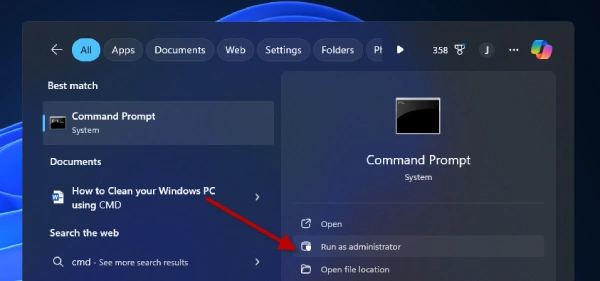
    1. First, open the Command Prompt as administrator.

    Open CMD as administrator

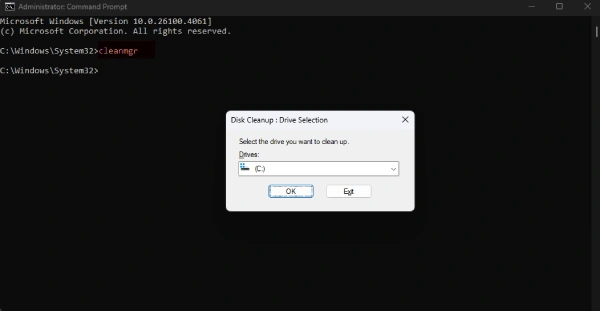
    2. Next type the command cleanmgr and press Enter button.

    Disk cleanup via CMD

    3. This will launch the Disk Cleanup utility. Select the drive you want to clean and click the Ok button.

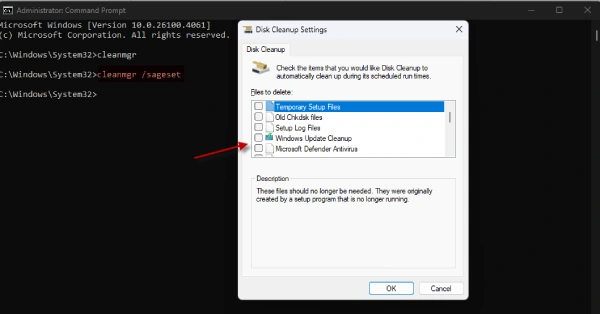
    4. If you wish to skip the drive selection pop-up, execute the command: cleanmgr /sageset

    Command to clean junk files

    [You need to select the files to delete after executing the above command]

    5. If you wish to delete files automatically, then execute the command: cleanmgr /sagerun

    6. The above command will automatically scan your drives and delete junk files from your PC.

    ALSO READ: Create Disk Cleanup Desktop Shortcut for Specific Drive on Windows 11

    How to Clear Temporary Files Using the Command Prompt?

    1. Open Command Prompt as administrator.

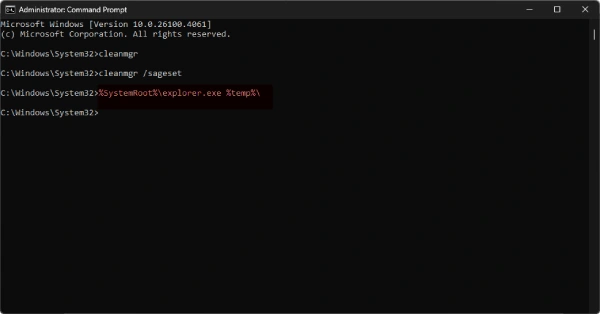
    2. Execute the given command: %SystemRoot%\explorer.exe %temp%\

    Command to clean temporary files in Windows 11

    3. You can use the CTRL + A function to select all files. Once selected, you can delete it.

    4. Or execute the command del %temp%*.* /s /q to delete all temporary files.

    How to Delete the Prefetch Files Using the Command Prompt

    1. Open Command Prompt as administrator.

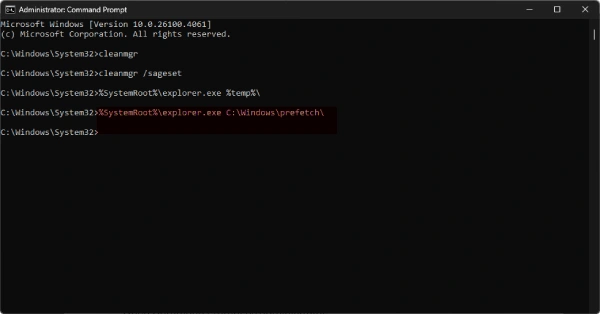
    2. Execute the command %SystemRoot%\explorer.exe C:\Windows\prefetch\

    Command to clean prefetch files in Windows 11

    3. Once done, execute this command to delete the Prefetch files: del C:\Windows\prefetch*.*/s/q

    ALSO READ: How to Safely Clean WinSxS on Windows to Reclaim SSD Space

    How to Defrag the Hard Disk via Command Prompt

    Important: Do not defrag SSD. Execute the command if your PC has HDD. For SSDs, TRIM is a command that tells the drive which data blocks are no longer in use, allowing it to erase them proactively. This advance erasing makes future writes faster and helps extend the SSD’s lifespan. Windows 11 automatically runs TRIM on SSDs by default, typically once a week, so you don’t need to manually optimize your drives using the Optimize Drives utility.

    1. Open Command Prompt as administrator.

    2. Type the command defrag c: and press Enter. [Change the drive letter if you want to defrag any other drive.]

    3. The Disk Defragment tool will scan the selected drive and defrag the drive.

    Conclusion:

    In summary, cleaning your Windows 11 PC via Command Prompt is an efficient way to remove junk files, temporary files, and prefetch data. By executing specific commands, you can optimize system performance and free up storage space. This method is ideal for users who prefer a command-line interface for maintenance tasks.