

Grok AI by X has launched a new feature that lets users quickly turn any photo into a video with sound. You can also share these videos on social media. This tool, called Imagine, is available to Android, iOS and desktop users, and you don’t need a subscription to use it.
If you love to turn your still images into short videos with sound using Grok AI, here’s how to do it. The best part is that Grok’s Imagine is free! You can use this feature as many times as you want to convert your images into videos.
How to Create Videos from Images for Free Using Grok AI?
1. To use this feature, you will need a X (Twitter) account or Google account, and link it with Grok AI.
2. Launch Grok AI on your Android device, iPhone, or access the web version at grok.com.
3. Select the Imagine tab, and either upload a picture or describe one in the ‘Type to Imagine’ box.
4. Next, choose from styles including Custom, Fun and Normal.
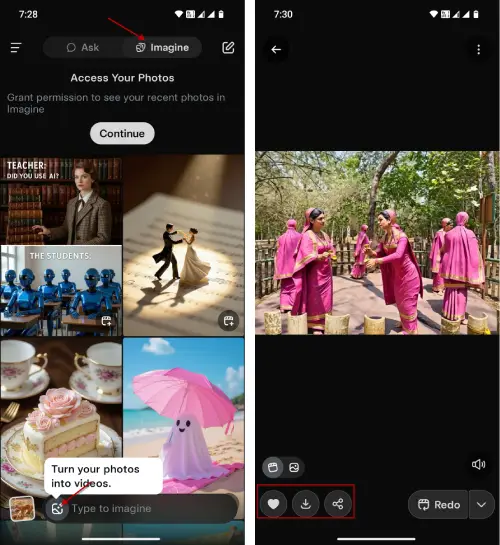
5. If you upload an image, Grok will automatically animate the still image with sound.
6. If you use the custom prompt, it will produce several image variations for you to choose from.
7. If you aren’t satisfied with the result, you can click the Redo option.
8. Once your video has been created, you can download or share the result.
That’s everything you need to know about converting your images into videos with Grok AI. This is a fantastic new feature that you should definitely take advantage of. However, you can’t generate videos unlimited times.
Conclusion
Grok AI’s Imagine helps users effortlessly transform any photo into a video with sound. The process is noticeably faster than rival AI video tools. For those who enjoy creating short videos from their still images, Imagine offers a free and unlimited way to do so. Users can easily share their videos on social media, making it a fun and engaging way to showcase their creativity.

