

One of the most resource-hungry applications in Windows is the web browser, and Microsoft Edge is one of them. Microsoft added Sleeping Tab and Efficiency Mode, which reduce CPU, RAM, and battery usage to enhance browser speed. Microsoft is now working on a new feature, dubbed Resource Control for Edge browser, to control and reduce the RAM (memory) usage on Windows computers.
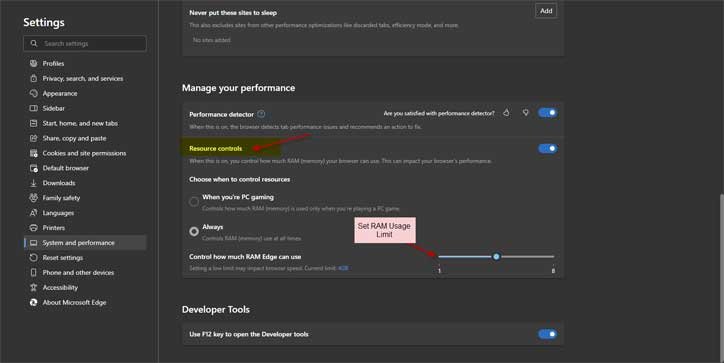
The Resource Control option (via Leopeva64) lets you manually set how much RAM (memory) your Edge browser can use. You can choose the memory from 1GB to the maximum RAM available on your PC. Here is how to enable the new Resource Control feature and try this experimental feature on your Windows 11 computer.
As said, Resource Control is an experimental feature, and you can try it on the latest Edge Canary build (I have tested it with Edge Canary version 125.0.2490.0).
How to Enable the RAM Control in Edge Browser?
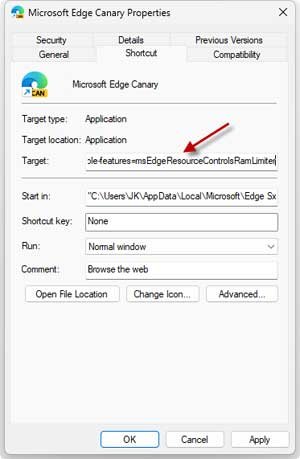
1. Right-click the Microsoft Edge shortcut on the desktop (Edge Canary build) and select Properties.
2. In the “Target” text field, add the following command line code after the “msedge.exe.”
–enable-features=msEdgeResourceControlsRamLimiter
3. Make sure there is a space between the “msedge.exe.”
4. Click OK to add the Resource Control option to the Edge browser.
How to Control and Limit Edge Browser RAM Usage Manually?
Once you add the above command, double-click the modified Edge shortcut to launch the browser. Go to Settings and select the System and Performance tab.
Under the Manage your Performance option, you will see the Resource Control with two options to limit RAM usage.
Turn on Resource Control, and for Choose When to control resources option, select When You’re Gaming or Always. Use the slider to set the RAM size (1GB to maximum).
The first option, “When You’re Gaming” automatically limits the browser’s memory usage when it detects you’re playing games, and the second option “Always” limits Edge’s RAM usage all the time.

