

Mobile browsers (such as Google Chrome and Microsoft Edge) position their address bars at the top of the screen like in their desktop version. However, when browsing in one-handed mode on your smartphone or tablet, having the address bar at the bottom is often more convenient, as it allows for easier access without the need to stretch your fingers.
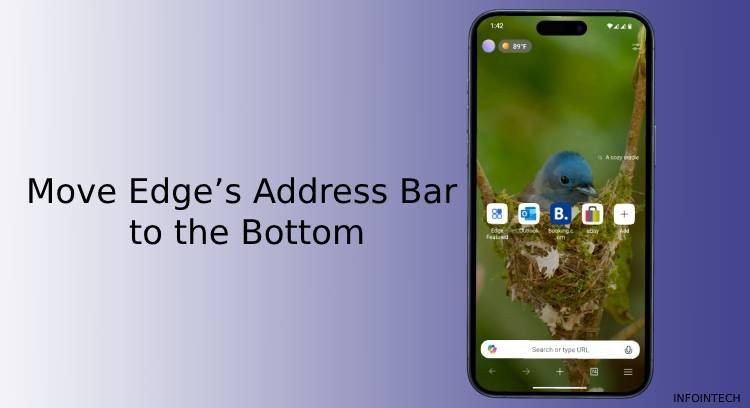
FYI, Firefox browser for Android has its address bar at the bottom, while the Safari browser on iPhones (but not on iPads) also places the address bar at the bottom.
Samsung’s Internet browser allows you to choose between the top and bottom positions. Unfortunately, the default Android browser, Chrome, still does not offer this feature.
In this guide, we will explain how to move Edge’s address bar to the bottom. If you’re using Microsoft Edge on your Android or iPhone, you can easily change the address bar’s position from the top to the bottom.
How to Move Edge’s Address Bar to the Bottom on Android and iOS
1. Launch the Edge browser on your phone, long tap the address bar, and select the ‘Move address bar to the bottom’ option.
2. If you don’t see that option, tap the three-line menu button in the bottom-right corner of the browser and choose Settings.
3. Then, select the Appearance and Layout option and tap Address bar.
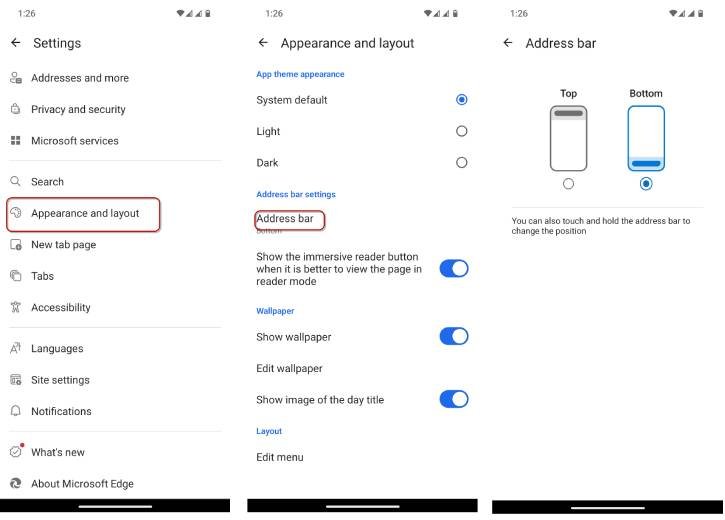
4. Choose Bottom to move it down. You can move it back to the top in the same way.
ALSO READ: How to Change the Default Search Engine in Microsoft Edge (Windows, Android, iOS)
For your information, the AI-powered browser, Microsoft Edge, available for Android and iOS, includes a variety of security and privacy features, built-in productivity tools, and support for extensions. Features such as tracking prevention, Microsoft Defender SmartScreen, AdBlock, InPrivate browsing, and InPrivate search provide enhanced privacy and security while you browse the web.

