

Vivaldi is a Chromium-based browser focused on privacy, featuring tracker blocking, an ad blocker, private browsing, a free VPN, and now supports custom DNS (Domain Name System) servers for enhanced security and speed.
This guide explains how to configure a custom DNS server in the Vivaldi browser, enhancing both the speed and security of your internet connection for a better browsing experience.
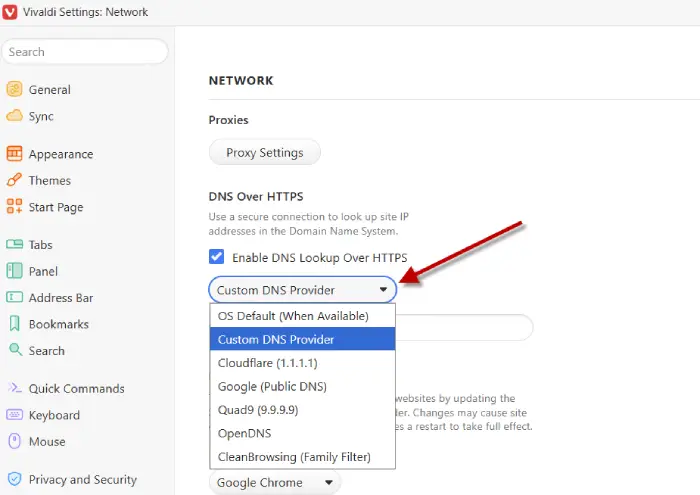
Vivaldi already has options for switching to Cloudflare, Google Public DNS and other well-known DNS servers. The new Custom DNS Provider option lets you set a custom DNS for your browser.
How to Change Your DNS Server in Vivaldi Browser?
1. Open the Vivaldi browser and click the menu button located at the bottom left of the window, or use the shortcut Ctrl + F12.
2. Choose Settings, then navigate to Network.
3. Click the dropdown menu next to DNS Over HTTPS and select Custom DNS Provider.
4. Enter the URL of your desired DNS server, ensuring to include the ‘https://’ prefix.
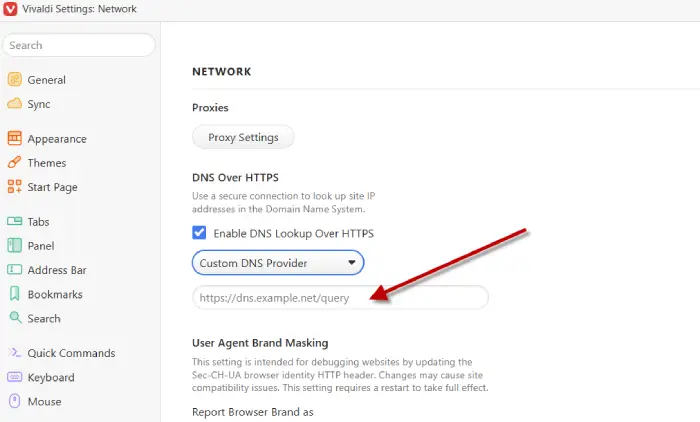
5. You are now set to browse the internet using your new custom DNS server.
What Are the Importance of Using a Custom DNS Server
Custom DNS (Domain Name System) services play a crucial role in how users access the internet. Here are some key reasons why they are important:
Speed and Performance: Custom DNS can often provide faster resolution times compared to default DNS servers provided by ISPs. This can lead to quicker loading times for websites.
Security: Many custom DNS services offer enhanced security features, such as protection against phishing attacks, malware, and other online threats. They can block access to malicious sites, providing an additional layer of security.
Privacy: Using a custom DNS can help protect user privacy by preventing ISPs from tracking browsing habits. Some DNS providers do not log user data, which can enhance privacy.
Content Filtering: Custom DNS services often allow users to filter content, blocking access to specific categories of websites (e.g., adult content, gambling, etc.). This is particularly useful for families or organizations.
Reliability: Custom DNS services typically have higher uptime and reliability compared to standard ISP DNS servers, which can be prone to outages.
Customization: Users can configure custom DNS settings to suit their needs, such as setting up specific DNS records for their domains or using DNS over HTTPS (DoH) for encrypted queries.
Conclusion
Using a custom DNS server can enhance internet speed, improve security, and enable content filtering. It allows users to bypass restrictions and access blocked sites, providing greater control over their browsing experience.

