

Apple’s macOS Tahoe features a fresh Liquid Glass design, introducing transparent elements that allow users to view layered content beneath. This innovative look enhances desktop icons, folders, the Dock, in-app navigation, menus, toolbars, the Control Center, and more.
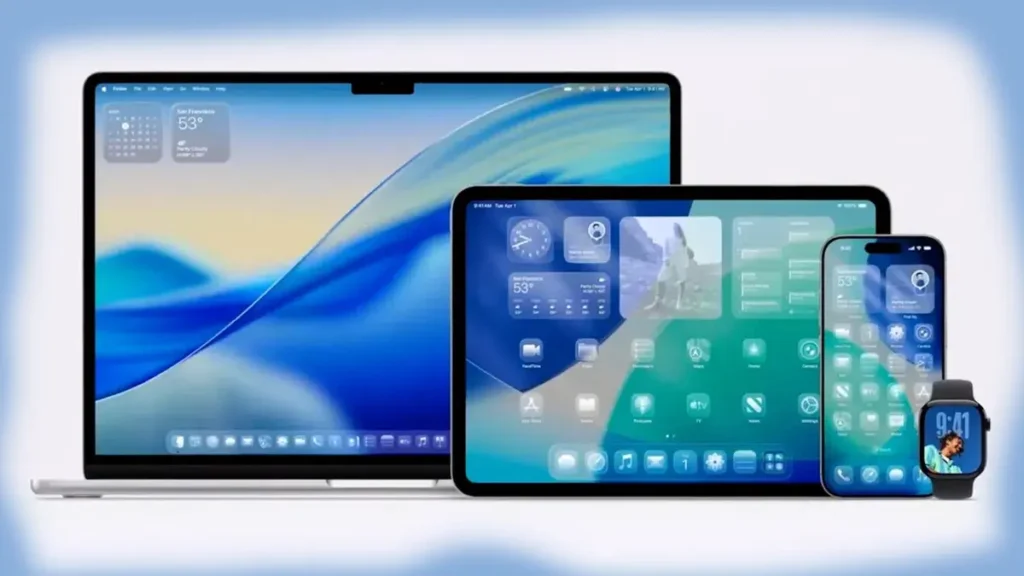
Some macOS users dislike the Liquid Glass design due to its transparency affecting visibility. Fortunately, there’s an option to reduce its effects, and in certain cases, completely turn it off for a more traditional and easier-to-see interface experience.
In this guide, we will learn how to disable the Liquid Glass effect in macOS Tahoe. You can reduce the transparency from the Accessibility settings. However, there are two alternative methods to completely turn off the effect.
Table of Contents
Method 1: Disable Liquid Glass in macOS Tahoe Using SolidGlass
SolidGlass is a lightweight application that allows users to disable the Liquid Glass effect globally or for specific apps. SolidGlass executes terminal commands to disable the Liquid Glass effect for individual apps or system-wide.
Although you can perform this manually through the terminal, SolidGlass simplifies the process with its intuitive interface and user-friendly features. Here is how to use this program to disable Liquid Glass effect.
1. Download SolidGlass application from GitHub (link) and install it on your device.
2. Launch the application.
3. Enable the “Disable Globally” option to turn off the Liquid Glass effect across the entire system.
4. Alternatively, select “Disable Liquid Glass” next to the specific app you wish to modify.
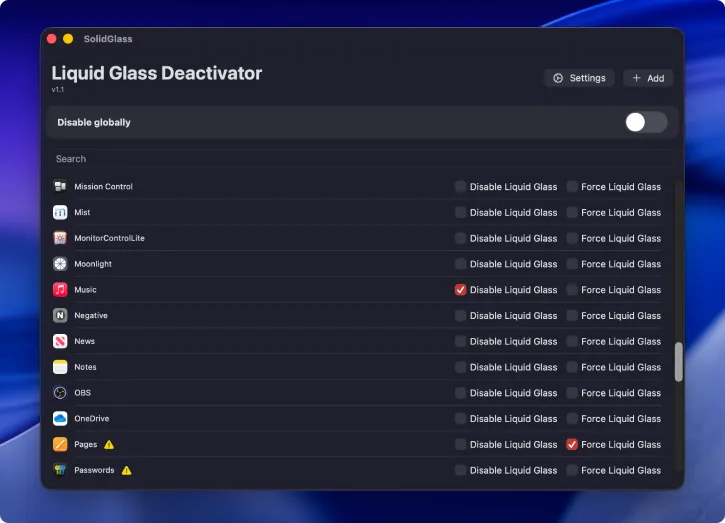
That is all how to disable Liquid Glass effect in macOS Tahoe using the SolidGlass application.
Method 2: Disable Liquid Glass in macOS Tahoe Via Terminal
1. First, launch Terminal on your macOS Tahoe.
2. In the command window, execute the below command:defaults write -g com.apple.SwiftUI.DisableSolarium -bool YES
3. The above command will disable Liquid Glass effect globally in macOS Tahoe.
These are two different methods to help you disable the Liquid Glass effect in macOS Tahoe. Which method did you decide to use?
Conclusion
Disabling Liquid Glass is not functioning in the newer versions of macOS Tahoe beta when using SolidGlass or Terminal commands. This issue might be due to a glitch in the beta version, changes made by Apple to how the disable command operates, or possibly its removal entirely. We’ll need to wait for the stable version to be released.

