

Samsung’s One UI 8.5 adds a useful new setting — Block apps with excessive ads — that stops apps from flooding your notification panel with promotional messages. By putting repeat offenders into deep‑sleep, this feature reduces distractions and keeps your lock screen and notification shade clean.
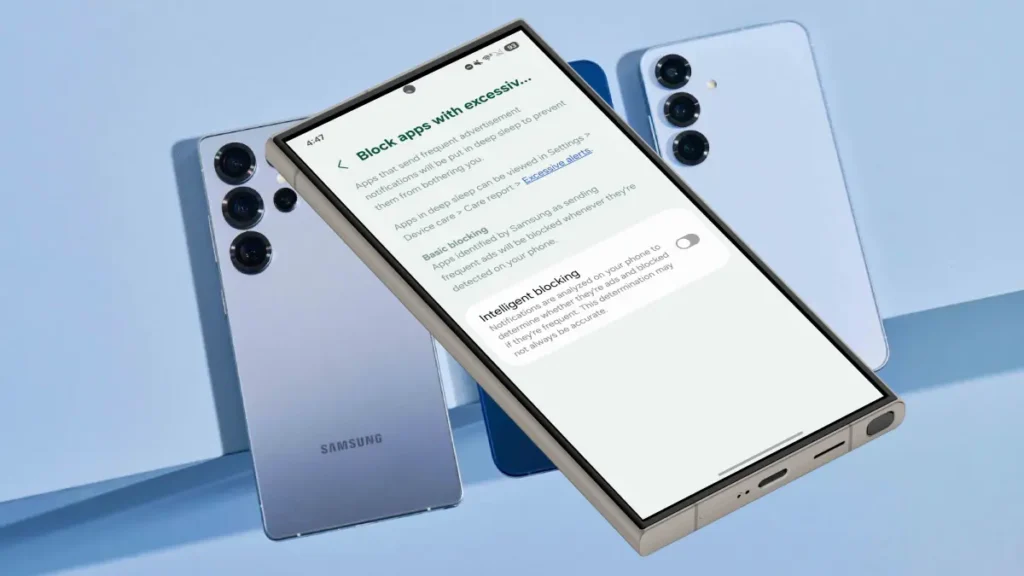
What the feature does?
- Blocks repeated ad notifications: Apps that send frequent promotional notifications are detected and prevented from delivering those ads.
- Deep‑sleeps offending apps: Affected apps are restricted so they no longer clutter your notifications.
Two protection modes:
- Basic: Samsung’s default, automatically blocks apps flagged for excessive ads.
- Intelligent blocking: Real‑time notification analysis for stronger ad suppression (may inspect notifications).
Which Samsung phones and when
Currently available in One UI 8.5 beta for Galaxy S25, S25+, and S25 Ultra. Expected in the public One UI 8.5 release (likely early 2026).
How to enable “Block apps with excessive ads” on One UI 8.5
1. Open the Settings app.
2. Tap Device care.
3. Tap the three‑dot menu (top right) → Settings.
4. Tap Block apps with excessive ads.
5. Turn on Intelligent blocking for the strongest protection (or leave Basic enabled for automatic blocking without real‑time analysis).

Quick guidance on choosing a mode
Choose Basic if you prefer automatic blocking without Samsung analyzing your notifications.
Choose Intelligent blocking if you want the fewest ad notifications and are comfortable with real‑time analysis.
Tips to reduce notification ads further
- Review app notification settings and disable promotional channels.
- Uninstall or disable apps that consistently push ads.
- Keep One UI updated to receive improvements to ad detection.
- Enable this feature to reclaim a cleaner notification panel and fewer interruptions from ad-filled alerts.
Conclusion
Samsung’s One UI 8.5’s “Block apps with excessive ads” feature can effectively reduce intrusive advertisement notifications. This smart solution allows Android users to manage unwanted distractions, enhancing focus and productivity by putting bothersome apps into deep-sleep mode.

