

YouTube’s Auto Speed is an experimental feature that automatically adjusts video playback speed to help you watch content faster without losing comprehension. Instead of manually selecting a faster speed like 1.25x or 1.5x, the feature intelligently adapts the playback speed in real time based on the video’s content and pacing. In this guide, let us learn how to enable and use the “Auto Speed” feature in YouTube for Android and iOS.
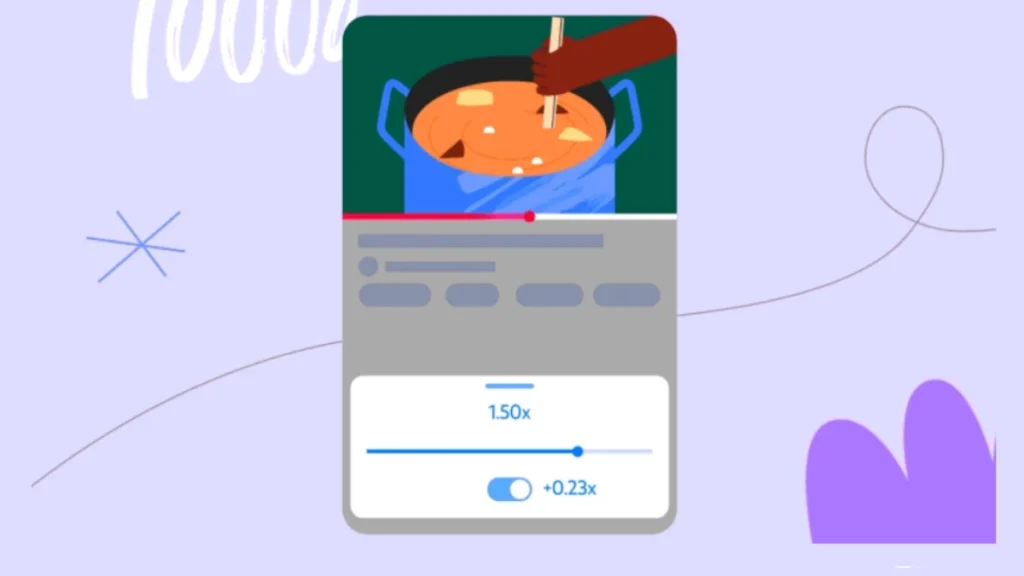
This feature is particularly useful if you’re someone who already watches videos at faster speeds but wants a hands-off approach. YouTube’s algorithm ensures the speed adjustments don’t sacrifice understanding, making it ideal for educational content, tutorials, podcasts, and long-form videos where you want to save time without missing important information.
How to Enable YouTube Auto Speed Feature
Auto Speed is currently available exclusively to YouTube Premium subscribers on iOS and Android devices. The feature is limited to select videos in English and will only be available for testing until April 27, 2026.
Follow these simple steps to activate Auto Speed:
1. Open the YouTube app on your iOS or Android device and ensure you’re signed into your YouTube Premium account.
2. Go to Settings by tapping your profile picture in the top right corner of the home screen.
3. Select “Try experimental new features” from the menu options.
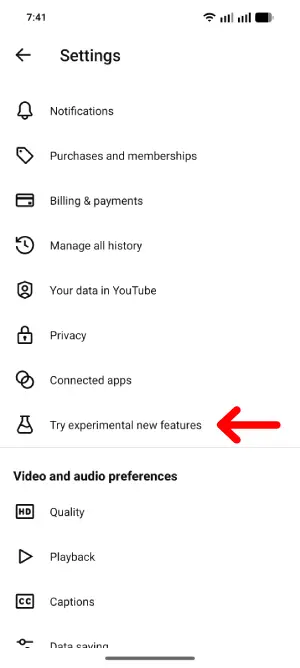
4. Find and enable Auto Speed in the experimental features list.
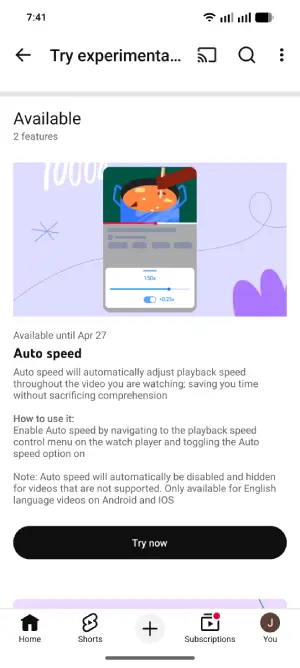
5. Next, open any supported video in your YouTube feed or search results.
6. Tap the playback speed control icon (usually located in the top right corner of the video player during playback).
7. Select “Auto speed” from the speed options menu.
8. Let the feature work automatically as you watch—it will adjust playback speed throughout the video without any additional input from you.
Before you start using Auto Speed, understand these key limitations: This feature is only available in Android and iOS (not available on web or smart TVs). Also, it requires YouTube Premium subscription and currently available supported English videos only. Note that this experimental feature will available until April 27, 2026.
If Auto Speed isn’t available for a specific video, the option will be automatically hidden when you open the playback speed menu. This typically happens with videos that have complex dialogue, music, or fast-paced content where automatic speed adjustment might impact comprehension.
ALSO READ: How to Stop YouTube’s AI Auto-Dub and Watch Videos in the Original Language
Why Use Auto Speed?
If you’re someone who already watches videos at faster speeds, Auto Speed offers several advantages:
- Saves time without requiring constant manual adjustments
- Maintains comprehension through intelligent algorithms that respect content pacing
- Perfect for multitasking while catching up on long videos, podcasts, or educational content
- Reduces decision fatigue by automating speed selection
- For viewers who typically watch at 1.2x or 1.5x speed, Auto Speed might push playback even faster during slower sections of videos, though YouTube ensures you won’t miss important information.
YouTube’s Other Experimental Feature: On-the-Go
While you’re exploring experimental features, YouTube is also testing an “On-the-go” feature exclusively on Android devices. As reported by Phonearena, this feature provides listener-friendly controls optimized for multitasking, with automatic activation when the app detects motion for at least 60 seconds.
Android users can enable On-the-Go manually through player settings or let it activate automatically. Like Auto Speed, this feature is available for testing until April 27, 2026.
Conclusion
Auto Speed represents YouTube’s commitment to helping Premium subscribers save time while maintaining video comprehension. If you’re already a speed-watcher or frequently consume long-form content, this experimental feature is worth testing before it potentially becomes a permanent addition to the platform.
Enable it today in your experimental features settings and experience smarter video playback on your next viewing session.

