

Can Google Sheets be password protected? The short answer is Yes, but not in the way most people expect. Google Sheets does not have a native “Enter a password to open the file” feature like in Microsoft Excel. Instead, it uses identity-based sharing controls – you share with specific people or groups, not with a passphrase.
However, there are multiple ways to add password-style protection for Google Sheets through other methods. This article covers all the available methods to password protect or make it view only Sheets datasets.
What is “Password Protection” Actually Means for Google Sheets
Before get into solutions, it’s important to distinguish between the edit protect and access protection in Google Sheets:
| FEATURES | EDIT PROTECTION | ACCESS PROTECTION |
| What it does | Prevents editing of specific cells or sheets | Prevents viewing the entire spreadsheet |
| Google Sheets native? | Yes (Data > Protect sheets and ranges) | Partially (sharing controls only) |
| Password-based? | No (identity-based: specific people) | No (identity-based: specific people) |
| Use case | Protects formulas and structure | Protects confidential data from unauthorized eyes |
| Limitation | Does not prevent viewing or copying | No file-level password gate; no view tracking |
ALSO READ: 2 Methods to Copy Data From View Only Google Sheets File
For real access protection with a true password gate, you need to export your file or use a third-party tool – native Google Sheets controls only offer identity-based access, not password-based gating.
4 Methods to Password Protect Google Sheets
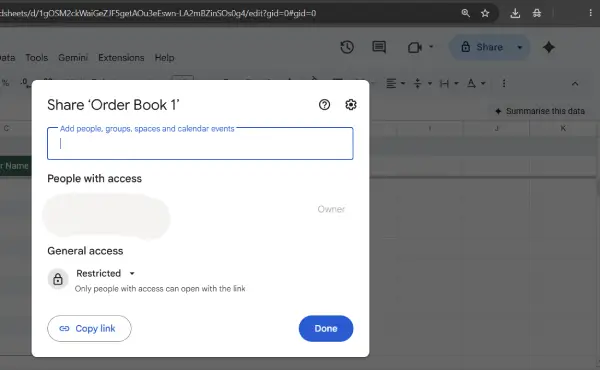
Method 1: Share with Restricted Access (Identity-Based)
This is the most fundamental protection in Google Sheets:
- Click Share in the top-right corner
- Under General access, select Restricted
- Add specific people or groups by name or email
- Assign roles: Editor, Commenter, or Viewer
- Click Share
- Pros: Simple, built-in, AES-256 encryption at rest
- Cons: Identity-based only; no password gate; requires recipients to have Google accounts
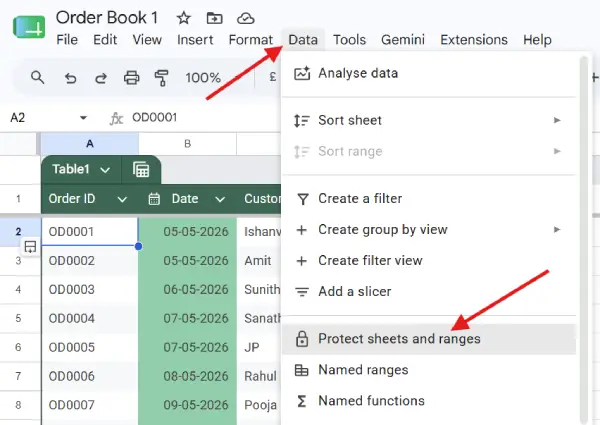
Method 2: Protect Sheets and Ranges (Edit Lock)
This prevents editing but allows viewing:
- Open your Google Sheet
- Click Data > Protect sheets and ranges
- Select Range or Sheet
- Define which cells or the entire sheet to protect
- Click Add a sheet or range
- Choose who can edit (specific people or everyone except editors)
- Click Done
- Pros: Built-in, prevents accidental changes
- Cons: Does not prevent viewing or copying; not a security feature, just a warning system
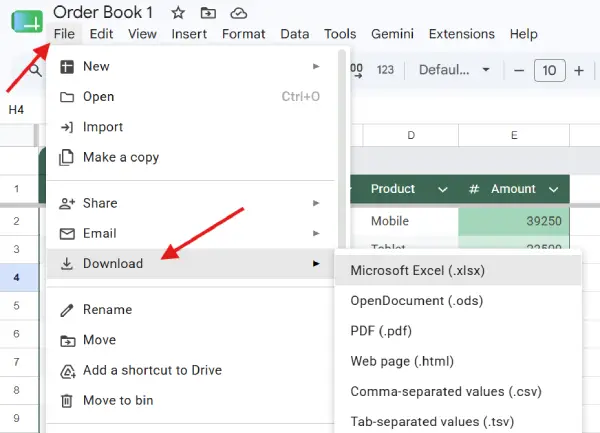
Method 3: Export to Excel and Add Password Protection
Since Excel has native password features, you can export and secure:
- Click File > Download > Microsoft Excel (.xlsx)
- Open the Excel file locally
- Click File > Info > Protect Workbook > Encrypt with Password
- Enter your password and confirm
- Save and distribute
- Pros: True password gate using AES-256 encryption; file cannot be opened without password
- Cons: Creates a separate copy; requires users to work in Excel, not Sheets; loses cloud collaboration
Method 4: Export to PDF with Password
For read-only distribution:
- Click File > Download > PDF Document (.pdf)
- Use a PDF encryption tool to add password protection
- Share the locked PDF
- Pros: Read-only; prevents editing
- Cons: No cloud editing; cannot be modified; less functional than spreadsheet format
Comparing Google Sheets and Excel Password Protection
| Features | Google Sheets | Microsoft Excel |
| File-level password to open | ❌ No native option | ✅ Yes (AES-256 encryption) |
| File-level password to edit | ❌ No native option | ✅ Yes (separate password) |
| Encryption strength | AES-256 (at rest, Google-managed) | AES-256 (Office 2016+, user-managed) |
| Workbook/file protection | Identity-based sharing only | Password-based with encryption |
| Worksheet protection | Edit ranges only | Lock sheets + cells + formulas |
| Cloud collaboration | ✅ Native | ❌ Limited (web version available) |
| Identity-based sharing | ✅ Strong | ❌ Requires third-party solutions |
| Easy to use | ✅ Yes | ✅ Yes (file > info > encrypt) |
| Can prevent copying? | ❌ No | ❌ No (worksheet protection can be removed) |
Key Differences Explained
Excel’s Advantage: Excel offers true encryption. You can set a password that must be entered before the file can even be opened. Modern Excel (2016+) uses 256-bit AES encryption, making it extremely difficult to crack. Once the password is provided, users can access and modify the file.
Google Sheets’ Advantage: Google Sheets excels at collaborative, identity-based access control. You can give different permission levels to different people in real time without requiring passwords. All data is encrypted at rest on Google’s servers, and you maintain granular control over who can see what.
The Trade-Off: If you need a simple password-protected file that prevents anyone without the password from even opening it, Excel is the simpler choice. If you need real-time collaboration with multiple people having different access levels, Google Sheets is superior — but it requires managing identities, not passwords.
FAQ: Google Sheets and Password Protection
Q1: Why doesn’t Google Sheets have native password protection?
A: Google’s design philosophy prioritizes identity-based security over password-based security. This approach is arguably more secure for team collaboration because:
Q2: Can I set a password so others need it to view my Google Sheet?
A: Not directly through Google Sheets. However, you can use third-party tools for password gates to shared links or export to Excel or PDF and add password protection to the file.
Q3: If I protect a Google Sheet from editing, is it secure?
A: No. Sheet and range protection in Google Sheets is not a security feature — it’s a convenience feature to prevent accidental edits.
Q4: Which is more secure: Google Sheets or Excel?
A: It depends on your use case
Q5: What’s the best way to securely share a Google Sheet externally?
A: Use this sequence:
- Set sharing to Restricted (not “Anyone with the link”)
- Add only specific email addresses
- Grant the minimum necessary permission (Viewer, not Editor)
- Disable “Editors can change permissions” checkbox to prevent re-sharing
- Communicate the password out-of-band if you’re using a third-party password gate
- Set an expiration date if the document is time-sensitive
- Revoke access immediately when the project ends
Q6: Can I password protect a specific sheet within my workbook?
A: In Google Sheets: You can protect a specific sheet from editing (Data → Protect sheets and ranges → Sheet), but this is not password-based; it’s identity-based.
In Excel: Yes, you can password-protect individual worksheets independently, allowing different worksheets to have different protection levels.
Q7: What should I do if I forget my Excel file password?
A: Unfortunately, Microsoft cannot retrieve lost passwords. Your options are limited:
Q8: Is sheet protection (cell locking) easy to bypass?
A: Yes. While modern Excel encryption for file-level passwords is robust, worksheet-level protection is weak.
Final Though
Google Sheets cannot be password protected in the traditional sense — there is no “enter a password to open” feature built in. Instead, Google Sheets offers identity-based sharing controls that are arguably more secure for team collaboration but don’t provide a password gate for external sharing.

