

If you’ve ever spent an afternoon manually re-filtering the same spreadsheet because new data came in, you’ll love dynamic filters. Like in Excel, Google Sheets features dynamic filters, and the way of using both is the same. Once you set it up, it will automatically update your filtered views as your data changes, without you lifting a finger.
Think of dynamic filters as the smart cousin of regular filtering. Instead of manually clicking through menus every time something updates, you set up a formula that does the heavy lifting for you.
Table of Contents
Why You’ll Actually Want to Use This
Dynamic filters shine when you’re working with data that’s constantly shifting. If you’re tracking sales figures, monitoring inventory levels, or keeping tabs on employee metrics, dynamic filters are your friend. Rather than spending time re-filtering the same data over and over, you can create a report that’s always showing the latest picture — no extra effort required.
Getting Started: How to Use Dynamic Filters in Sheets
The magic happens with this syntax:
=FILTER(data_range, condition_range_1 = criteria_cell_1, condition_range_2 = criteria_cell_2)
Honestly, it’s simpler than it looks. Let me walk you through a real example using sales data.
Step-by-Step Example
Step 1: Pick a cell where you want your filtered results to appear, and type =FILTER
Step 2: Select your main data range (let’s say A3:E10 in a sales spreadsheet)
Step 3: Choose the column you want to filter by (for instance, D3:D10)
Step 4: Reference the cell containing your filter criteria (like C12)
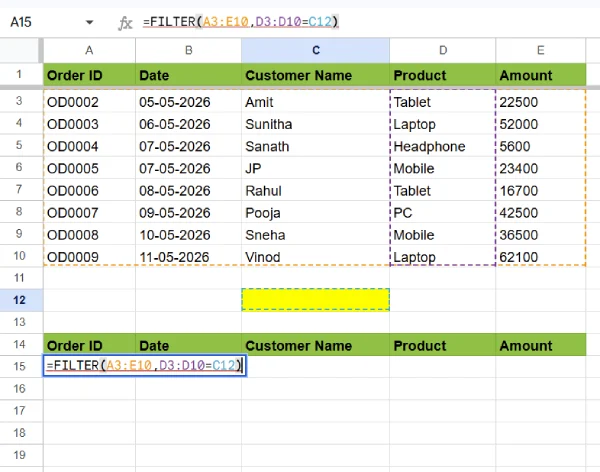
Step 5: Your complete formula looks like this:
=FILTER(A3:E10,D3:D10=C12)
Step 6: Hit Enter — and boom. Your filtered data appears instantly.
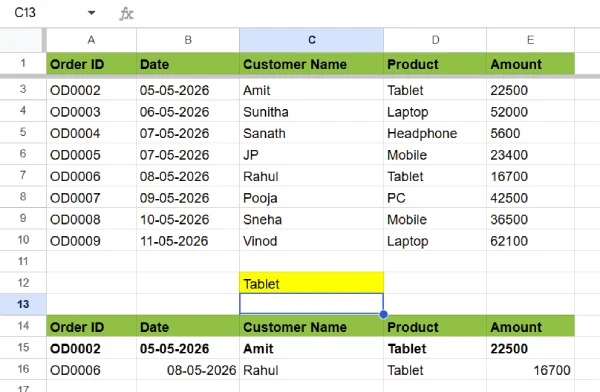
The really cool part? The moment you update that criteria cell or add new rows to your main dataset, the filtered view updates automatically. No re-filtering needed.
ALSO READ: ChatGPT Prompts for Business Dashboards in Google Sheets
Frequently Asked Questions
1. Can I use multiple filters at once?
Yes! You can chain conditions together in your FILTER formula. Just add another condition: =FILTER(A3:E10, D3:D10=C12, E3:E10=C13). This filters by two criteria simultaneously.
2. What happens if my criteria cell is empty?
The formula will either show all data (if you’re using =) or return an error, depending on your setup. To avoid this, you might want to use an IF statement to handle empty criteria cells gracefully.
3. Can I filter text as well as numbers?
Absolutely. Dynamic filters work with text, numbers, dates — basically any data type in Sheets. The syntax stays the same.
4. Will this slow down my spreadsheet?
Not significantly. FILTER formulas are pretty lightweight, even with large datasets. However, if you’re running dozens of complex filters on a massive spreadsheet, you might notice slight delays.
5. How is this different from regular filtering?
Regular filters are manual — you click the filter button and select what you want to see. Dynamic filters are formula-based and update automatically. Perfect for dashboards and reports you share with others.
What Else You Should Know
Multiple Criteria: You can stack as many conditions as you need. Want to show only sales from the West region that exceeded $10,000? Build your formula to include both conditions.
Combining with Other Functions: Power users often pair FILTER with functions like SUM, COUNT, or VLOOKUP to create dynamic dashboards. This gets advanced quickly, but the possibilities are endless.
Performance Considerations: If you’re filtering a dataset with thousands of rows, Google Sheets handles it fine. Just avoid nesting too many FILTER formulas on top of each other — that’s where performance can dip.
Mobile Viewing: Dynamic filters work seamlessly on mobile too, so your team gets up-to-date data whether they’re on desktop or phone.
Conclusion
Dynamic filters transform how you work with data in Google Sheets. Instead of being chained to manual updates, you get reports that evolve with your data. It’s a small feature that saves enormous amounts of time once you get the hang of it.
Whether you’re managing sales pipelines, tracking inventory, or monitoring team performance, dynamic filters are worth adding to your Sheets toolkit. Set it once, and let it work for you.

